
Each time you pay your employees, you will submit a Full Payment Submission (FPS) to HMRC. An FPS is to be sent on or before each payday, and informs HMRC about the payments and deductions for each employee. BrightPay will automatically create an FPS each time you finalise one or more payslips.
An FPS contains:
-
employer registration details (PAYE Reference, Accounts Office Reference, etc.)
-
personal identifiable details for each employee (name, address, NINO, date of birth, gender, etc.)
-
employment details for each employee (directorship, starter information, leaver information, etc.)
-
year to date figures for each employee (tax, NICs, etc.)
- figures for the relevant period for each employee (payment date, gross pay, deductions, etc.)
Submitting an FPS to HMRC
To submit an FPS to HMRC, first finalise your payslips within ‘Payroll’ for the pay period in question. An FPS will be automatically created within the RTI utility, ready for submission to HMRC.
1) Click the RTI tab heading and select the FPS from the listing:
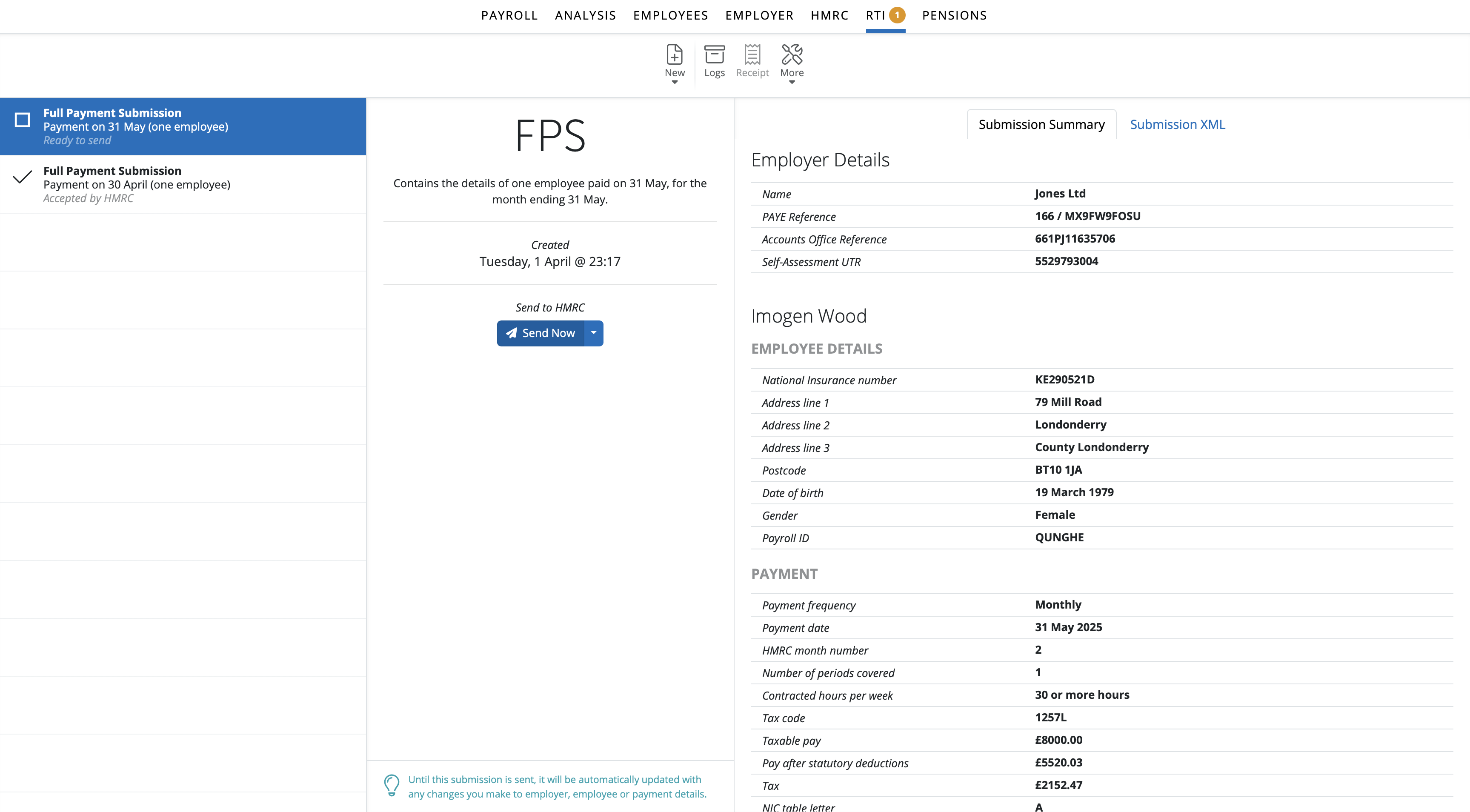
2) The contents of the FPS will be displayed on screen. The submission summary and the submission xml are visible to view.
3) When ready to submit the FPS to HMRC, click Send Now.
4) Confirmation details will subsequently appear on screen to indicate that your submission has been accepted by HMRC.
5) Should your submission fail, simply click on 'Details' for more information on why your submission has been rejected by HMRC and amend your payroll where required.
Upon a successful RTI submission, HMRC will return an IR mark to the software - this is a HMRC generated number and not created by BrightPay. To find the IR mark for any submission, click on the FPS within the RTI utility > More spanner > View HMRC submission receipt.
What If The Information You Send In An FPS Is Incorrect?
Having submitted an FPS, should you subsequently need to amend pay details etc. for one or more employees, simply 'Re-open Payslips' within 'Payroll' for the employee(s) in question and amend their payslip(s) as required. Finalise your payslips again.
Points to note:
After re-finalising the payslips, if the employee's pay date matches the pay date that was included in the original FPS, an amended FPS will not be created. Instead, the amendments made to the employee's payslip will be included in the next FPS created when the payroll is next updated, where the employee's year to date figures will be reconciled.
Alternatively, an Additional FPS can be submitted to HMRC to inform them of the updated year to date figures for the employee. An Additional FPS can be prepared and submitted to HMRC within the RTI menu.
If a different pay date is used on the employee's payslip, a new FPS will be created - please note submitting a new FPS using a different pay date may cause reconciliation issues with HMRC.
If the submission appears in stuck in the 'sending to HMRC' status, click on Cancel and then refresh the browser and then try to submit again. If you have received a confirmation email from HMRC that the submission was submitted successfully, you can clear it by clicking on 'More' > mark as sent and accepted by HMRC.
Zero Pay Periods
If no employees are paid in a particular pay period, a nil FPS will be created when the zero payslips are finalised. There is no requirement to submit this nil FPS to HMRC. Instead this can simply be marked as 'sent' in BrightPay.
To mark an FPS as sent in BrightPay:
1) Click the RTI tab heading and select the FPS from the listing
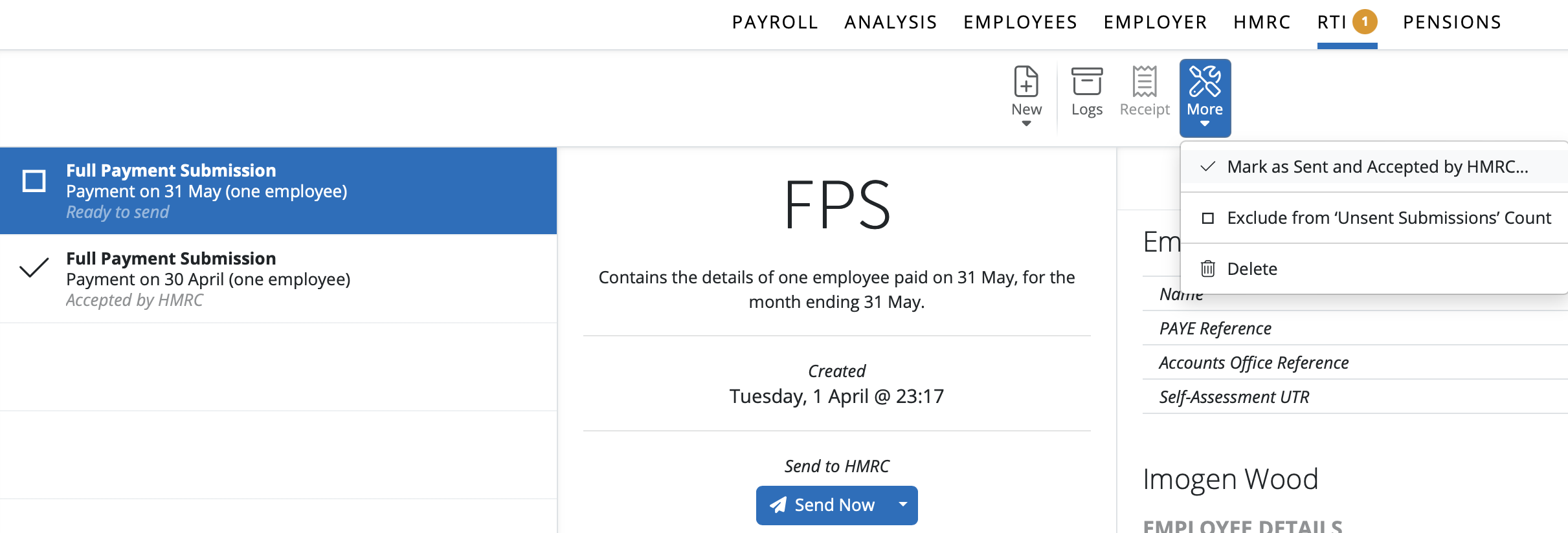
2) Click the 'More' button on the menu toolbar and select 'Mark as Sent and Accepted by HMRC'
Select Yes to the question 'Are you sure you want to mark this submission as being already sent and accepted by HMRC'
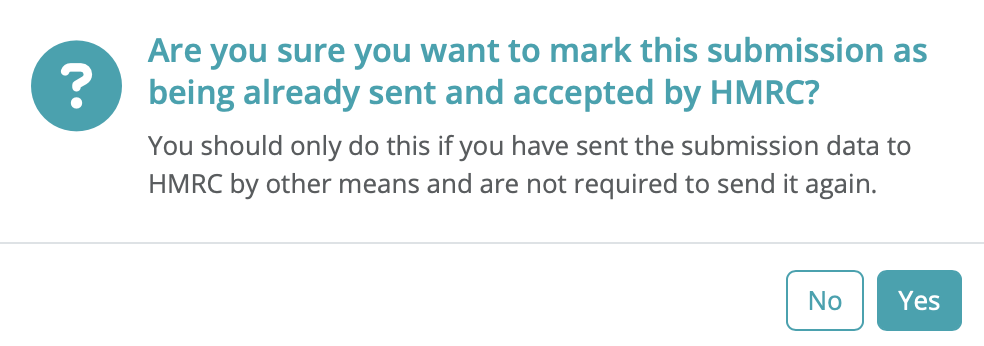
This will flag the FPS as sent on BrightPay but the FPS file will not be submitted to HMRC.
To Print, Email or download a PDF or XML version of RTI submissions.
BrightPay allows you to export FPS files in several ways:
1. Click on the RTI tab, then select the FPS you wish to download.
2. Click on Export or Share, then select Export or Share PDF.
3. From the options that appear, you can choose to Email, Download, or Print.
4. Once done, click the X to close the window.
To download the FPS XML file:
1. Go to the RTI tab, select FPS, then Submission XML.
2. Click on Export or Share, then choose Download XML.
The XML file will be saved to your default downloads folder.
To print or export the full FPS summary, open the FPS in the RTI section and look for the Export, Share, or Print buttons on the summary screen. You can print the whole summary directly from here—there’s no need to use the Submission XML tab unless you require the raw XML data specifically.
IMPORTANT: If there are no payments in the current or earlier/historical tax periods for which there will be no FPS(s) submitted, then this must be communicated to HMRC via the Employer Payment Summary (EPS). This is indicated using the 'No Payment For Period' indicator on the EPS.
Alternatively, zero pay tax periods can be communicated in advance to HMRC by using the 'Period of Inactivity' indicator on the Employer Payment Summary (EPS).
For assistance with preparing and submitting an EPS, please see here.
Note: It is possible to submit a negative figure on the FPS without issue; ie if the employee owes the employer money resulting in a negative take home pay for which the employee will repay. However, whilst negative figures for 1 period can be accepted by HMRC, a negative YTD figure will result in a failed / rejected submission. HMRC will not accept negative YTD amounts.
FAQs - RTI Submissions
Q. My RTI (FPS) submission is showing as “Pending” (spinning) in BrightPay, but I received an email saying it was accepted. What should I do?
A. Sometimes HM Revenue & Customs may experience processing delays. In these cases, HMRC can accept your RTI submission but may not immediately send the confirmation receipt back to BrightPay. This can cause the submission to appear as “Pending.”
If you have confirmation that HMRC accepted the submission, you can update the status manually:
Go to the RTI tab.
Select the FPS submission.
Click More.
Choose “Mark as Sent and Accepted by HMRC…”.
Only use this option if you are certain HMRC has received and accepted the submission.
Q. Can I see which payroll user sent the RTI submission to HMRC?
A. There is no user specific audit trail or a way to see which payroll processor submitted RTIs (FPS/EPS) to HMRC. The information that is available is the date and time that the RTI was created and the date / time it was submitted to HMRC.
Q. Why is the time stamp on the FPS / EPS showing as 1 hour behind the time it was sent?
A. HMRC servers do not move the time forward in line with British Summer Time, meaning that from the end of March to end of October the time stamp showing for creation & sent submissions may show as 1 hour behind. HMRC servers are set to UTC (Coordinated Universal Time) and do not change throughout the year.
Comments
0 comments
Article is closed for comments.