
Adding an Addition to an Employee's Payslip
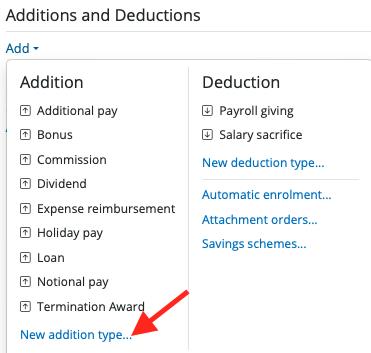
To enter an addition on the employee's payslip, click on the ‘Add’ button within the ‘Additions & Deductions’ section.
If applicable, select a preset addition from the list and enter the desired amount. To add a further addition repeat this process.
If you wish to add an addition which is not available in the preset list, simply choose ‘New Addition Type’. Set up your addition as required, choosing the criteria that is to apply.
Should you wish to edit any additions you have set up, simply click the ‘Edit’ button.
When adding or editing an addition type on the payslip, the default settings will apply. You can then adjust these settings to:
- apply to this period only
- repeat until removed
- repeat up to a specific date
- repeat until a total amount has been paid
If you choose either the date or total amount options, you will be prompted to enter the relevant information.
If you wish to re-order any additions you have set up, an ‘Ordering’ function is also available here. Select 'More' to move the pay element up or down in order.
When adding an addition type to the payslip, the default settings will apply. Once a total amount has been entered and the payment added to the payslip, you can view the total paid to date and the remaining balance by clicking the spanner icon to the right of the description.
Adding a Deduction to an Employee's Payslip
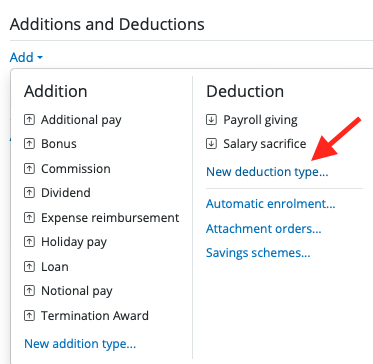
To enter a deduction on the employee's payslip, click on the ‘Add’ button within the ‘Additions & Deductions’ section.
Select a preset option from the list or choose ‘New Deduction Type’ to set up a deduction of your own.
Should you wish to edit any deductions you have set up, click the ‘spanner’ icon opposite the applicable deduction.
When setting up a deduction type within the Employer tab, there are three usage options:
- include in the period it is added to only
- repeat until removed
- repeat each period until a total amount is reached
These can be set as default settings, but can also be adjusted when adding the deduction to an employee’s payslip.
In addition, if you wish to re-order any deductions you have set up, simply use the ‘Ordering’ facility provided. Select 'More' to move the pay element up or down in order.
When adding a deduction type to the payslip, the default settings will apply. Once a total amount has been entered and the deduction added to the payslip, you can view the total deducted to date and the remaining balance by clicking the spanner icon to the right of the description.
BrightPay has preprogrammed addition types, such as Bonus, Commission, Holiday Pay, etc - if you wish to add a new addition type ie Tips, follow the instructions above to add as many new addition types under the Employer tab as required. They can then be added to the payslip under the 'Additions and Deductions' section.
If you are using holiday pay addition type as a percentage on a periodic basis and wish to exclude a taxable addition or deduction from the holiday pay calculation, you would need to change the calculation basis to '% of basic pay' - this will only include pay elements under the 'Pay and Benefits' section and not other elements which contribute to the overall gross pay.
To add a non-taxable (NET) addition to a payslip for items such as subsistence, uniform or expenses an employee has paid out of their own pocket, add the addition to the payslip and ensure the 'Tax, NIC, pension can be deducted' fields are unticked. To check this click on the spanner icon on the addition line and make sure those fields are disabled. A net addition should not add to the employee's taxable, NICable or pensionable gross in anyway - it is an addition after all statutory deductions have been calculated.
Comments
0 comments
Article is closed for comments.