
To pay an employee in advance, a 'pre-pay' option is available within the 'Payroll' utility of BrightPay.
This facility can be used when an employee is being paid in advance for reasons such as annual leave or double pay over the Christmas shutdown period.
1) Within the current open pay period, click 'More' on the menu toolbar, followed by 'Pre-Pay Following Period in this Period'.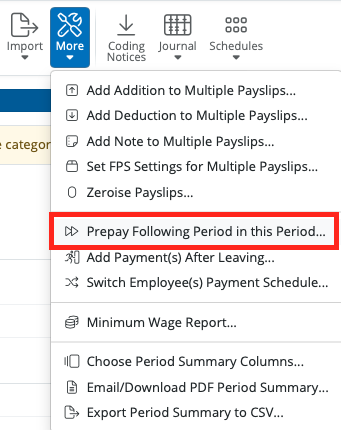
2) Select the employee(s) you wish to pay in advance and click 'OK'.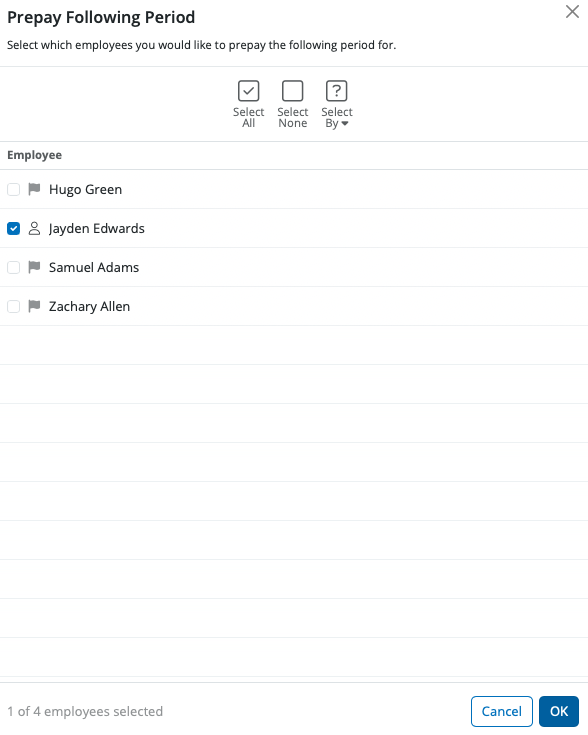
3) In the current open pay period, click the on screen alert > Options 'Go to Prepaid Week/Fortnight/Month/4-Week/Quarter'.
When prepay for a future period has been included in a payslip, you will see a light blue banner at the top of the payslip stating: 'Prepaying payslip. The payment for this week / month etc includes amounts up to [date of next pay period end]'
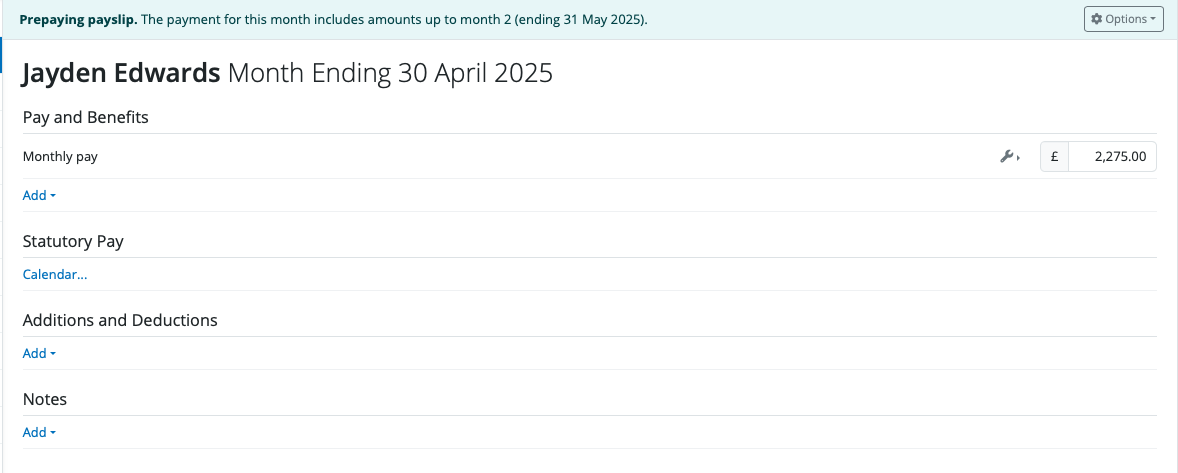
Enter the employee's payments, additions, deductions etc as required in the pre-pay period:
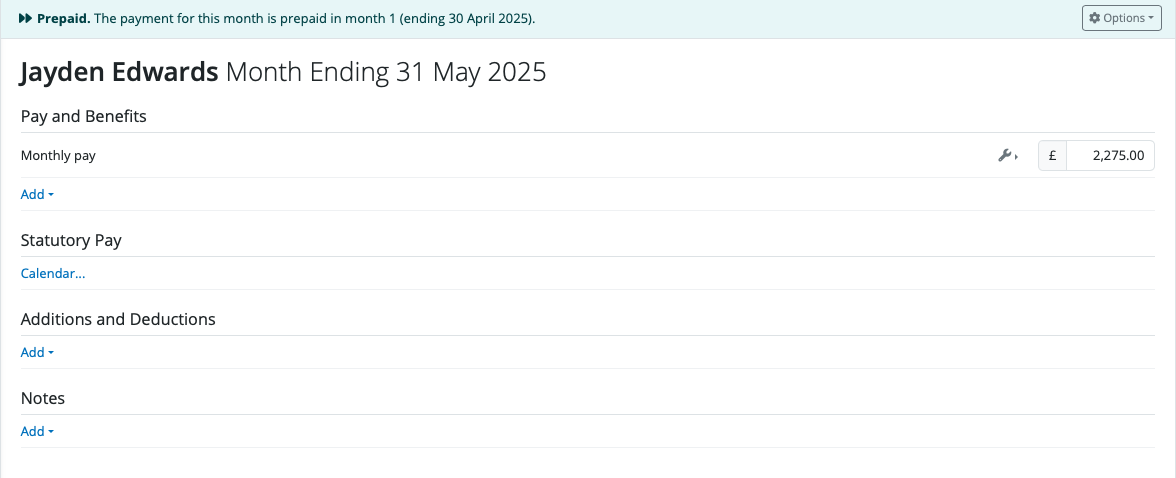
In the prepaid payslip, a light blue banner will also appear stating: 'Prepaid. The payment for this week / month is prepaid in ....[date of payslip amount was prepaid in].
4) Pre-Paying more than one period - should you wish to pay an employee or employees more than one pay period in advance, within the pre-pay period, simply click More on the menu toolbar, followed again by ' 'Pre-Pay Following Period in this Period' and repeat the same process.
5) To finalise your pre-pay periods, return to your current open pay period by selecting this on the schedule bar. A confirmation message will appear to state that that this is a 'pre-paying payslip' and will confirm the future pay periods that will be included on the payslip. Simply click 'Finalise Payslips' to update the current period as well as the pre-pay periods.
A pre-paid period will be indicated by a fast forward symbol next to the employee's name.
Any pre-paid period will subsequently be blocked from editing when this pay period is selected in the payroll.
To Un-do a Pre-Pay Period
Should you need to amend or un-do a pre-paid period for an employee, click Payroll:
1) Select the pay period in which the pre-paid payslip was included.
2) Select 'Re-open Payslips' on the menu toolbar, tick the employee in question and click 'OK'.
3) Now select the pre-paid period you wish to undo on the schedule bar and click 'Options > Undo Pre-Pay of this month'. Click 'Yes' to confirm you wish to undo this pre-paid payslip. The pre-paid period is now undone.

4) Return to the pay period in which the pre-paid period was originally included and finalise accordingly.
Comments
0 comments
Article is closed for comments.