
Payroll Employee Filter
Within the Payroll section you can filter the employees view by departments (if employees are assigned to departments), by First Name Initial, by Surname Initial or by Payment method. This option can be found under the Filter icon in the Payroll section. The options to filter by department, first name initial, surname initial or Payment method are available on the dropdown menu.
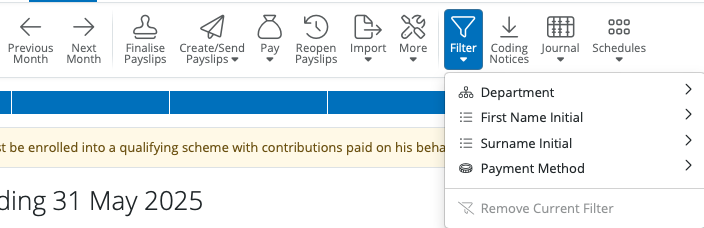
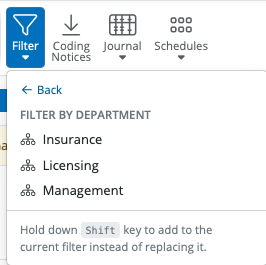
If you select any of the menu options you will be offered further options to filter. For example if you select Departments all departments with employees on this pay schedule are assigned to will be displayed. You can select one department if you wish to only show employees in that department.
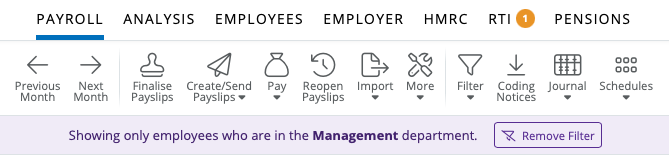
Once the filter is selected there will be a banner showing the filter option that had been selected. If you wish to remove the filter select 'Remove Filter'.
If you wish to add more than one filter option, select the first filter, then hold your 'shift' key on your keyboard and select the next filter option. This will add the second filter to your first filter option. You can select multiple options if required once you hold the 'shift' key on your keyboard and select the next filter option.
If multiple filter options have been selected to view employees in a pay period on the banner the multiple filter options will show.
If you wish to remove all the filter options select 'Remove Filter'.

Currently, it is not possible to filter employees by employee number in BrightPay Cloud.
Finalising Payslips Filter option
a) If you wish to only finalise payslips for some employees you have a 'Select by' icon on the Finalise Payslips window. You can select employees to be ticked for finalising payslips by departments (if employees are assigned to departments), by First Name Initial, by Surname Initial, by Employment Date or by Payment method.
If you wish to apply more than one filter if you hold your 'shift' key down, select the next filter option.
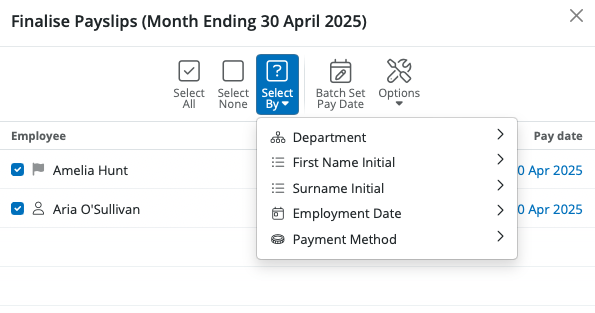
If a Filter or filters have already been selected in the Payroll screen, the same filters will apply on the Finalise Payslips window and the employees in that filter will be selected for finalising of payslips.
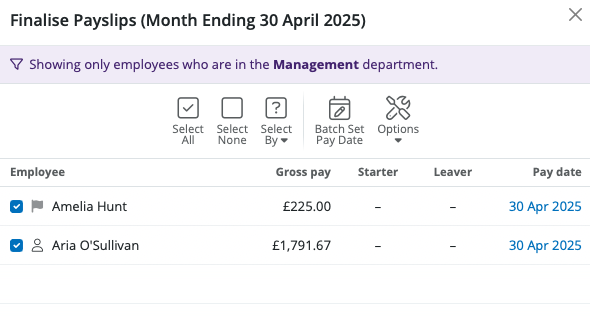
Note: The filter by department option will only show if employees were assigned to those departments before payslips were finalised. The department association only applies to the current open period and then any subsequent pay periods after the department was assigned.
If you cannot see the department filter, re-open the payslips and assign the departments again. You can then finalise the payslips again once the department has been added.
FAQs
Q. How do I order the display of employees by department in BrightPay?
A. BrightPay does not currently support ordering or sorting employees by department in the display list.
Employee ordering is only available by First name, Surname, National Insurance Number (NINO), or Works Number.
If you need to view employees by department, you can filter using the department filter, but the order within that group will still be by the chosen sorting field (e.g., first name or NINO).
Comments
0 comments
Article is closed for comments.