
Since 6th April 2013 and in line with the introduction of RTI, employers are no longer required to submit a P45 to HMRC when an employee leaves their employment. Instead, HMRC will be notified of an employee leaving in the last Full Payment Submission you send for that employee.
However as soon as an employee leaves your employment and their leave date has been processed through BrightPay (for assistance with this click here), a P45 should still be given to them for their own records.
Printing/Emailing/Exporting the Employee's P45
1) Within Employees, select the employee from the listing.
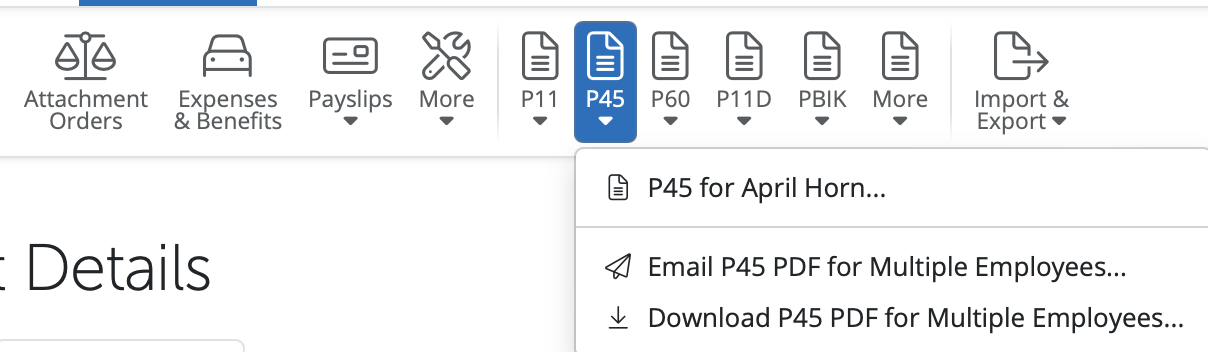
2) Select P45 on their menu toolbar.
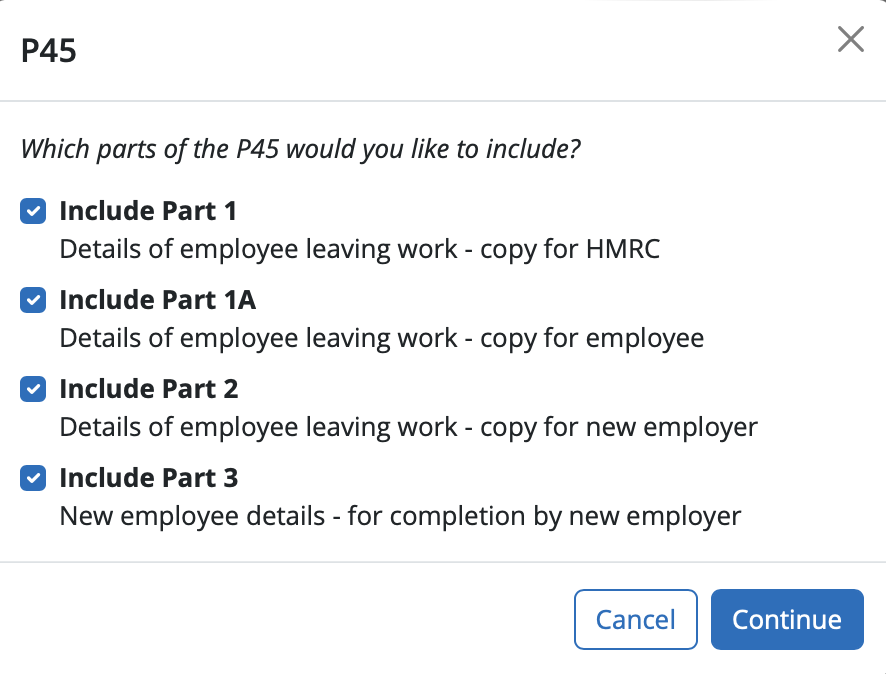
3) Select which parts of the P45 you wish to print/email/export and click Continue
The options of which parts to include;
Part 1 - Details of an emplouyee leaving work - copy for HMRC
Part 1A - Details of an empoyee leaving work - copy for employee
Part 2 - Details of employee leaving work - copy for a new employer
Part 3 - New employee details - for completion by new employer
All these options can be selected / deselected when generating the P45 for the leaver.
4) Select Print/Email/Export on the top right hand side of the menu bar, as desired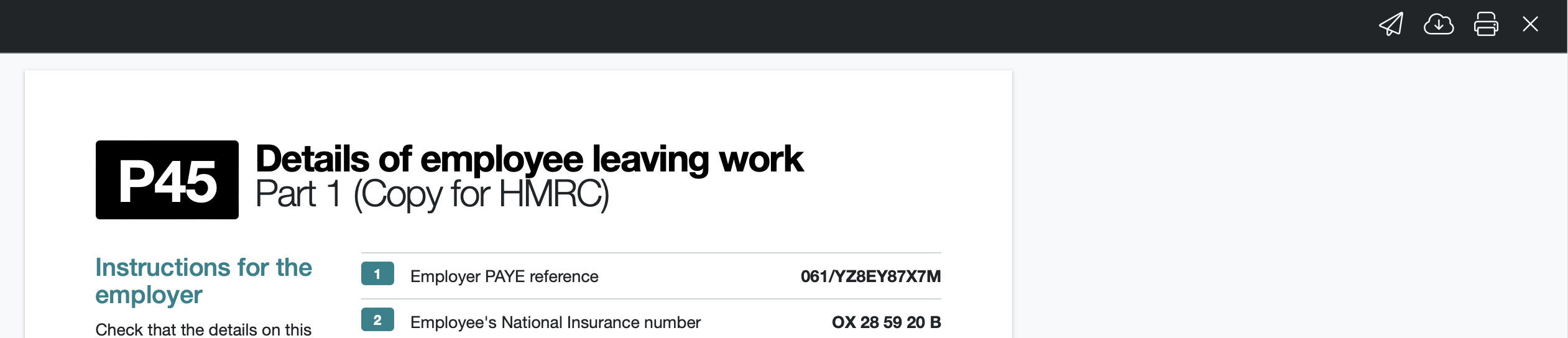
NOTE - If you have enabled the option under Employer > Employee Portal > Settings > Enable documents email notifications, the employee will receive an email notification informing them that their P45 is now available to view in their Employee portal.
No P45 available for the employee?
If there is no P45 available for viewing/printing within the employee's record after entering their leave date, this usually means that the pay period in which the leave date is falling is still 'open' and has yet to be finalised within the Payroll utility.
Simply check the leave date, and then within the Payroll utility, establish the pay period in which this leave date falls.
Is the payslip in which the leave date falls still open for the employee? If so, simply finalise this payslip accordingly and the employee's P45 will become available within the employee's record.
Note: If the employee is on a w1/m1 tax code, the current employment figures will be in Section 8 (not section 7) on the P45.
To find a P45 in the Employer Payroll (Client) Portal:
- Log into the Client Portal > go to 'Employees' section.
- Select the relevant employee.
- Go to the Documents section.
The P45 will be listed here alongside the employee’s payslips and other documents (P60, P11D, PBIK where relevant). You can view, download, or save the P45 from this section.
If you cannot see the P45, please ensure the employee has been marked as a leaver and their final payslip has been processed before searching for the document.
In the client portal, P45 documents will only show for leavers in the current tax year. It is not possible to see documents such as P45, P60, P11D, PBIK for employees that left in a previous tax year. For leavers in a previous tax year, only payslips can be viewed under 'pay periods'.
Comments
0 comments
Article is closed for comments.