
Importing into BrightPay mid Tax Year
BrightPay facilitates the importing of employee information in CSV format from SAGE 50 Payroll.
If you are migrating to BrightPay mid-tax year, both the employee and their mid-year pay information can be imported from SAGE 50 Payroll into BrightPay using this import option.
Apologies for the poor representation of Sage screens below. We were asked by Sage to desist from using actual screenshots.
Setting up your Organisation and Employer in BrightPay
Please log in to BrightPay with your Bright ID. If you have already purchased BrightPay or another Bright product or used BrightPay Connect you will already have a Bright ID.
If you do not have a Bright ID, please click Sign up for a Bright ID and follow the steps or select here.
As a new user, when you log into BrightPay, on the Welcome to BrightPay you will have a step-by-step guide on how to set up your information.
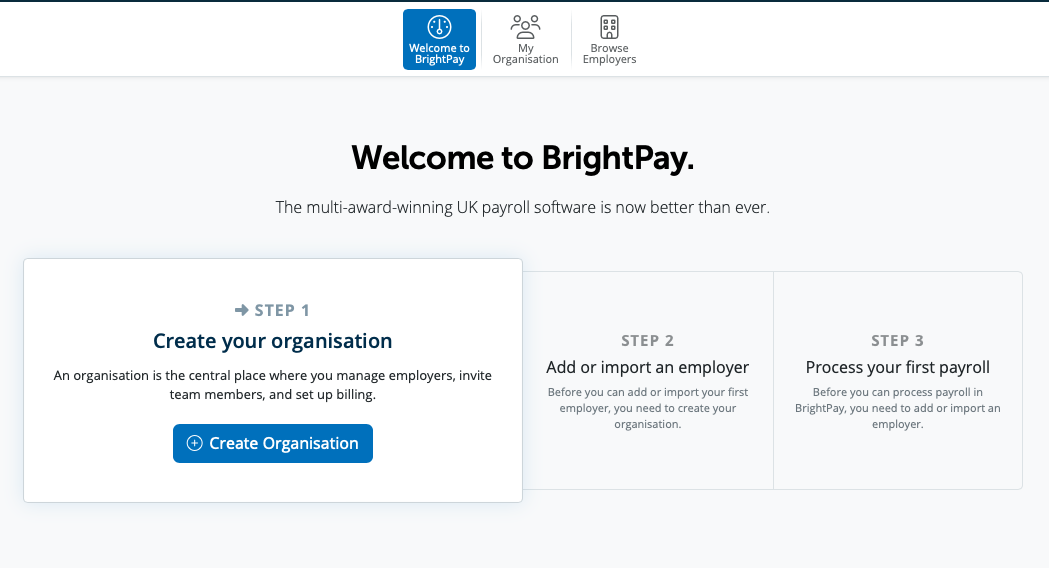
Step 1 - You will need to set up an Organisation. For assistance on setting up your organisation please see here.
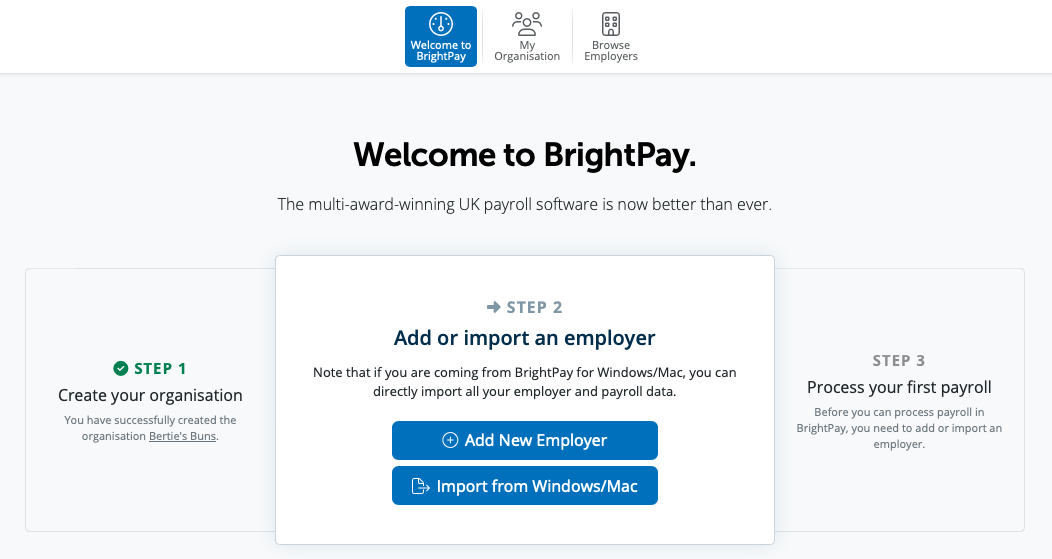
Step 2 - Click Create or Import an employer - For assistance on setting up your employer please see our step by step guide
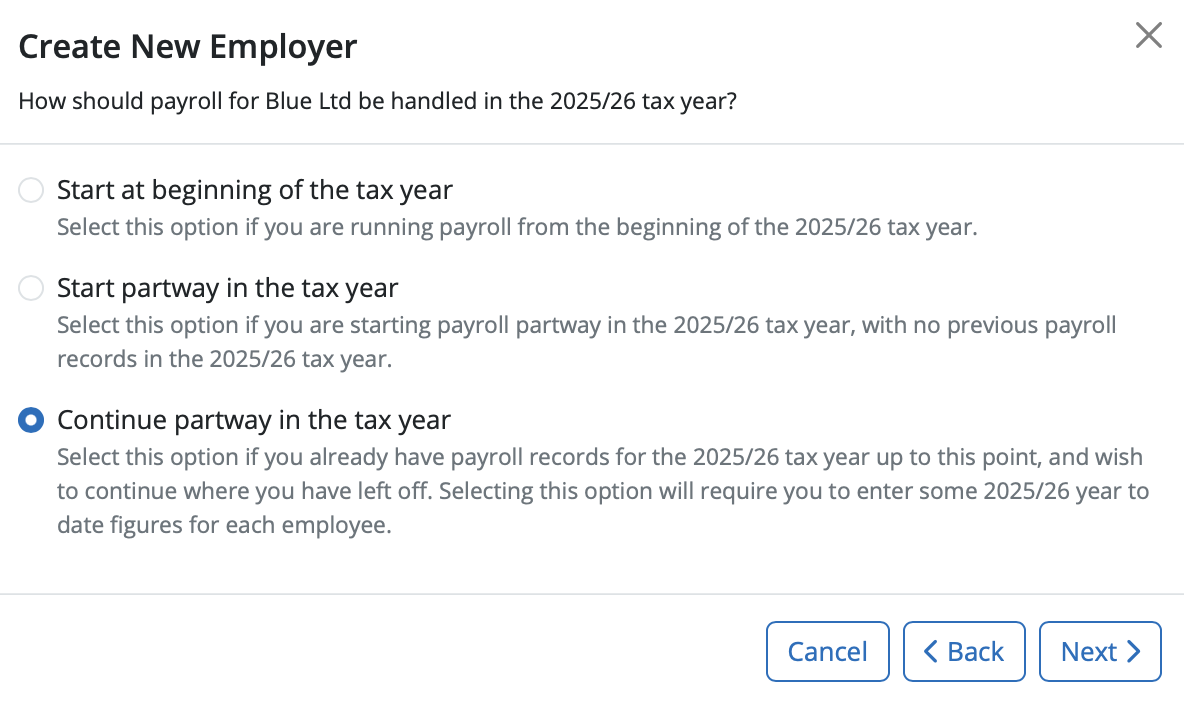
When creating your employer, you will be asked how you would like to use BrightPay – three options are available:
1. Start at the beginning of the tax year - select this option if you are running payroll from the start of the tax year
2. Start Partway in the tax year – you should select this option if you are starting payroll partway in the tax year with no previous payroll records in the same tax year
3. Continue Partway in the tax year – you should select this option if you have already have payroll records for the tax year up to this point and wish to continue from where you have left off. Selecting this option will allow you to enter in year-to-date figures for each employee.
As we wish to import employee information partway through the tax year, Select 'Continue partway in the tax year' and Select 'Next'
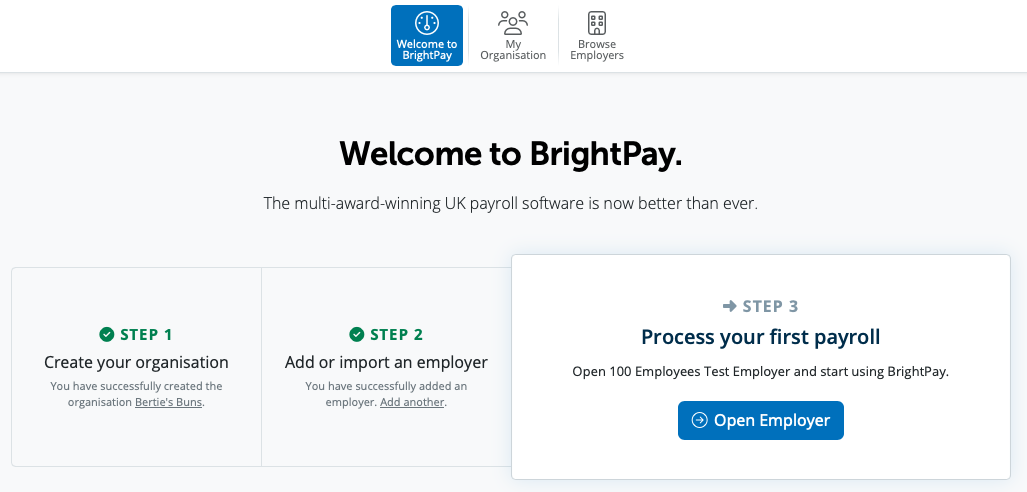
Step 3 - Open the employer in order to import your employee and pay information into BrightPay.
Export Data from Sage
In order to export your data from Sage to CSV file(s), please:
1) First, export your CSV file containing your employee information from within your Sage 50 Payroll Software
Apologies for the poor representation of Sage screens below. We were asked by Sage to desist from using actual screenshots.
Within Sage 50 Payroll go to > 'File > Data Export > Payroll Data Export':
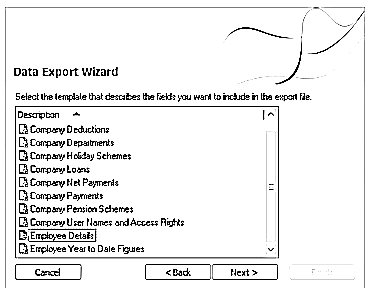
1 a) Select Employee Details and click 'Next'
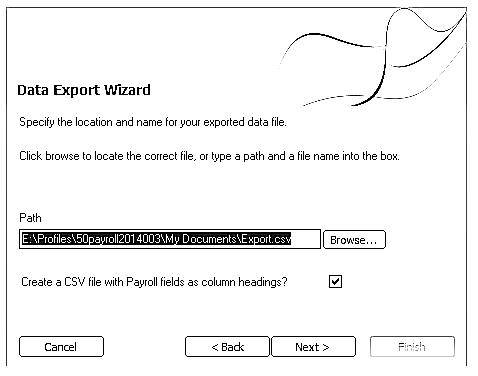
1 b) Select the location where you would like to save your file to using the 'Browse' button - click 'Next' when ready.
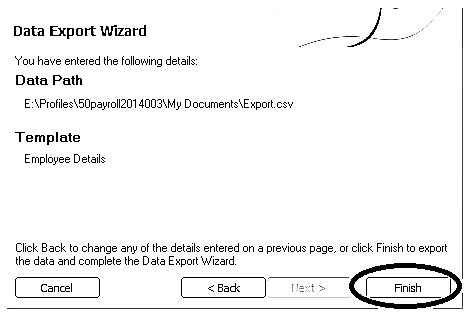
1 c) Click 'Finish'
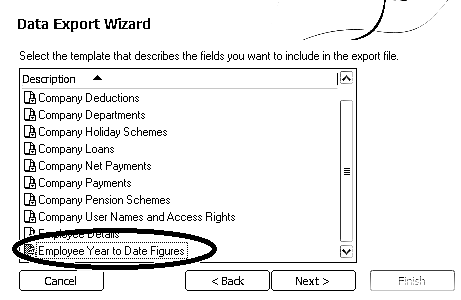
1d) Repeat the above process, to now export your employees' 'year to date' amounts.
Select 'Employee year to date figures' from the listing and click 'Next'.
Follow steps 1b) and 1c) above to complete the export of this CSV file.
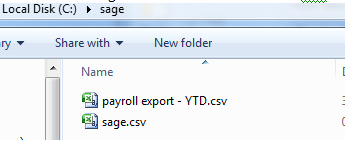
1 e) Now go to the location where you have saved your Employee CSV file to and change the name of this file to 'sage.csv'. This can be done by right-clicking on the file name and selecting 'Rename'. By doing this, BrightPay will be able to recognise that you are importing from SAGE 50 Payroll.
Please note: it is important that only the employee CSV file is renamed to 'sage.csv'. There is no requirement to rename your 'year to date' CSV file.
In addition. Do not open the CSV file, as Excel will format items such as sort code and account numbers, and they may no longer be importable into BrightPay.
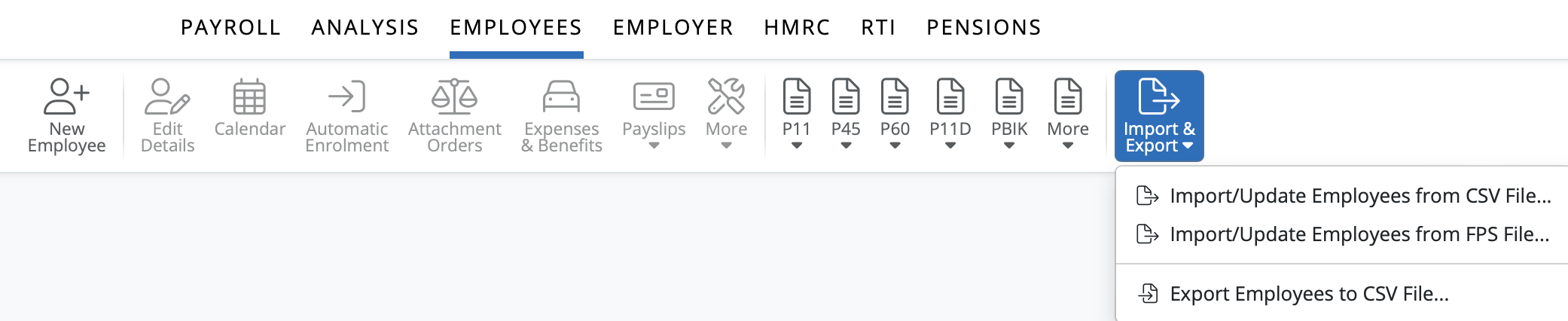
2 ) Once you have entered in and saved your employer information, go to > Employees > Import & Export > Import/Update Employees from CSV File....
3 ) On the Import Employees from CSV File window, click 'Select a CSV File to upload'

4 ) Browse to the location of your SAGE CSV file, select it and press 'Open'.
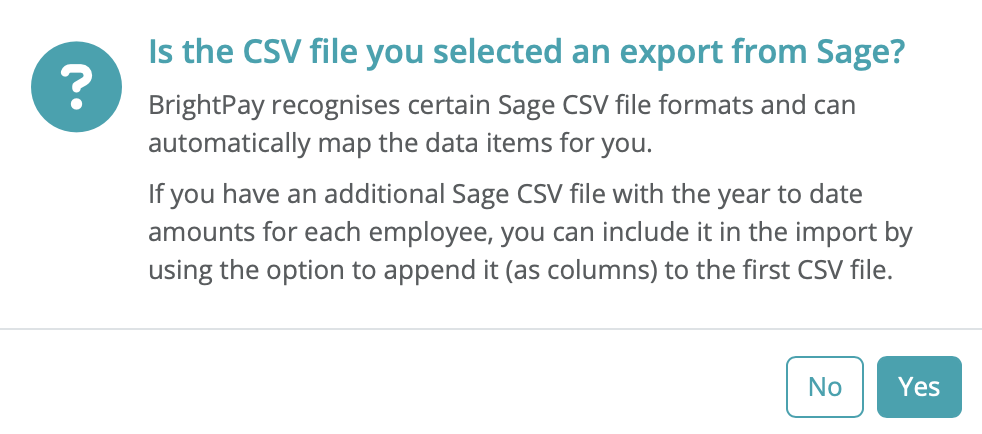
5 ) BrightPay will ask you to confirm that this is a SAGE file - click yes to confirm. If the employer is set up with the profile 'Continue Partway', you will see the message below. To import the year-to-date amounts, please select 'Yes'.
6 ) On the dropdown menu beside 'Select a CSV File to Upload', and choose ' Append a CSV File as Additional Columns' - the second option.
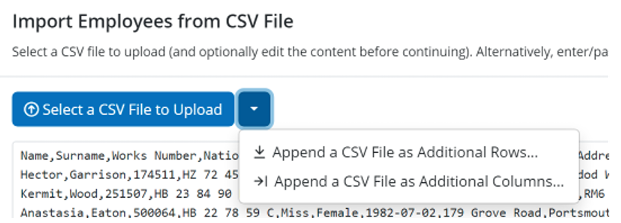
7 ) Choose the year-to-date CSV file, click 'Upload' and 'Continue'. BrightPay will merge both CSV files and matches the columns.
8 ) Click Import to complete the import of your employee information.

Additional Information on Sage Import:
Only one phone number is imported per employee
Postgraduate Loan Plan is not imported from the CSV File
-
If a Director is on the Standard Annual Directors NIC calculation method, the Director status box should be ticked in Employees > Tax, NICs, RTI menu:
-
If a Director is on the alternate NIC method (known as Pro-Rata basis in Sage), they will not be imported as a director. Both the director box and "alternate method boxes will need to be ticked in BrightPay":
Please note: where an employee has had previous employment in the same tax year, the employee's 'gross pay to date', 'taxable pay to date' and 'tax to date' amounts that are imported in from SAGE will include their 'previous employment' gross pay and tax figures. As these previous employment amounts will already be catered for within the Starter/Leaver section of the employee's record in BrightPay, users must ensure that the employee's 'Gross Pay to date' amount, the 'Taxable Pay to date' amount and 'Tax to date' amount within their 'Mid Year Totals' utility are reduced by these amounts prior to processing any payroll. This will avoid the overstatement of gross pay and tax amounts going forward.
If you have migrated to BrightPay mid-year, any mid-year cumulative pay information imported in via your CSV file can also be viewed here in each employee’s ‘Mid-Year Totals’ section.
Following the import, further employee information can be manually entered within 'Employees', if required. Alternatively, you may wish to update missing employee information using CSV file, for more details, click here Updating Existing Employee Details from a CSV File
Migration Checklist may assist you with the migration process and setup.
It is also recommended that all employee details are reviewed before processing any payroll to ensure information imported in is correct and applicable for the tax year in question.
After reviewing your employee and employer information, simply click the 'Payroll' tab to commence processing payroll.
Need more help with your migration? Email brightpayukmigration@brightsg.com
Comments
0 comments
Article is closed for comments.