
If your automatic enrolment duties have already started and you were using different payroll software for tax year 2026-27, or you are switching to BrightPay during the current tax year, please see the instructions below for updating BrightPay with your automatic enrolment information:
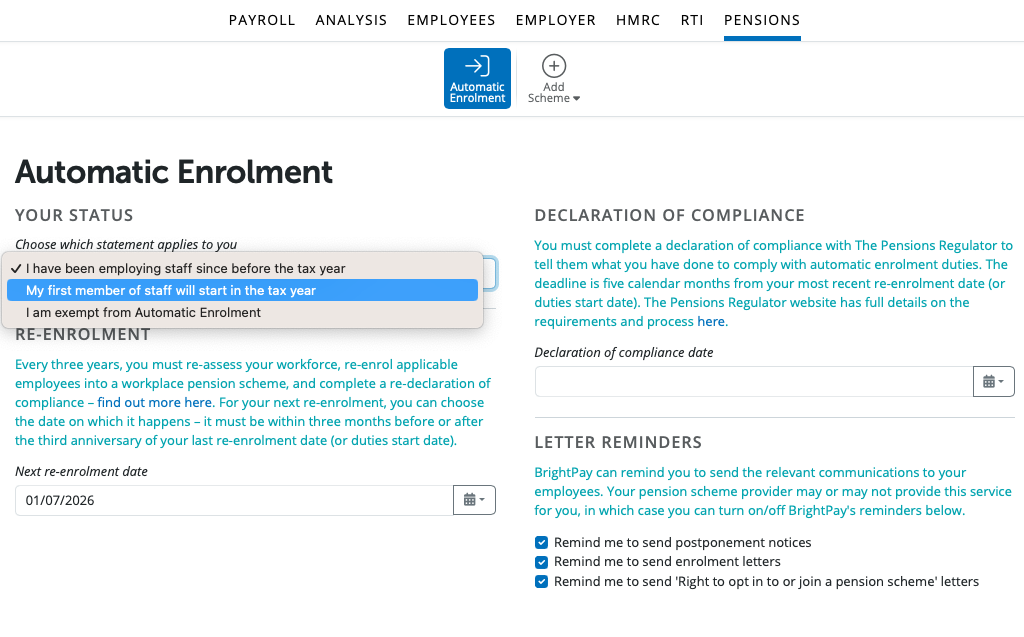
1) Before finalising any pay periods, first complete the Automatic Enrolment section accordingly within the Pensions utility:
2) Next, enter the details of your automatic enrolment pension scheme(s) within the Pensions utility.
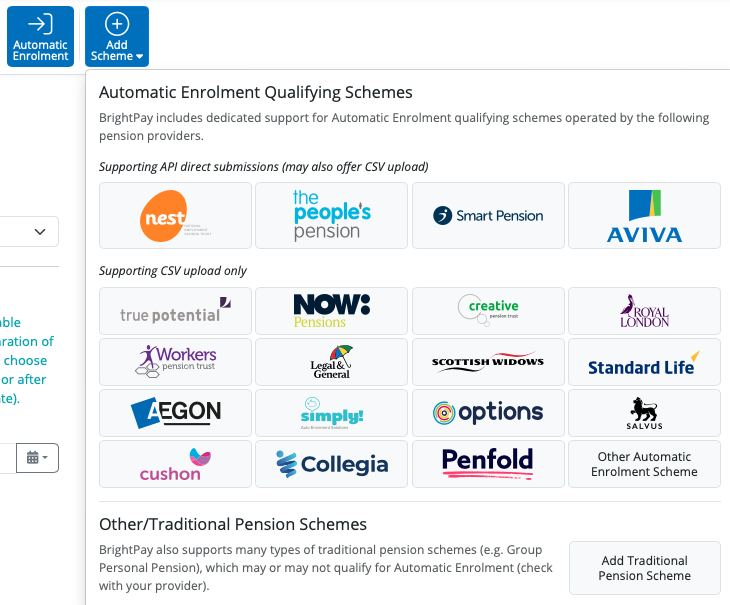
- click Add Scheme and select the pension scheme option you require from the listing
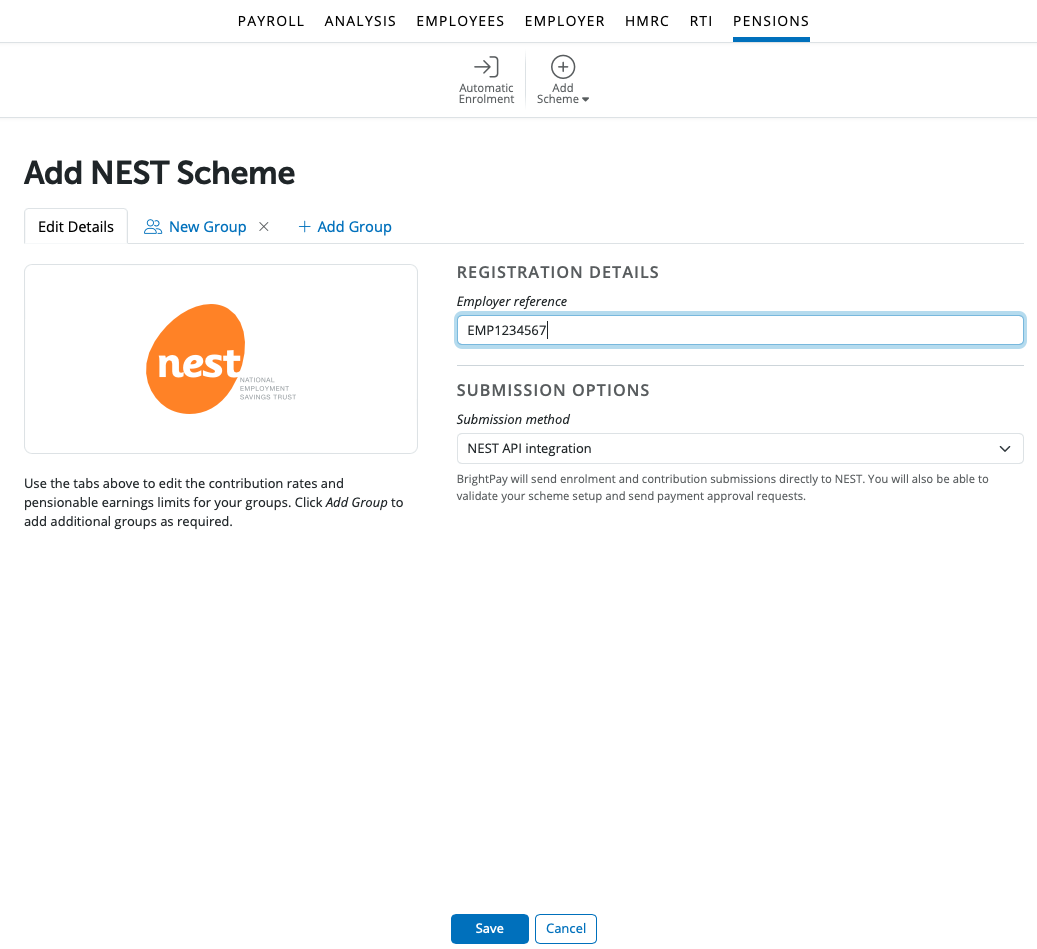
- enter in the details of the pension scheme accordingly, and click Save
3) Return to Payroll and set up your Payment Schedule, if you have not done so already. Enter the pay details for each employee in your first pay period if known.
4) Within Employees, select the first employee in the listing and click their Automatic Enrolment tab on the menu toolbar.
- If the employee is being assessed as an 'eligible jobholder' and this is correct, select the appropriate status for the employee:
- Enrol - if the employee is currently enrolled into the pension scheme.
- Postpone - if the employee is currently in a postponement period.
- Go - if the employee was enrolled in a pension scheme but has now opted out or ceased. Should this apply, enter the correct 'opt-out' or 'cessation' date on the next screen. The information entered here will be used at your re-enrolment date to assess whether the employer qualifies for re-enrolment.
If the employee is being assessed as a 'non eligible jobholder' and this is correct, select the appropriate status for the employee:
- Letter - if the employee has been issued with their 'right to opt-in letter' and have not taken any further action, simply click 'Letter' followed by 'Mark as Done' .
- Opt in - if the employee is currently opted into the pension scheme.
- Postpone - if the employee is currently in a postponement period.
If the employee is being assessed as an 'entitled worker' and this is correct, select the appropriate status for the employee:
- Letter - if the employee has been issued with their 'right to join letter' and have not taken any further action, simply click 'Letter' followed by 'Mark as Done' .
- Join - if the employee has joined a pension scheme.
- Postpone - if the employee is currently in a postponement period.
Please note:
- If the employee is currently in a pension scheme but is being assessed under a different worker category (possibly due to lack of pay information or a differing pay amount has been entered, placing them in a different worker category), simply select:
- Join/ Opt in
- Select the correct assessment you require from the drop-down menu:
- Enter the original Enrolment Date/ Join Date/ Opt-in Date
- Select the AE scheme applicable to the employee
- Select the applicable Tax Relief from the drop-down listing
- Press Continue
Communications
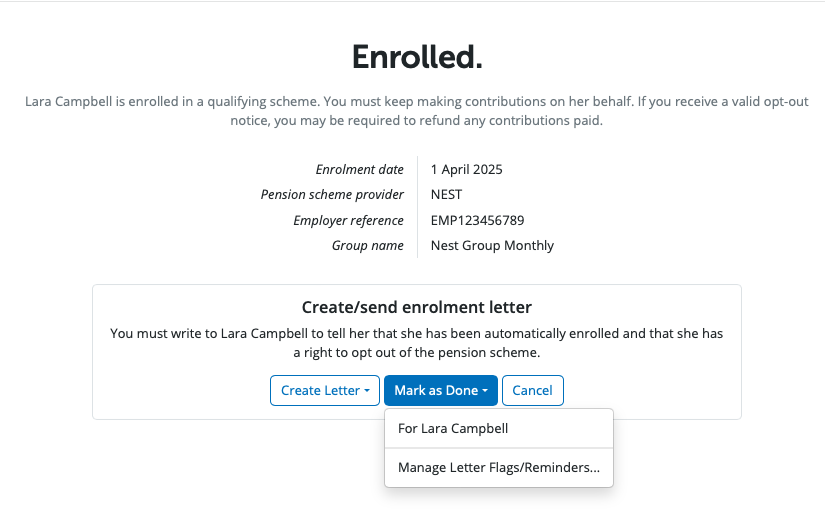
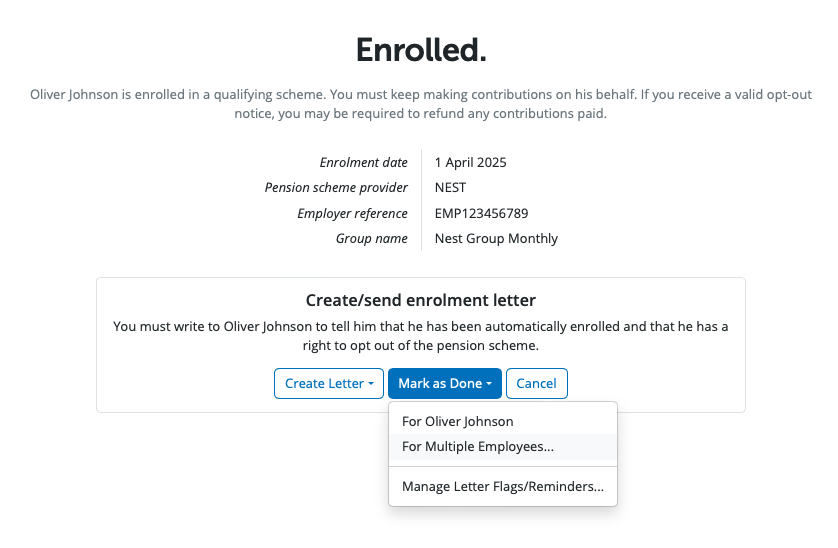
- As you will already have communicated with the employee, there is no requirement to provide the employee with any communication letters BrightPay may prompt you to do. To indicate that you have already communicated with the employee, click Letter followed by Mark as Done:
Repeat step 4 for each employee in order to update their automatic enrolment information.
Batch Processing of Employees
BrightPay facilitates the batch processing of employees who have the same automatic enrolment settings, thus eliminating the requirement to automatically enrol, postpone, etc. employees on an individual level.
For example, at the time of enrolling one employee, you will have the option to enrol multiple employees with the same settings:
- Simply select the employees who you wish to enrol and click ‘Enrol Selected Employees’ to complete their enrolment all at the same time:
- In the same manner, you will also be given the option to batch process the enrolment letters which BrightPay will automatically generate for each employee enrolled. As you will already have communicated with your employees, there is no requirement to provide the employee with the enrolment letter again. To indicate that you have already communicated with the employees, click Letter on an enrolled employee's Automatic Enrolment screen followed by Mark as Done... For Multiple Employees:
- Likewise, employees can be batch 'Postponed', if applicable:
Enrolment Summary
Once all Employees have been enrolled into the Pension Scheme(s) , you may have a (1) notification showing over the Pensions menu at the top of the screen.
This is BrightPay attempting to create an enrolment submission to be sent to the pension provider. However, as the employees are already enroled in the scheme this will not need to be sent.
To mark the enrolment summary as sent, go to Pensions > Enrolments Summary > Click on the spanner icon in the top right hand corner in the yellow box > Mark employee(s) as included in an enrolment submission > Select the applicable employees > Press OK.
If your pension enrolment submission is stuck, unprocessed, or cannot be submitted, and there is no error or rejection message from the pension provider, you can restart the submission using the following process:
- Please go into the Enrolment Summary screen in the Pensions section
- Holding SHIFT on your keyboard, click on the tool icon next to the message highlighted in blue
- Still holding SHIFT, click to restart your submission
- Select Yes to the question "are you sure you wish to completely restart........"
This will present the option to restart the pension enrolment submission for the affected employees.
If your employees are already enrolled in a pension scheme, check whether the scheme is an approved auto enrolment provider supported in BrightPay, such as NEST, Smart Pension, The People’s Pension, or NOW: Pensions. If so, use the relevant automatic enrolment scheme setup option.
For other schemes, use the "Traditional Pension Scheme" option.
NOTE: there is no way to import pension details; including employee AE dates, scheme details such as % rates or earnings basis from any other software. The scheme has to be set up manually and the employees enrolled manually on BrightPay (using their original enrolment date). The only pension information that can be imported is the employee and employer contributions YTD into the mid-year totals (when continuing part way in the tax year).
Comments
0 comments
Article is closed for comments.