
Users can be added to the client portal in a few different ways.
Super Users on the Client Portal can invite Standard Users to access the Client Portal for an employer and manage other users that have access to the employer by clicking on > Employer > Manage Users.
Super Users and Standard Users can also be added to the Client portal within the employer in BrightPay under > Client Portal > Users > Add client portal user
All users with access to the employer on the Client Portal will be displayed in the Client Portal Under > Employer > Manage Users. Their name, email address and type of user will be displayed as below.
The spanner option beside each Standard User will give the option to edit the Standard User's information such as name or email address and will give the option to delete the user.
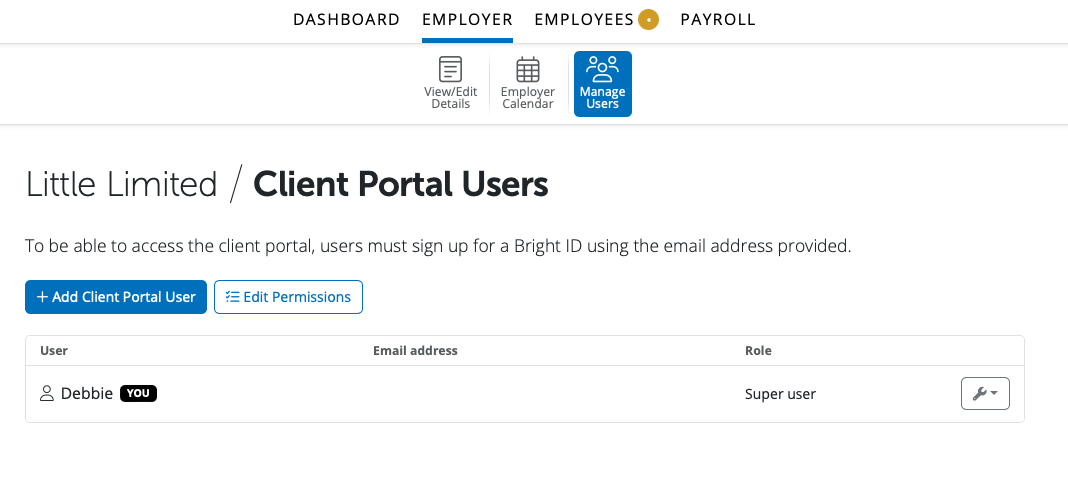
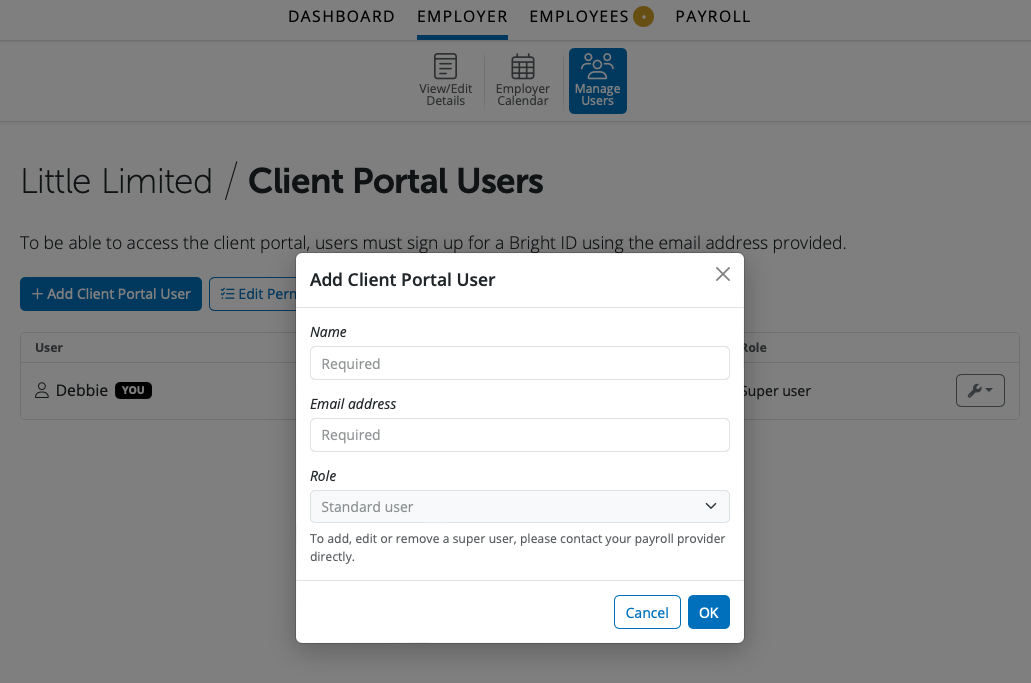
A new client portal user can be added by selecting '+ Add Client Portal User'.
Enter in the Standard User's name and email address and select OK. The user will now be able to log into the Client Portal to access the employer.
Client Portal permissions can be edited by a Super User by selecting 'Edit Permissions'.
Permissions that can be updated in this section;
- Employer and employee calendar access
- Enable users ability to run reports
- Allow users to update basic employer and employee information and calendar events
- Enable employee portal management to manage employee portal settings
Permissions can be enabled for Super-Users only or all users.
Once any permission is edited, select 'Save' to update the changes made.
Note: If you wish for a user to only be able to view / approve leave but not see any payroll information, you can add them as a manager instead.
Client users access the BrightPay Cloud Client Portal via the invitation email sent to them. If you do not have your invitation, please request it from your payroll manager. Once registered, log in via https://client.brightpay.com. If you encounter difficulties, check your spam/junk folder or refer to Troubleshooting Login Issues.
Comments
0 comments
Article is closed for comments.