
Exporting a separate payslip for each employee
After finalising the pay period, simply click ‘Create/Send Payslips > Download Payslip PDF for Multiple Employees’ within the Payroll function.
1) On the left hand side select the employees for whom you wish to download/export payslips. Several options for selecting which payslips to export are available by clicking the ‘Select By’ button.
2) Should you wish to further customise your payslips before exporting, click the ‘Customise’ tab. This facility allows you to add or remove certain information on the payslip, for example add a company logo or remove the payment method details.
3) On the right hand side, select your 'Download a ZIP file containing separate employee PDFs'
4) If you would like to password protect the payslips, simply tick the box provided. Employee passwords must be entered beforehand within the HR section of their Employee record in order for the payslip to be password protected on opening.
5) When ready, click ‘Download’. The file will be available in your downloads folder on your computer.
6) Payslips can be exported/downloaded again at any time.
Exporting a single multi-page document containing all payslips selected
After finalising the pay period, simply click ‘Create/Send Payslips > Download Payslip PDF for Multiple Employees' within the Payroll function.
1) On the left hand side select the employees for whom you wish to export payslips. Several options for selecting which payslips to export are available by clicking the ‘Select By’ button.
2) Should you wish to further customise your payslips before exporting, click the ‘Customise’ tab in the middle. This facility allows you to add or remove certain information on the payslip, for example add a company logo or remove the payment method details.
3) Next, select 'Preview' at the bottom of the screen, as highlighted below.
4) A preview of the payslips selected will now be displayed. Select the Download icon to complete the exporting/downloading of this document.
Additional Information
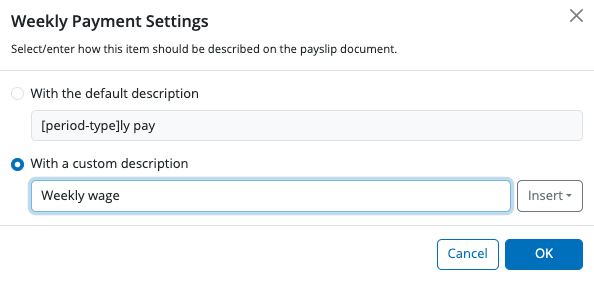
BrightPay allows for specific period payments, daily payments, hourly payments, piece payments, additions and deductions to be given a custom description to appear on an employee's payslip, if required.
- To set a customised description, before finalising a payslip, click the spanner symbol for the pay item in question, followed by 'show on payslip with default description':
- Enter the desired description and click 'OK':
- On finalising the pay period, the employee's exported payslip will now reflect the customised description:
Please note: the customised payslip description will hold going forward until such time the user removes it.
Exporting multiple payslips on the same A4 page
To export multiple payslips on the same A4 page, in the Payroll utility select the pay period you would like to export, then Create/Send payslips > Download PDF Payslips for multiple employees. Click on the Preview icon in the bottom right of the screen and then the print icon at the top right corner. You can then select the number of payslips required, ie 2 per page in the 'Pages per sheet' section:
You can then print as PDF and save in the location of your choice on your pc. This will then export 2x A5 payslips on 1 A4 page.
To export payslips in works order, you will need to amend the Employee display preferences under Settings. You can choose what order employees appear on screen and export by using the 'Order employees by' section.
How do I set a password for an employee’s payslip in BrightPay Cloud?
Go to Employees > select the employee > HR tab > enter or update the payslip password in the relevant field. This password will be required to open any password-protected downloaded payslips for that employee.
It is only possible to export / download payslips in PDF format. If you wish to have the payroll information in a csv file format, go to the Analysis section and run the Payroll Summary report - reports can be downloaded in both PDF and csv file format.
Comments
0 comments
Article is closed for comments.