
Check for Coding Notices from HMRC:
BrightPay allows you to retrieve and process employee PAYE coding notices (such as P9, P6, etc.) directly from HMRC. These notices will inform you of any new or updated tax codes for your employees.
You will need to have entered your gateway credentials into the Settings section for the notifications to appear on BrightPay.
You can also view a history of applied coding notices in the History tab within the Coding Notices section. This helps ensure you are always using the most up-to-date tax codes provided by HMRC.
- Within BrightPay, click the Payroll tab:
- Click Coding Notices on the menu toolbar
- Enter your HMRC Sender ID and password under Settings > Gateway credentials, if not already entered
- Click Check for Notices
Current coding notices will be displayed on screen.
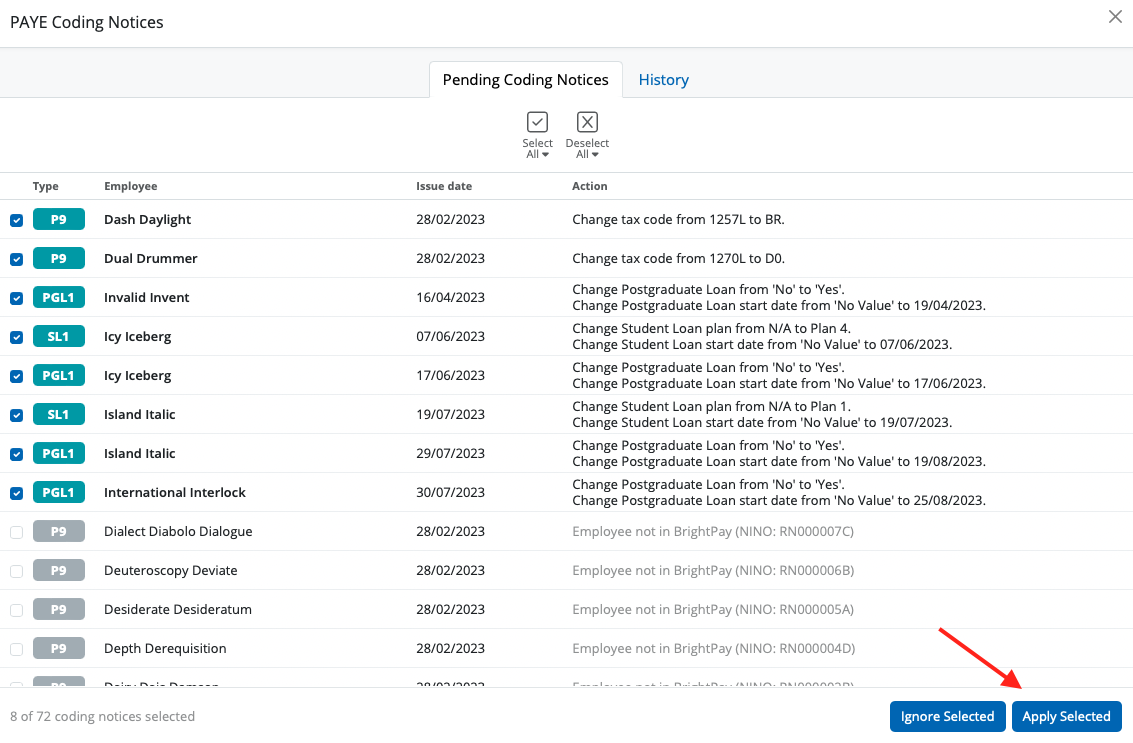
Select the employees whose notices you would like to import and click Apply Selected
The employee record(s) will be updated accordingly to reflect the information within the notice(s).
To view a history of employee coding notices that have been applied, click into the History tab.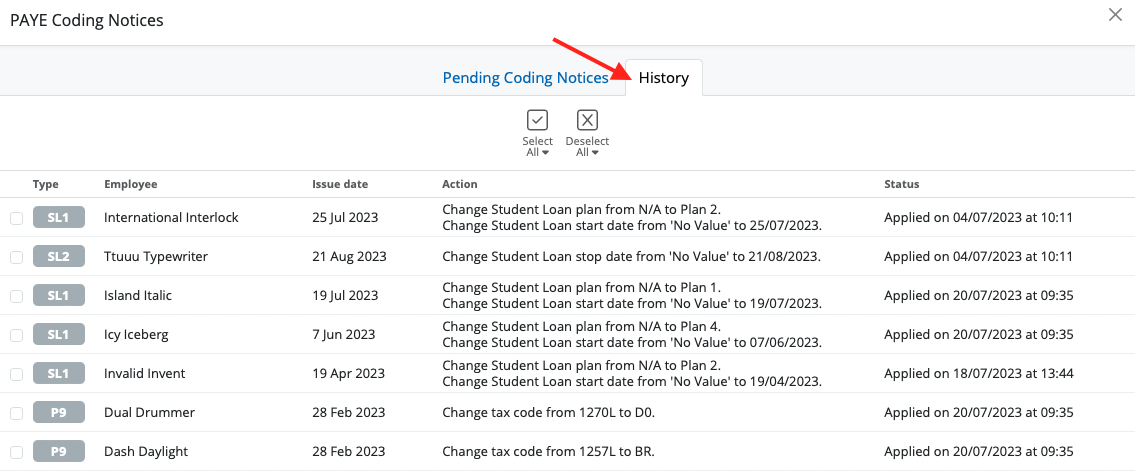
Coding Notice Tracking
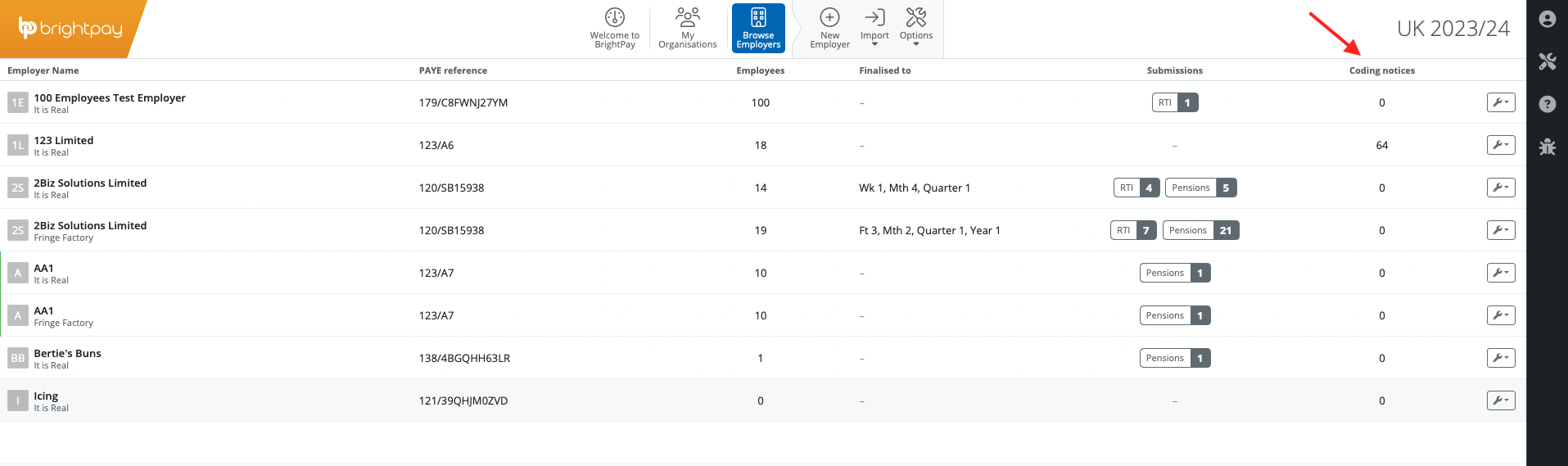
- When availing of the Coding Notice utility in BrightPay, BrightPay will track the number of actionable coding notices retrieved from HMRC.
The number of actionable coding notices will be displayed on the coding notices toolbar icon within the Payroll utility:

'Number of open coding notices' is also available to display as a column on the BrightPay Employer screen:
- If you’re having trouble retrieving coding notices, there is an option on the coding notice screen to reset the cache, which can help resolve the issue. Click into the Spanner icon in the bottom right of the PAYE Coding Notices screen and click on the option to Reset Cache. see screenshot below
- Please note: To use this feature, ensure the notice options in your HMRC PAYE dashboard are all set to Yes. Only new coding notices issued after this instruction will be available for download.
If a coding notification (P9, PB, P6B, SL1, SL2, PGL1 & PGL2) is not linking to an employee, check that the NINO in the employee's record is correct and matches the NINO that HMRC have on record and is displaying on the coding notice.
Important - Please ensure that any employees you are requesting coding notices for do not have leave dates recorded on the system. BrightPay will only retrieve coding notices for employees who are marked as active.
If an employee has a leave date entered — even if it is in the future — BrightPay will not retrieve coding notices for them. To allow coding notices to be imported:
- Remove any leave dates from the employee record.
- Request/retrieve the coding notices.
- Once coding notices have been received, re‑enter the correct leave dates.
Important: If you are having issues retrieving coding notices, please check if the coding notice warning banner has been enabled in the software. When BrightPay is aware of external issues with HMRC you will see a banner: 'HMRC are currently having issues serving coding notices' on the Pending coding notice screen. Please be aware, if this warning banner is enabled, this means there is a known external issue with the HMRC and it is outside of BrightPay's scope. We recommend that you wait and then once the banner is removed, try to retrieve coding notices again.
Comments
0 comments
Article is closed for comments.