
To add an employee note to an individual employee's payslip, first click into Payroll, then select the relevant pay period, and then click on the employee’s payslip.
Next, click on 'Add' under the Notes section followed by 'Note for Employee' and type in your narrative. If you want the note to repeat, click the spanner symbol to set the repetition as required. When payslips are finalised, this note will subsequently appear on the payslip.
- To add an individual employer note, click on 'Add' followed by 'Note for Employer' and type in your narrative. Click the spanner symbol to set the repetition, if required. An employer note will not appear on the employee's payslip.
- Alternatively, to batch add an employee/employer note to multiple payslips at the same time, go to Payroll > More > Add Note to Multiple Payslips.
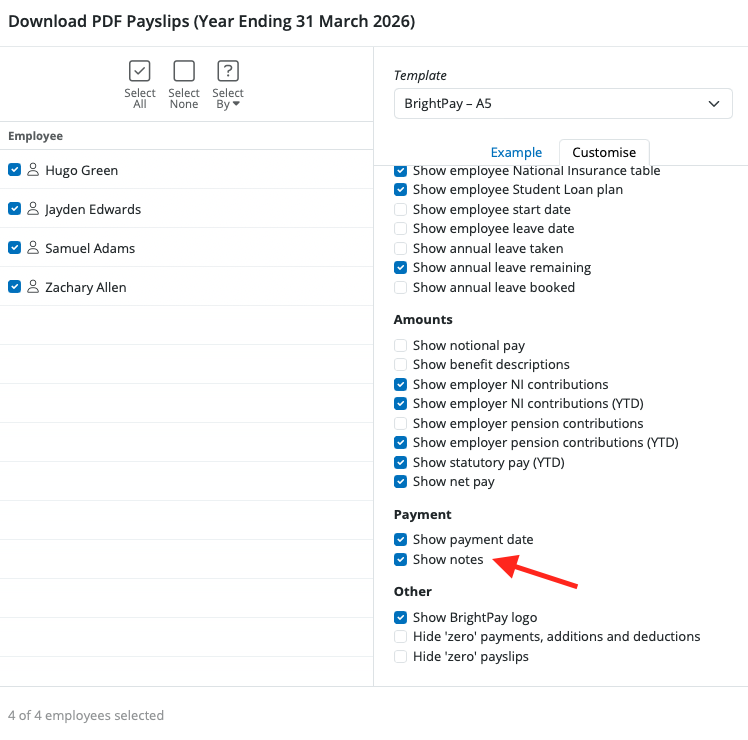
- Once an employee note has been added to a payslip, simply make sure the option to 'Show Notes' is ticked within Payroll > Create/Send Payslips > Customise in order for this messaging to appear on the payslip when distributed:
Comments
0 comments
Article is closed for comments.