
To download/print/email a report:
- Click into the Analysis Section and run the desired report
- Click 'Export or Share' on the menu toolbar and select 'Export/share PDF Document for Selected Report'.... A print preview of the report will be displayed on screen. Press the 'Print' icon to print out the report. Alternatively, click the 'Email' icon to email the report.
Download icon is available to download the report in pdf format.
3) When downloading a report or a payroll document to pdf you can password protect the document if required. Once you select the 'Download' icon a message box will show with an option to secure the PDF document with a password. Tick 'Secure PDF with' in order to have the document password protected.
There are two options that can be used for the password type:
'Other password' allows the user to enter in a unique password for this document.
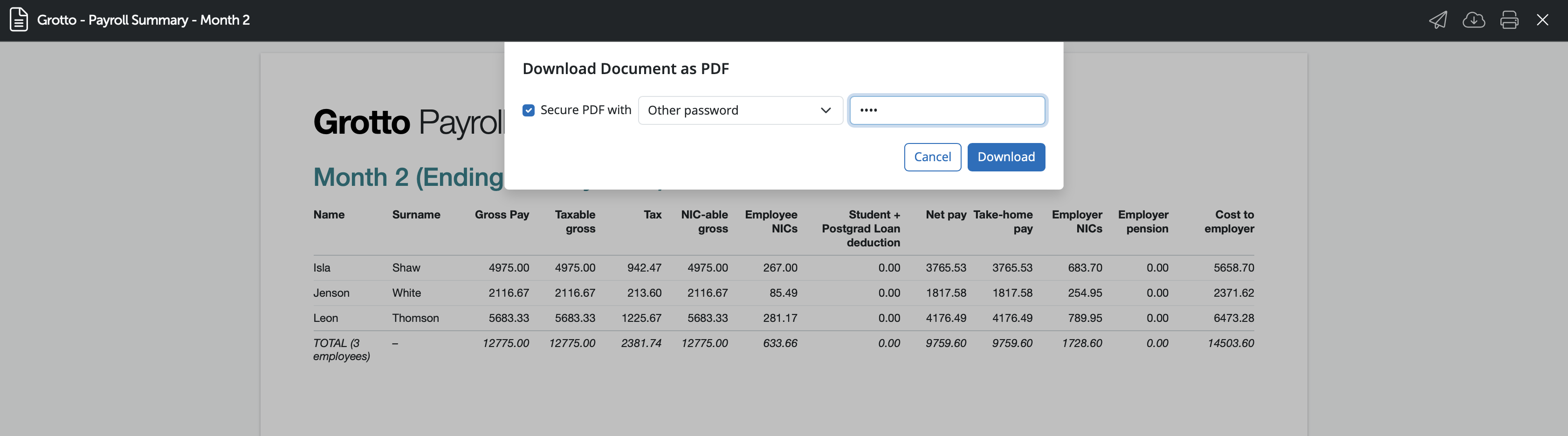
'Client password' will be available once a client password has been entered under > Employer > Edit Employer Details > Client Details > Default password for 'Documents and Sharing'.
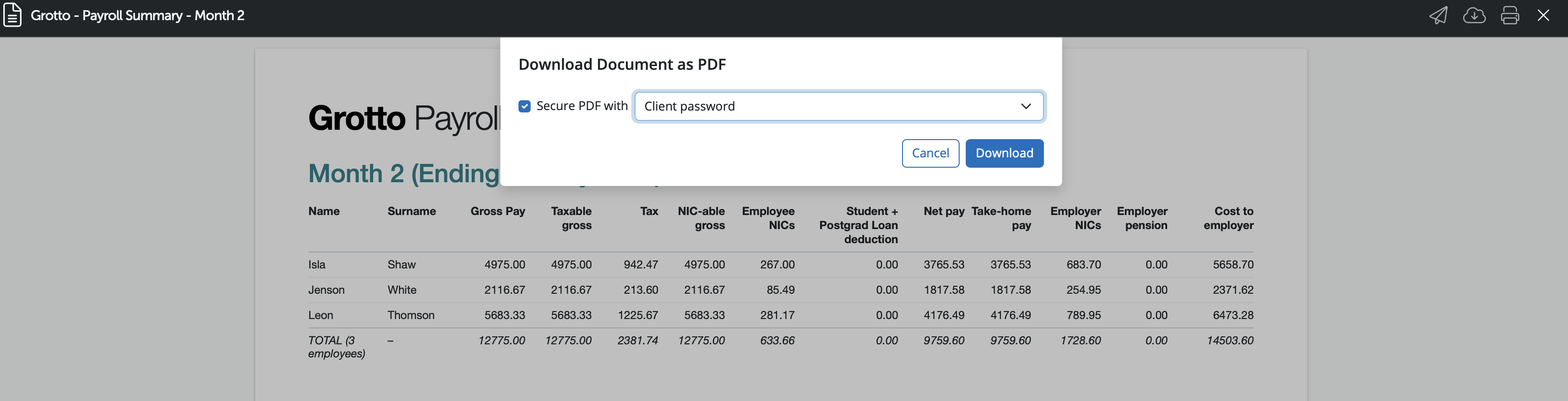
4) Select the desired password protection option or leave 'Secure PDF with' unticked if no password is required and select 'Download' to continue.
5) Should you need to change the orientation, paper size or print margins for the report, these can be amended by clicking 'the cog symbol' on the menu toolbar in the top right and selecting ' PDF export preferences'.
If you wish to have the selected password protect option saved and used going forward please tick ' Remember and reuse the most recent PDF password for each document type'.
6) Here’s how you can set a default reply-to email address:
- Go to the Settings by clicking the Cog icon ( Top right of your browser window)
- Select Email Preferences.
- Enter your preferred default reply-to email address.
- You can also add optional default body text and include an email signature if you wish.
This will ensure your emails have the correct reply-to address and a consistent format every time you send them.
For a gross to net report, use the Payroll Summary which includes both these fields as default. You can create a new report if required and add any additional fields as needed. Once the report is run, save as a template if the report will be required for future purposes.
Please note: There is no audit trail of when reports were printed, emailed or downloaded. If you wish to have a record of emailed reports, add your email address to the cc field so you get a copy for audit purposes.
There is no way to set a default 'preference' location on BrightPay Cloud for downloads. If you wish to choose the location when downloading reports, you can change the settings on your browser to always ask where the file should be downloaded, so you can choose the folder location of your choice. For more guidance how to do this, please see this article here
FAQs
Q. Is there an audit trail available to show when reports were last sent out to clients?
A. BrightPay does not provide a specific audit trail or record for reports that are emailed directly to clients outside the platform. However, the Client Portal is designed as the primary channel for securely sharing reports, payslips, and payroll documents with clients. When you upload or share reports via the Client Portal, access and activity can be monitored—such as when reports are made available or viewed by the client. The platform also logs various actions as part of its general audit trail, but emailing reports directly (outside the portal) is not tracked in the system.
If you require a comprehensive audit trail for report distribution, it is advisable to share reports directly through the Client Portal rather than by sending them via email.
Comments
0 comments
Article is closed for comments.