
Pay schedules in the Payroll section can be edited if required, such as the name of the schedule or the default pay date for each pay period can be changed.
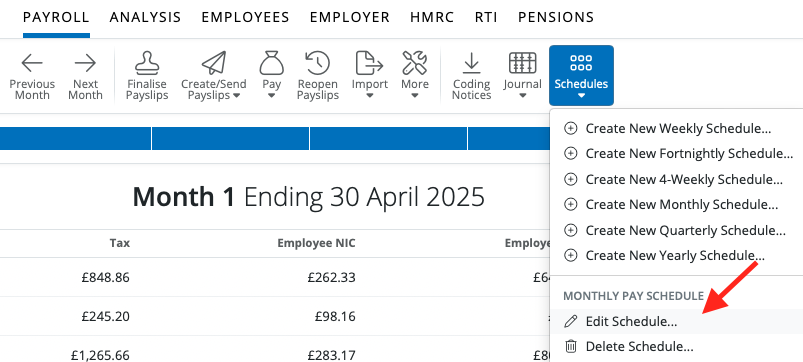
To edit a pay schedule select > Payroll > Select the pay schedule you wish to edit > Schedules > Edit Schedule.
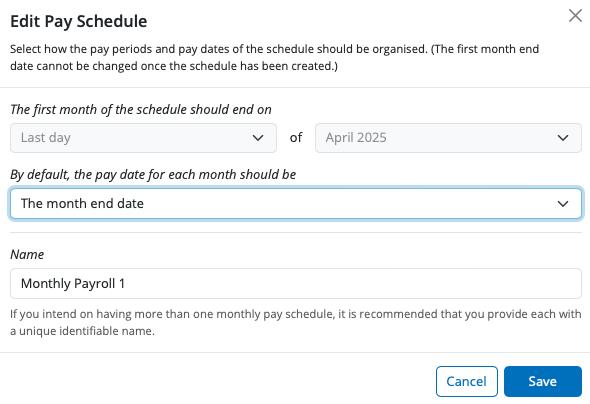
If you wish to change the pay date for each pay period please select the desired option on the dropdown menu. This will be used as the default pay date for the pay periods going forward.
A name for the pay schedule can be entered or edited, if required.
Select 'Save' to save any change edits for the pay schedule.
Note: It is possible to change a pay date for just one specific period (ie for paying early at Christmas or when the usual pay date falls on a bank holiday), without changing the pay date for the entire schedule.
To do this, click 'Finalise Payslips' in the Payroll utility for that period, then click on 'Batch Set Pay Date'. You can then enter the different pay date and save. It will only effect the pay date for this period and will not change the scheduled pay dates as a whole.
If you have deleted a payroll schedule, it will not be possible to revert it back to an earlier version (ie before the schedule was deleted). If the schedule has been deleted, it would involve re-running the payroll up to the current period and then continuing from that point (Do not submit FPSs generated during recreating the payroll YTD that were already sent and accepted by HMRC as this will duplicate the declared earnings for employees and cause reconciliation issues with HMRC).
If you are seeing an incorrect period end date after importing payroll data into a new tax year and you have not yet processed payroll for the new tax year, you can delete the payroll schedule and recreate it with the correct period end dates.
To do this, click on the schedule you wish to delete, the 'Schedules' in the menu bar > Delete Schedule > CONFIRM in all caps.
IMPORTANT! You should exercise caution, as deleting a payroll schedule cannot be undone and should only be done if no periods have been processed.
Payroll periods disappearing after a schedule change
If payroll periods appear to have disappeared after making changes to a pay schedule, this is most likely because the schedule was deleted rather than employees being switched to a new schedule. When deleting a schedule, BrightPay displays a warning that this action cannot be undone and requires you to type CONFIRM before proceeding — if this was completed, the schedule and all periods within it have been permanently deleted. BrightPay Support are unable to restore a deleted schedule.
To resolve: you will need to recreate the missing pay schedule and re-run the affected payroll periods (e.g. April) from scratch. However, do not resubmit the FPS to HMRC — HMRC already have the original submission and resubmitting will create duplicate earnings for your employees. Once you have re-run the payroll in BrightPay, go to RTI > select the FPS > More > Mark as sent and accepted by HMRC, then continue to the next period as normal.
To avoid this in future: if you need to change the end date or pay date on a schedule, do not delete the schedule. Instead contact BrightPay Support for guidance, as changes to schedule dates mid-year may require assistance to implement correctly without affecting RTI submissions.
Issues switching payment schedules because of the dates
When switching employees to a new pay schedule, BrightPay will only allow them to move into the next full period - one where none of the dates overlap with a period that has already been processed.
Example; the current schedule runs 1st–30th June. The new schedule required to set up ends on the 20th of the month, meaning its periods run from the 21st of one month to the 20th of the next. The period ending 20th June would run from 21st May to 20th June; but the dates 21st–31st May have already been processed in a previous period. Because those dates overlap, BrightPay cannot place employees into that period.
The next full, unprocessed period on the new schedule is therefore 21st June to 20th July, so BrightPay will suggest 20th July as the next available date.
If you need employees to be paid on the 20th going forward, they will begin on the new schedule from the 21st June–20th July period onwards.
Please note: If you have moved to BrightPay mid year, deleting a payroll schedule will not delete the mid-year total information entered.
FAQs
Q: I’ve set up a new employer and chosen the wrong start month. How can I change it?
A: It depends on whether you’ve already run any payroll.
If you have not processed any payroll yet
You can safely update the schedule yourself:
- Go to the Payroll section.
- Select the relevant payroll period (e.g. the Month you set up).
- Click Schedules.
From here you have two options:
Option 1: Change pay date or schedule name/label
- Click Edit Schedule.
- Update the Pay date and/or Schedule name/label as needed.
- Save your changes.
Option 2: Change the period end date (or completely reset the schedule)
If the period end date is incorrect, you’ll need to recreate the schedule:
- Click Delete Schedule.
- Confirm the deletion when prompted.
- Set up a new Schedule with the correct:
- Start month
- Period end date
- Pay date
- Schedule name/label
- Re-assign your employees to this new Schedule.
If you have already processed payroll
Once payroll has been processed, the start month and period settings will be locked. If you need to change them, you may need to reopen the payslips, or alternatively create a new schedule and move the employees to that schedule.
Comments
0 comments
Article is closed for comments.