
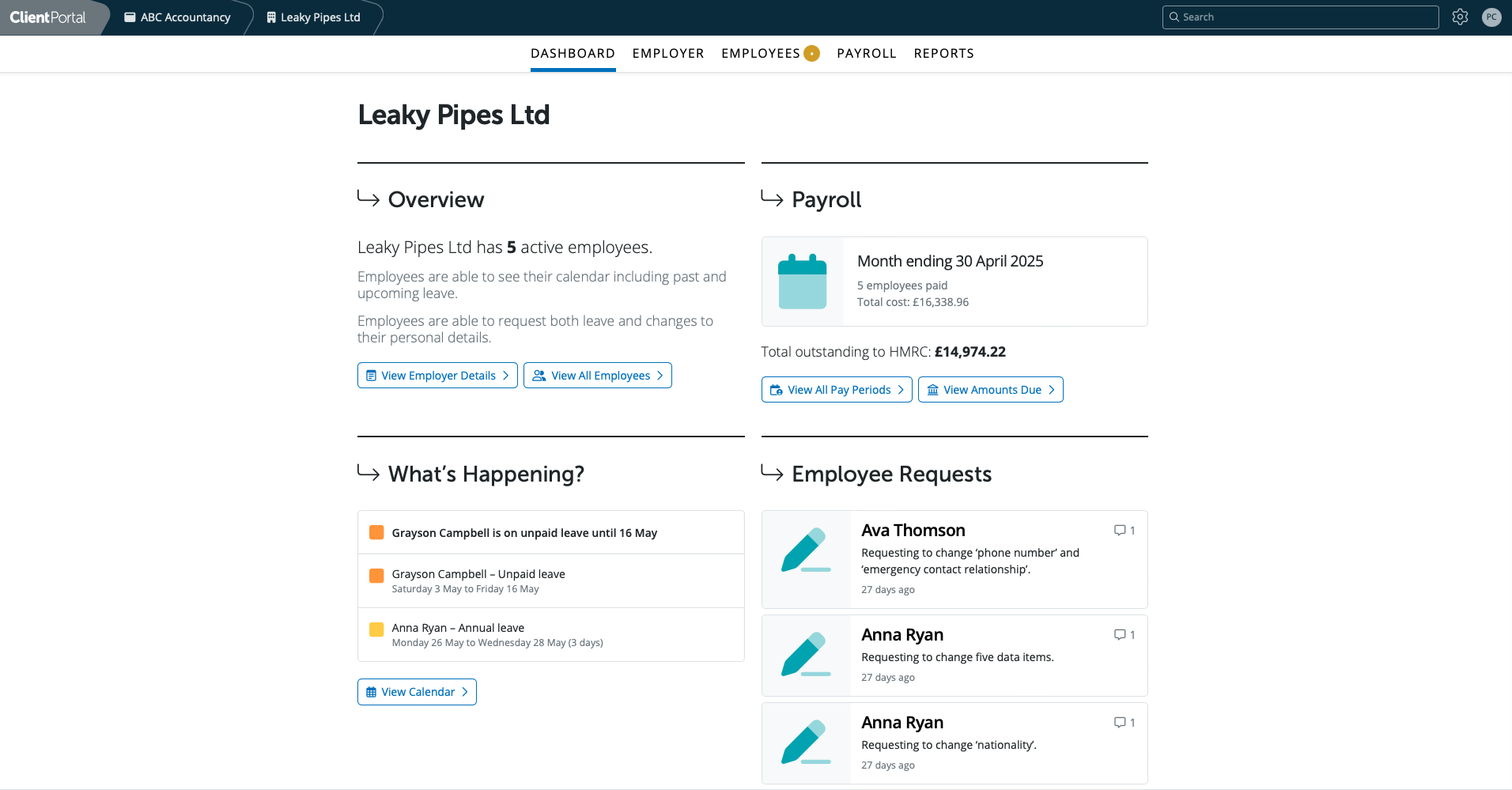
BrightPay's Client Portal allows users to be set up to access employee and payroll information. Users can access financial data such as payslips, reports, HMRC details, employee's personal details including leave and employee calendar, employer calendar, portal management and more.
The Client Portal gives access to a user to all employees in the employer and users can access the payslips, calendars, annual leave entitlement details, resources and employee portal management, if enabled for the user.
BrightPay' Client Portal enables payroll bureaus to provide an online employer portal for direct use by their clients. This Client portal enables the employer to access the payroll summary and other reports, Amounts due to HMRC, employee and employer calendars, all employee information and more.
There is no limit of users that can be set up in BrightPay to access the Client Portal for an employer or multiple employers.
Please note: You can enable payslip email notifications to client portal users. When payslips are finalised and available to view in the client portal, users will receive an email alert. To turn on this feature, go to Employer > Client Portal and enable ‘Payslip email notifications'.
If you require payroll approval, you can continue to use the Payroll Approval Request feature found in Payroll Utility > Client Requests. Enabling client portal notification settings ensures your clients stay informed as soon as payroll is completed and available.
Note: If two factor authentication is required for employers, this can be done by the user in their Client Portal.
Please select the profile icon in the top right-hand corner and select 'Manage My Bright ID'.
Under the Security tab select 2FA Settings.
Under the 'Choose your preferred 2FA method' there are three options to select from:
- Authentication App, which is the preferred and most secure method. Use an authentication app that can generate a personal one-time code. Entering the code will be required to successfully log into BrightPay with your Bright ID
- Text Message – receive a text message containing your code to your mobile phone whenever you try to log into BrightPay with your Bright ID. Entering the code will be required to log in successfully.
- Email – receive an email containing a code to your email address whenever you try to log into BrightPay with you Bright ID. Entering the code will be required to log in successfully.
Note: If you are a client user for more than 1 employer, you will be able to choose which client to enter on the first screen. To switch employers within the portal; click on the name of the employer at the top left of the screen and then choose another employer from the dropdown list.
If you are set up as a client for multiple employers and when you log in it is taking you straight into a client, you can clear the caches/cookies on the web browser as it is likely defaulting to 1 url in particular.
There currently isn't a way to globally add a payroll processor to multiple employers as a client user. The development team are planning to release this ability in the 26/27 tax year software.
Client portal users will / will not receive notifications regarding employee holiday or annual leave requests, or requests to change personal details. Currently, holiday notifications are available for managers and employees (where enabled), but not directly for client portal users. For full visibility of leave activity, reports can be accessed via the client portal calendar.
If the email instruction is not reaching the client user, double check the email address entered into BrightPay - amend and resend invitation if required.
The Client portal Login page can be found at: https://client.brightpay.com
FAQs
Q. Do client portal users receive email notifications for holiday/leave requests or changes to personal details?
A. No, only managers and employees receive these notifications (where enabled). Client users do not receive them unless they are also set up as a manager.
Q. Can one email address be used to access multiple employer (client) portals?
A. Yes, one email address can be used to access multiple employer accounts in the BrightPay Cloud Client Portal.
You can use the same email address to be invited as an Administrator (or payroll processor), Client user or Manager across several different employer accounts. This means you only need one login (Bright ID) to switch between organisations or employers you have access to within the Client Portal.
As long as the employers or bureaus set the user up within the software and send invitations to that email address, you’ll be able to see and manage each employer account from your portal dashboard.
Q. How can a client user switch between different schedules in the client portal?
A. If one employer has different payment schedules; ie weekly and monthly - the client portal does not show these in the same view as in the 'Payroll' section on BrightPay for processing. A client user can go to the client portal dashboard > click into the Payroll section; All payment periods that have been processed will be listed in chronological order - each payment period will have it's own section, rather than being a 'schedule' like it is shown on the BrightPay payroll processing side.
Q. Can I give my clients access to CIS payments & statements within the client portal?
A. There is currently no way for clients to view CIS payments, subcontractors or P&D statements from within the client portal. The client portal is for payroll purposes only. To share anything CIS related, it would need to be sent / emailed directly to the client from BrightCIS and outside the client portal.
Q. I’m getting an error "Something went wrong" in the Client Portal.
A. Please log out of the Client Portal and then log back in. This usually resolves the issue. If the error message still appears, please reply to this message and let us know, and a member of our Support team will review your account.
Q. Does the employee's work/payroll number show up in the BrightPay Client Portal for the client to see?
A. Yes. An employer can view an employee's works number in the 'Employees' section within the client portal > select the employee > Employment Settings. This field can be viewed and edited by the client portal user.
Comments
0 comments
Article is closed for comments.