
To access the Reporting function, click 'Reports'.

A number of pre-set reports have already been set up for your use and can be found within the Saved Reports section in the menu toolbar.
Some of the saved reports display in the toolbar while others can be found by selecting "More".
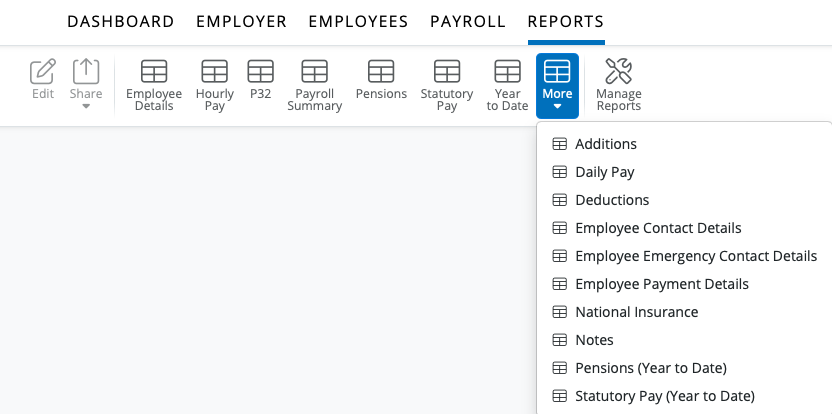
These saved reports represent the most common payroll reports generally used. The default reports that appear in the toolbar consist of:
- Additions
- Employee Details
- Hourly Pay
- P32
- Payroll Summary
- Pensions
- Statutory Pay
- Year to Date
The saved reports available under "More" consist of:
- Daily Pay
- Deductions
- Employee Contact Details
- Employee Emergency Contact Details
- Employee Payment Details
- National Insurance
- Notes
Manage Reports
This utility allows you to manage saved reports. Here you can indicate whether a report is to show in the menu toolbar or within the 'More' menu.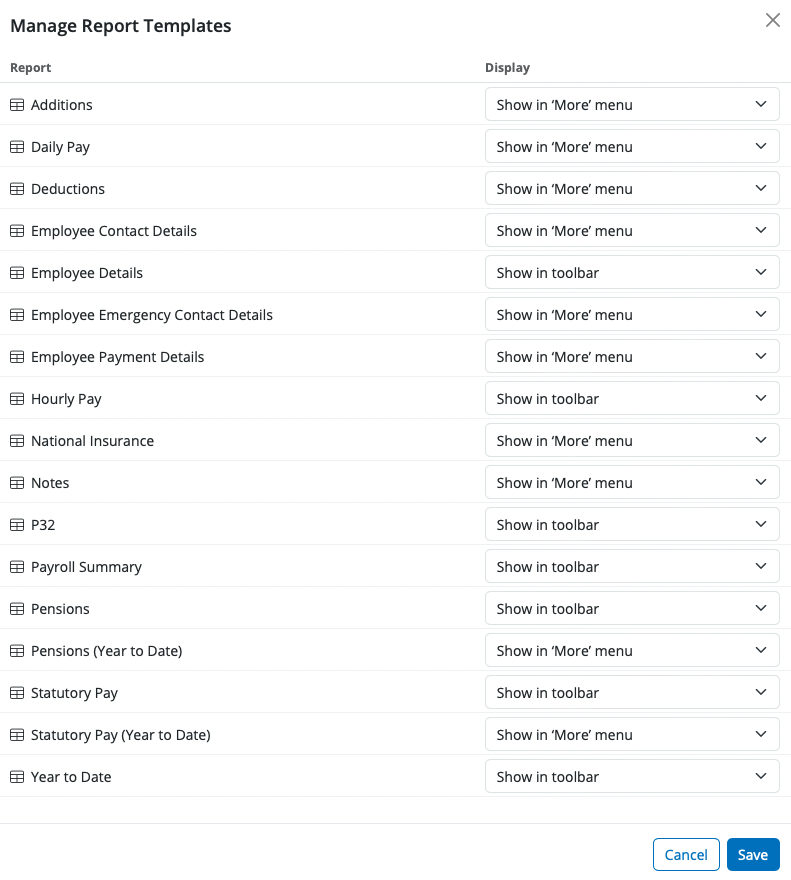
You cannot edit reports (e.g. adding or remove fields) directly within the Client Portal.
Reports cannot be created or edited within the Client portal as the data columns & fields are set within the BrightPay payroll software.
The payroll processor will need to edit the report on the payroll software to include / remove fields within a particular report. Once the changes have been made in the payroll software, the updated / saved report will then show on the Client Portal.
In BrightPay Cloud, you cannot hide payslips for zero pay employees in the Client Portal. If a payslip has been processed, even with a zero amount, it will appear and be accessible in the portal for both employer and employee users.
Currently, there is no option to exclude or hide zero pay payslips; all processed payslips are shown as part of the payroll record.
For reports, you can filter to show only paid employees, but payslips themselves cannot be hidden.
If you have added a new column on a report in BrightPay that you wish to be shown on the client portal report view; Run the report & save (override existing template), then refresh your browser. Once the client user logs in, they will then see this new column on their report view.
Please note: There is no option to password protect a report downloaded from the client portal.
There is no facility in BrightPay Cloud to alert clients that reports are available after payslips have been finalised.
Comments
0 comments
Article is closed for comments.