
Please note: There is a limit of 1,000 subcontractors for each contractor in BrightCIS.
To import a contractor(s) from BrightPay Desktop to BrightCIS follow the steps below:
Step 1. Create your organisation.
Go to https://cis.brightpay.com and log in using your BrightID.
Note: BrightCIS is separate from the BrightPay Cloud version and uses a different URL.
*If you use BrightPay or other Bright Products, you will already have a BrightID.
If you don’t have a Bright ID, click Sign up for Bright ID and follow the steps.
Once logged in, you will be asked to create your organisation.
An organisation is the central place where you manage contractors, team members, and set up billing. Here, you need to enter your organisation's name and address, choose your payment plan, and add a payment method.
*Need help? Check out here https://payrollsupport.uk.brightsg.com/hc/en-gb/articles/36956376068369-Creating-an-Organisation
If you have already created your organisation in BrightPay Cloud and are using the same BrightID in BrightCIS, there's no need to create a new organisation.
Step 2 is to Create or Import your Contractor into BrightCIS.
To import your Contractor and subcontractor data in your employer data file from BrightPay desktop into BrightCIS select Import from Windows or Mac.
Please note: Only employer data files from BrightPay desktop 2025-26 can be imported into BrightCIS.
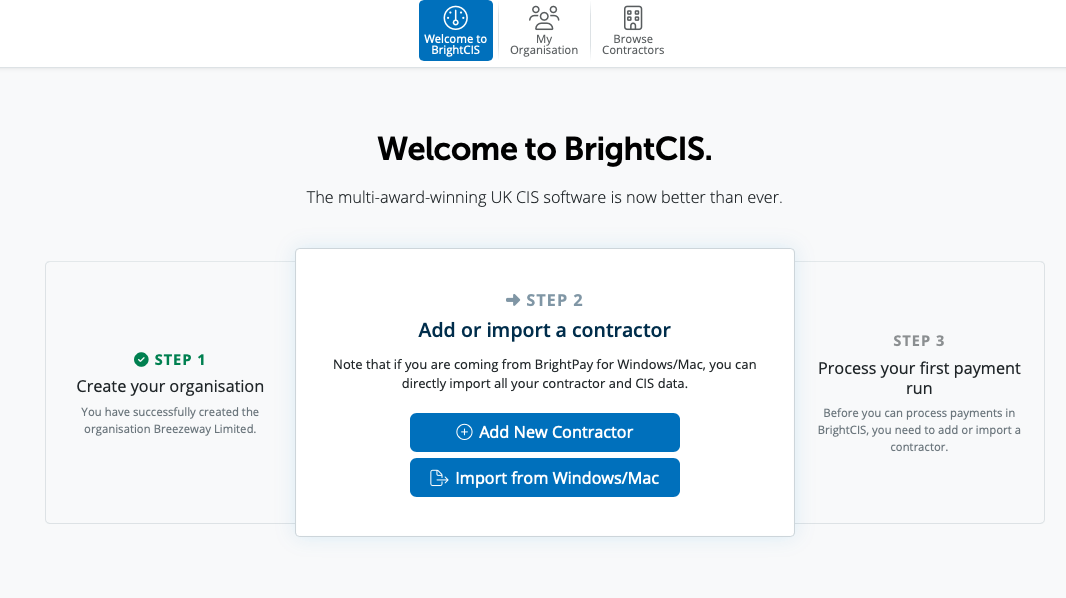
Or to start importing your Contractor and subcontractor data in your BrightPay employer data file into BrightCIS please select the Browse Contractors option.
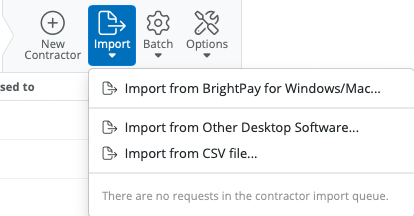
In order to import into BrightCIS from BrightPay for Windows or Mac please select the option of Import > Import from BrightPay for Windows/Mac
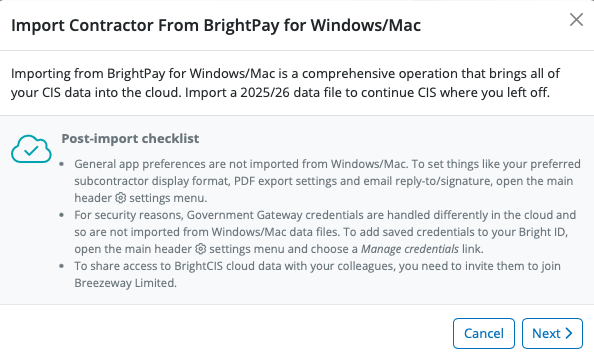
Every contractor imported or created in your account must be added to an organisation. Select the organisation you wish to import your BrightPay employer file into.
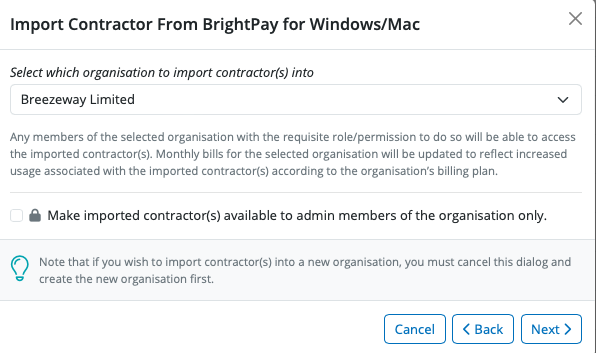
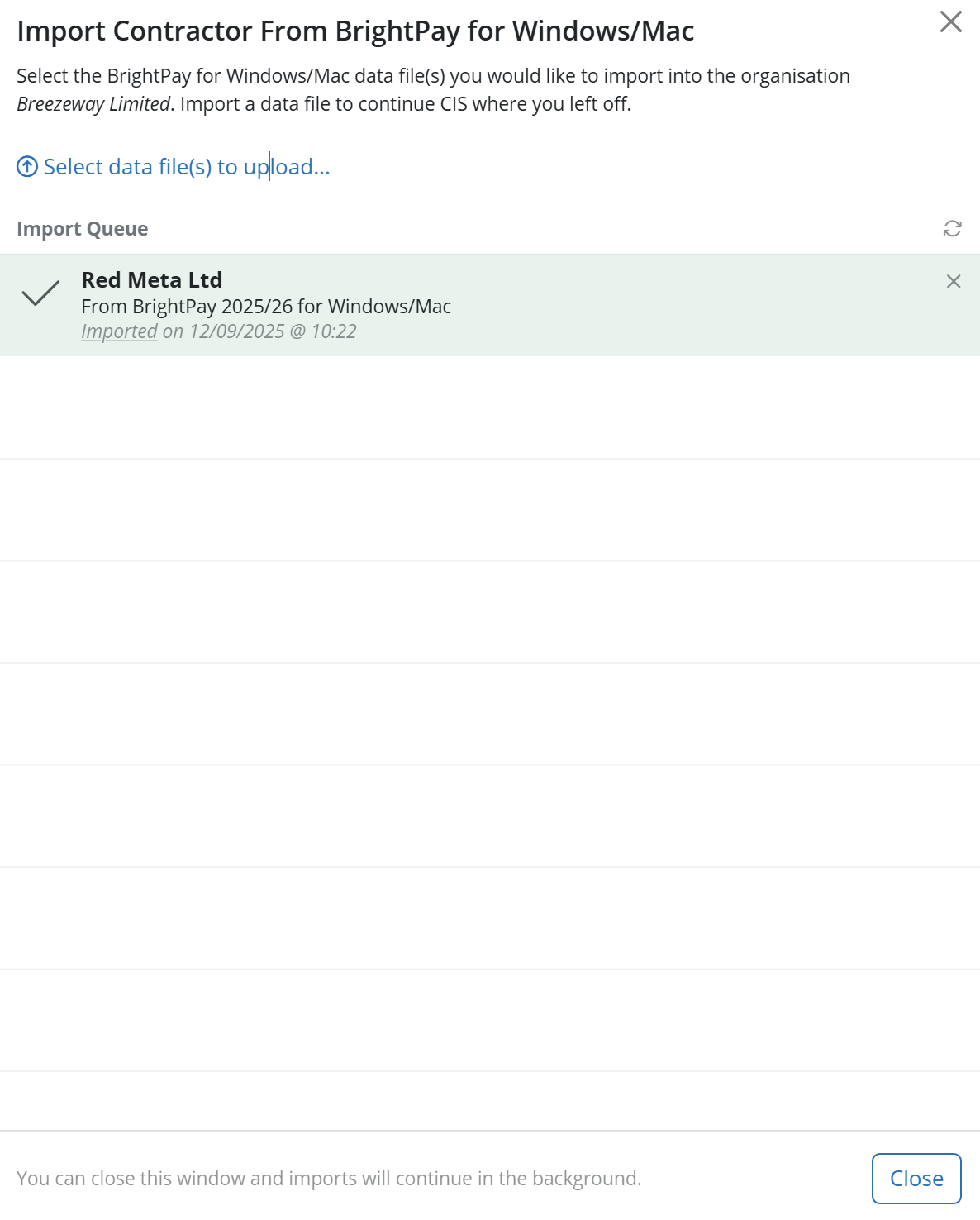
In order to import the contractor please click Select data file to upload....
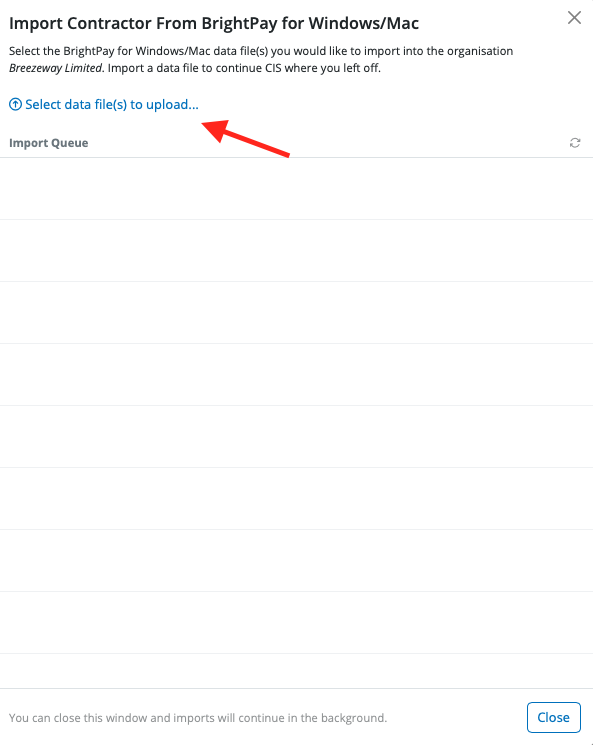
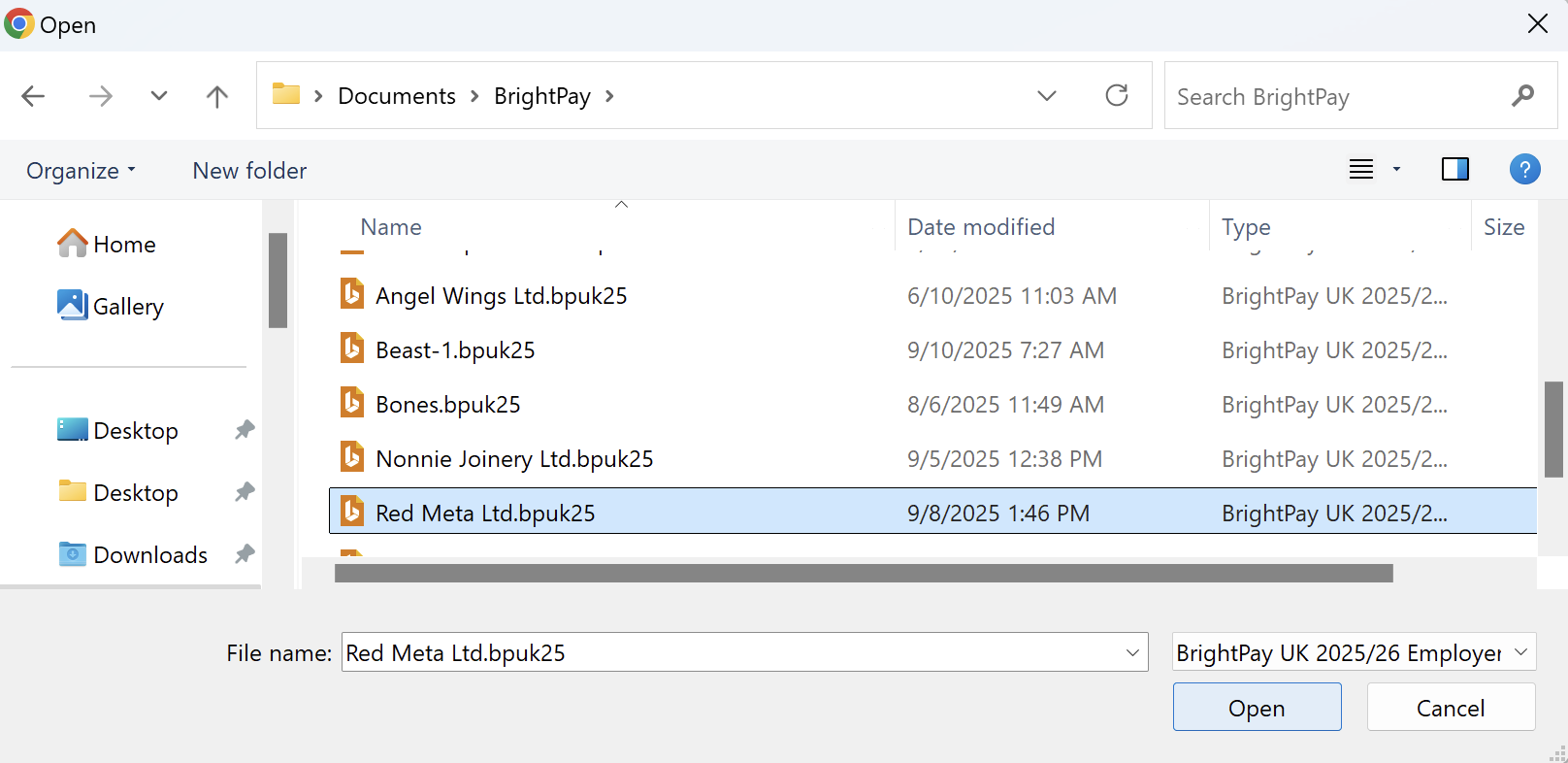
Then browse to where your BrightPay employer data files are saved. Please select the BrightPay employer data file you wish to import and click Open.
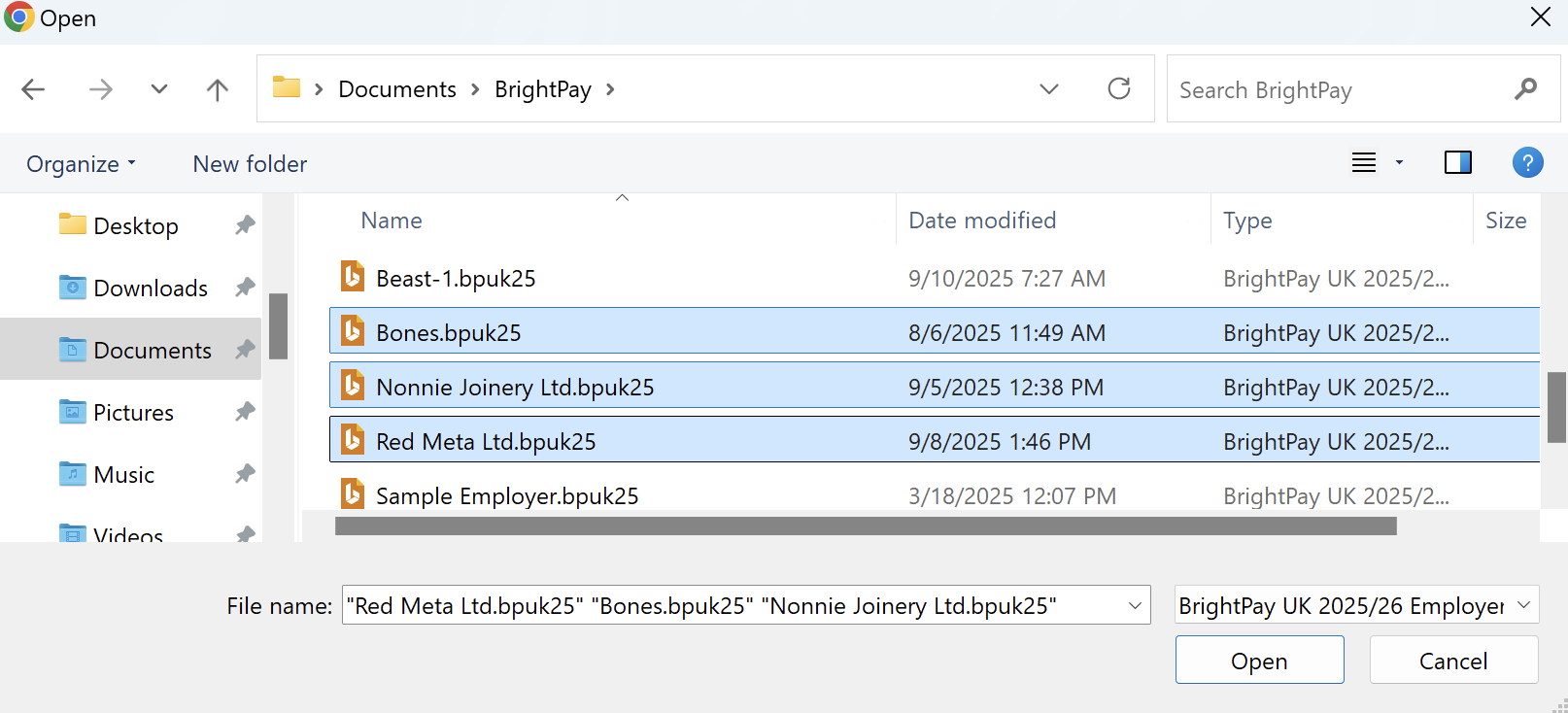
If you have multiple BrightPay employer data files you wish to import at the same time, select shift and highlight the multiple BrightPay employer data files you wish to import and then select Open.
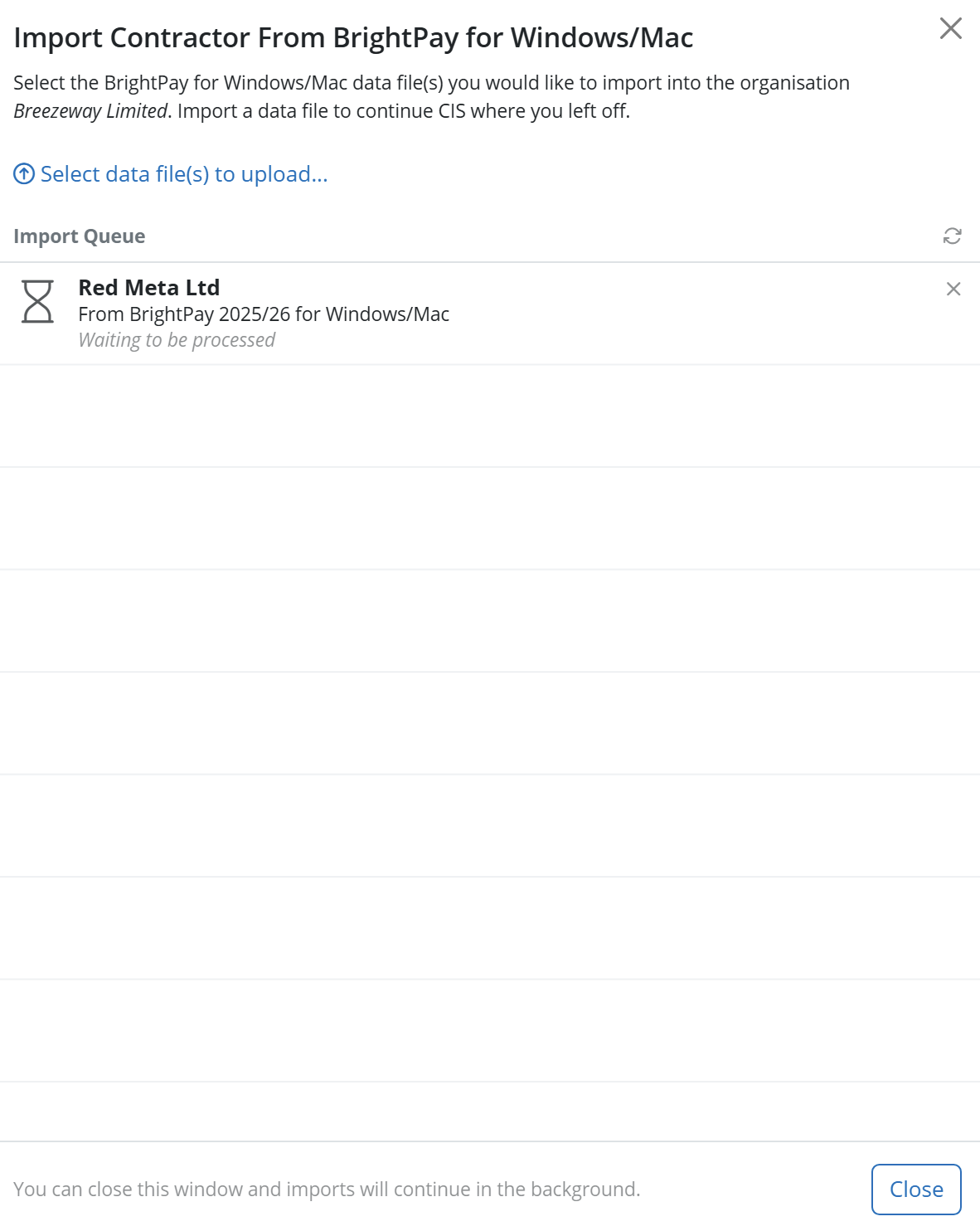
The BrightPay employer data files will start to import into BrightCIS. This typically takes about 30 seconds. The BrightPay employer data files will be highlighted in green once they are imported successfully
Step 3 is to Process your first Payment Run
Click on the 'Open Contractor' button to open the Contractor that has just been imported.
Alternatively, you can click on 'Browse Contractors' at the top of the screen and the Contractor details will be displayed on the Contractor homescreen.

What Data get's imported into BrightCIS from BrightPay Desktop?
-Contractor and Subcontractor details (including YTD information if moving mid- year)
-Already processed pay periods (if moving mid-year).
-History of Submissions within the current tax year (if moving mid-year)
-Departments
-Additions, Deductions, Hourly Rates, Daily Rates, Piece Rates, Bank Accounts
-Custom Reports
What needs to be re-entered:
You need to enter the HMRC Gateway credentials after moving from BrightPay Desktop To BrightCIS. To do this, click on Settings in the top right corner > Submissions > HMRC Credentials > Add > Enter the details and press Save.
Transferring Gross CIS Deductions to BrightPay
If you use BrightPay Cloud for Payroll, you can transfer the Gross CIS deductions from BrightCIS by following this guidance: https://brightcissupport.brightsg.com/hc/en-gb/articles/39598172874769-Transferring-Gross-CIS-Deductions-to-BrightPay
CIS Deduction Suffered
CIS deductions suffered can be either entered manually within BrightPay Cloud in the HMRC menu by clicking into the relevant tax period > Entering the figure in the 'CIS deductions suffered' field or using the HMRC liability section in BrightCIS by going to Contractor > HMRC liability > Send to BrightPay
When using BrightCIS there is a facility to send the Gross CIS deductions withheld from subcontractors over to the BrightPay payroll software. To do this within BrightCIS go to the Contractor section > HMRC Liability > select the correct tax month > Send to BrightPay:
NB: The PAYE scheme number has to be the same in BrightCIS as it is on BrightPay or the employer and contractor will not match for the transfer of data.
Once the information has been sent to BrightPay for a tax month, any amendments done on BrightCIS - ie if this changes the amount due to HMRC - will not be reflected on BrightPay or the P30/P32 so this would need to be manually updated in BrightPay payroll.
Please note: As BrightPay Cloud and BrightCIS are 2 separate softwares, if you have an employer that is also a contractor - you would need to import them into once BrightPay for payroll and then again into BrightCIS for processing CIS.
Need more help with your migration? Email hellomigration@brightsg.com
Comments
0 comments
Article is closed for comments.