
BrightPay Employee Self Service Portal provides a web-based portal where employees can view/download their payslips and other payroll documents and view their calendar.
As soon as you have enabled Self Service access for employees (for assistance with this click here), these employees now have permission to access to their Employee Self Service portal.
In order for an employee to log into their Employee Self Service Portal they will need to register for a Bright Id. (for assistance with this click here)
Employees can log in to their Self Service Portal here.
Sending Self Service Invitation Emails
1) Log in to your BrightPay account and access the employer in question within 'Employers'.
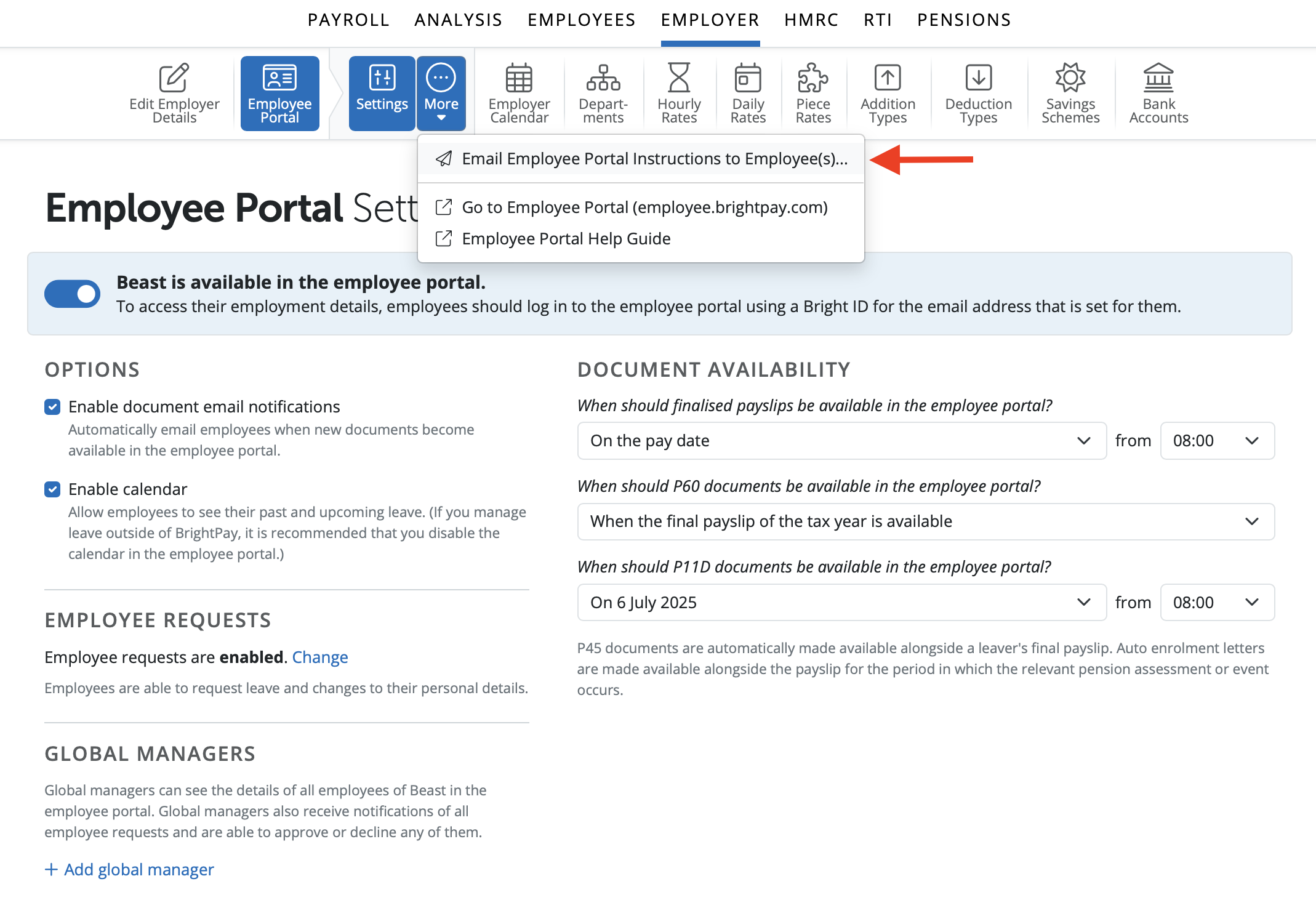
2) Click 'Employee Portal'.
3) Click 'More > Email Employee Portal Instructions to Employee(s)'.
4) Select each employee that you would like to send a personalised email to with an overview of Self Service and instructions on how to log in.
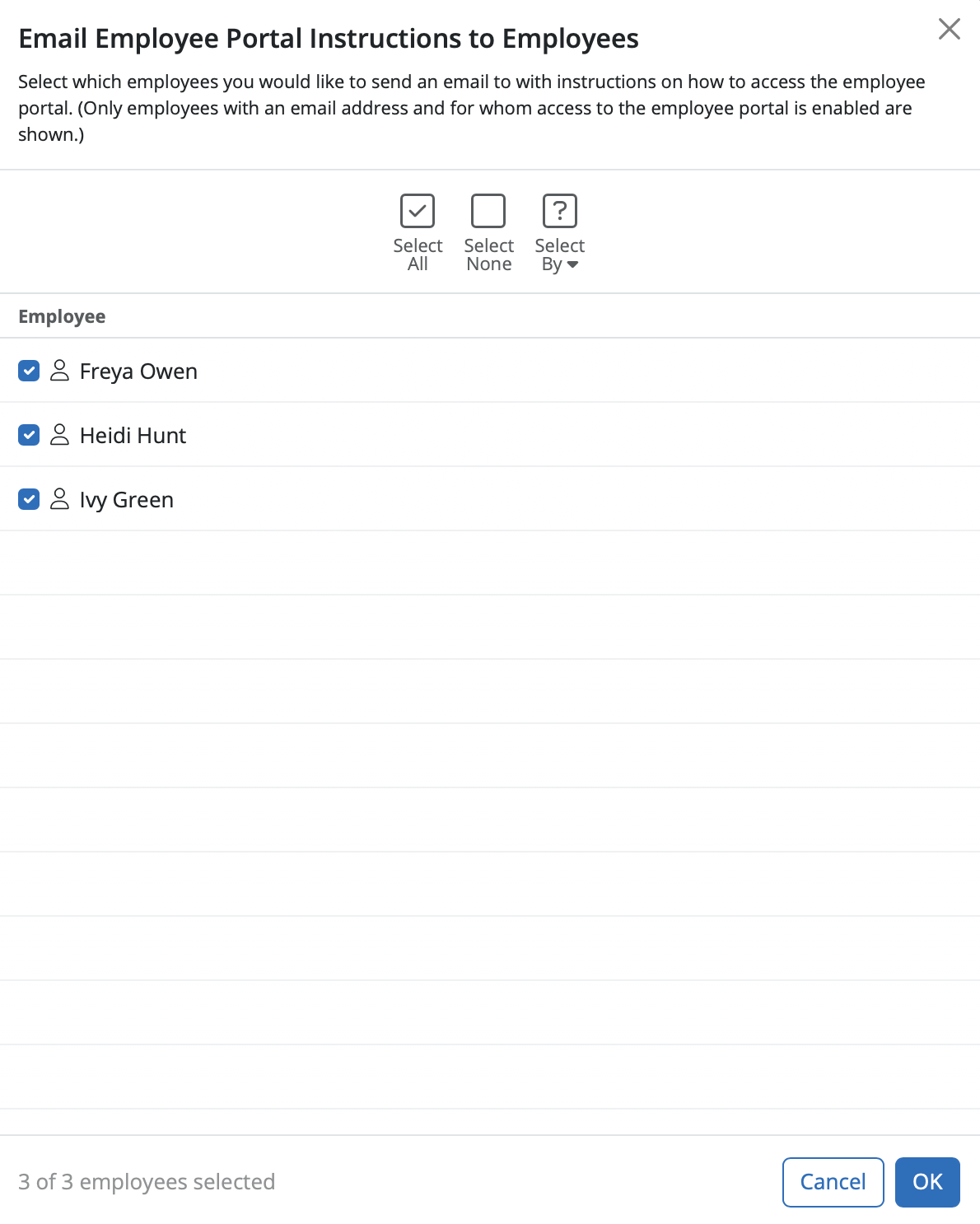
Please note: employees for whom self service has not been enabled will not be available for selection.
5) Once all employees are selected, when ready and click 'OK'.
All employees selected will be sent a welcome email containing instructions on how they can log in to their own self service portal.
If you are getting an error when sending employee invitations to the Employee Self Service Portal (EESSP), please check the email address field in the employee's Personal Details:
- Make sure the email address is formatted correctly (for example, ending with .com, .co.uk, etc.).
- If there are multiple email address lines (such as “work” and “personal”), ensure the top line (work email) is not empty.
- If the top line is empty, this can cause an error. Delete any empty email fields by clicking the small cross next to the email address.
Once the email addresses are correctly entered, you should be able to send the invitations without errors.
Comments
0 comments
Article is closed for comments.