
*Please note: this particular functionality must be activated by the employer to be available to the employee
A video tutorial for an employee requesting change of personal details on the Employee Self Service Portal can be accessed here.
To request change of personal details through your Employee Self Service portal:
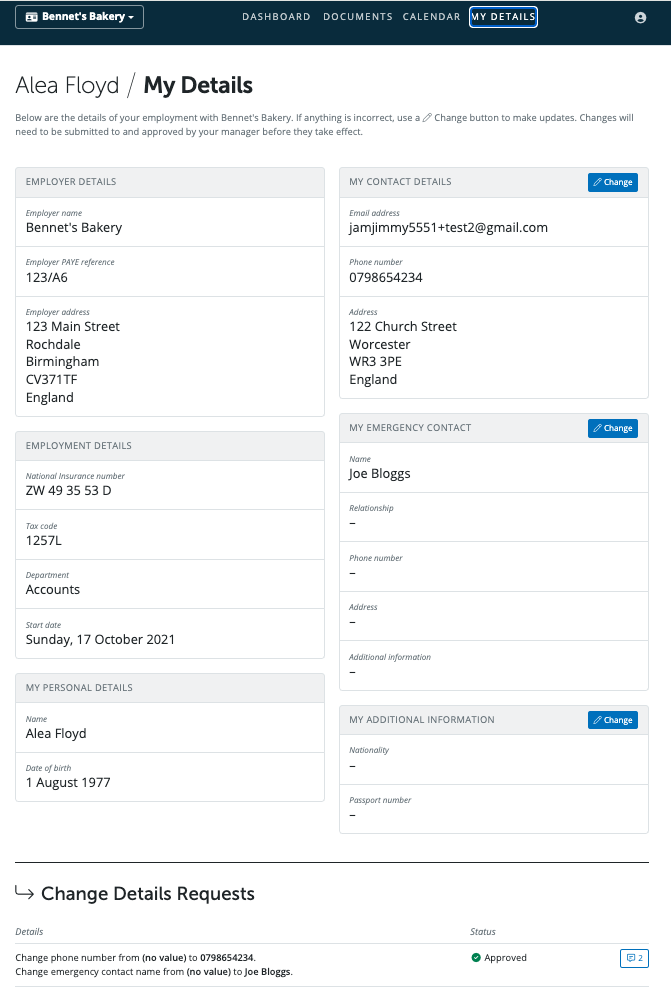
1) Select 'Change' for the area of personal details such as My Contact Details, My Emergency Contact or My Additional Information in My Details section that you wish to make a change to.
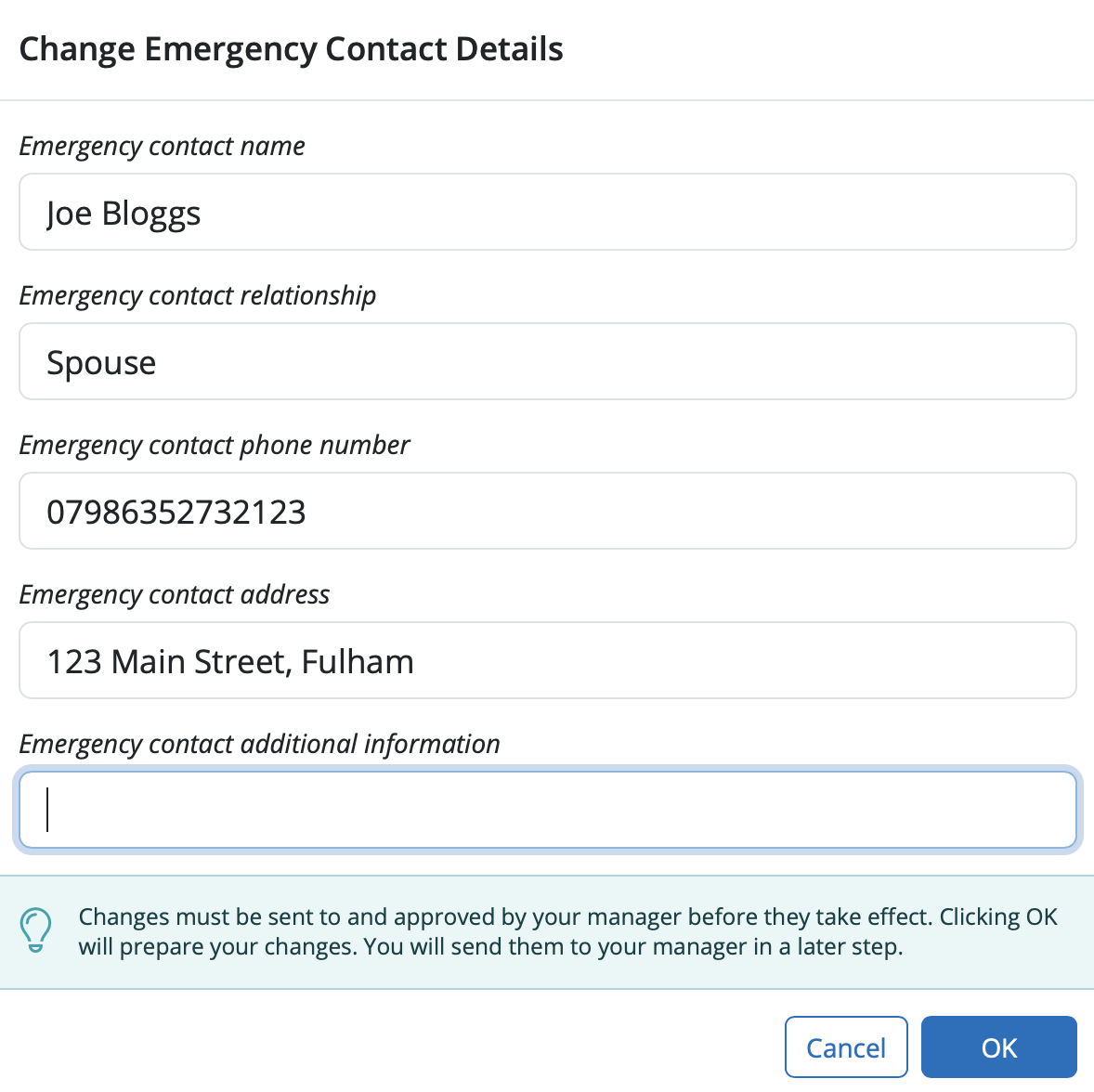
2) Enter in the details you wish to update or change in the desired section and select OK.
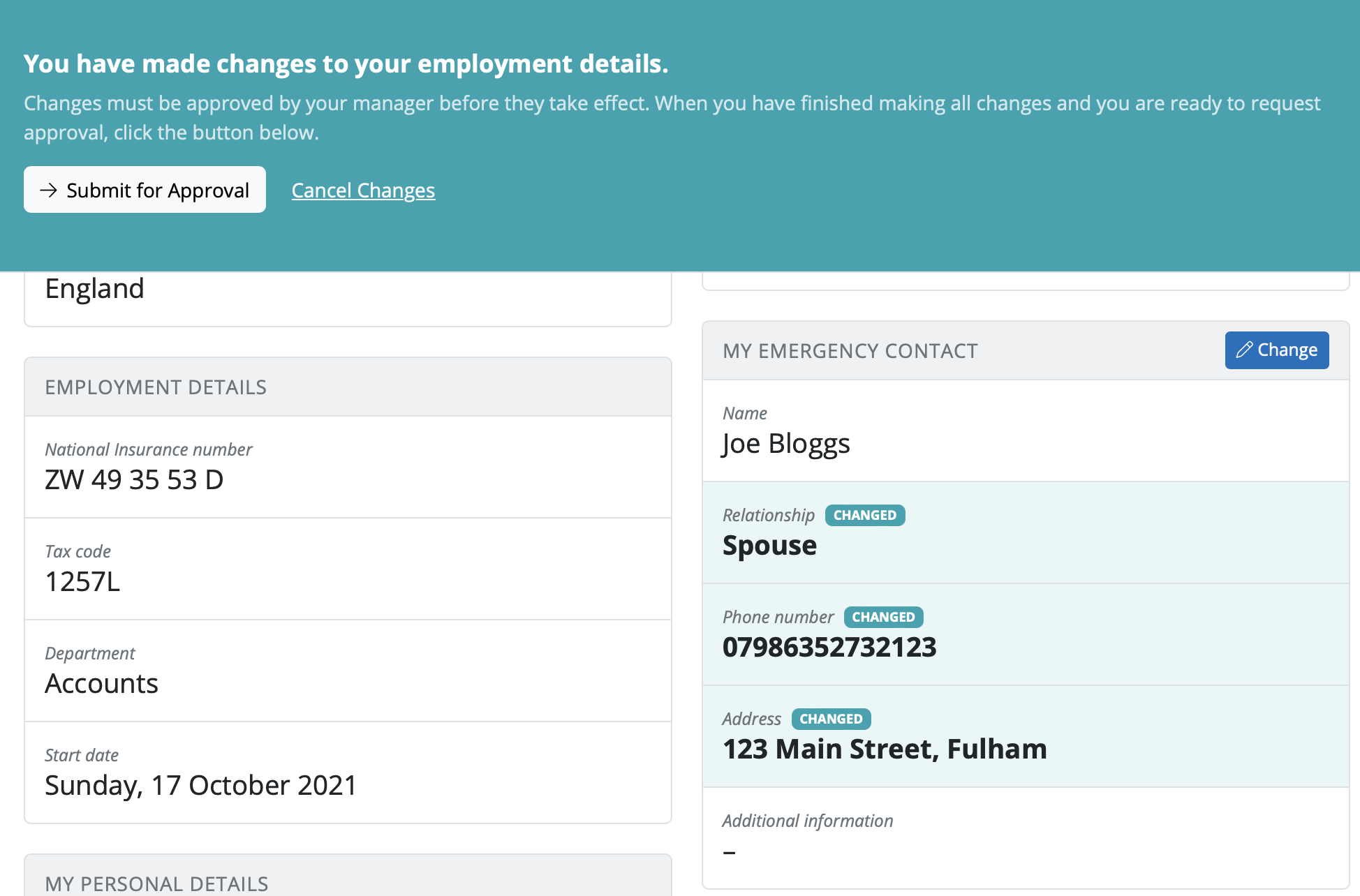
3) The changes you have made for your personal details will have 'changed' status beside each section edited/changed. The request for these changes is ready to be sent for approval. But you can make further changes if required before sending the request.
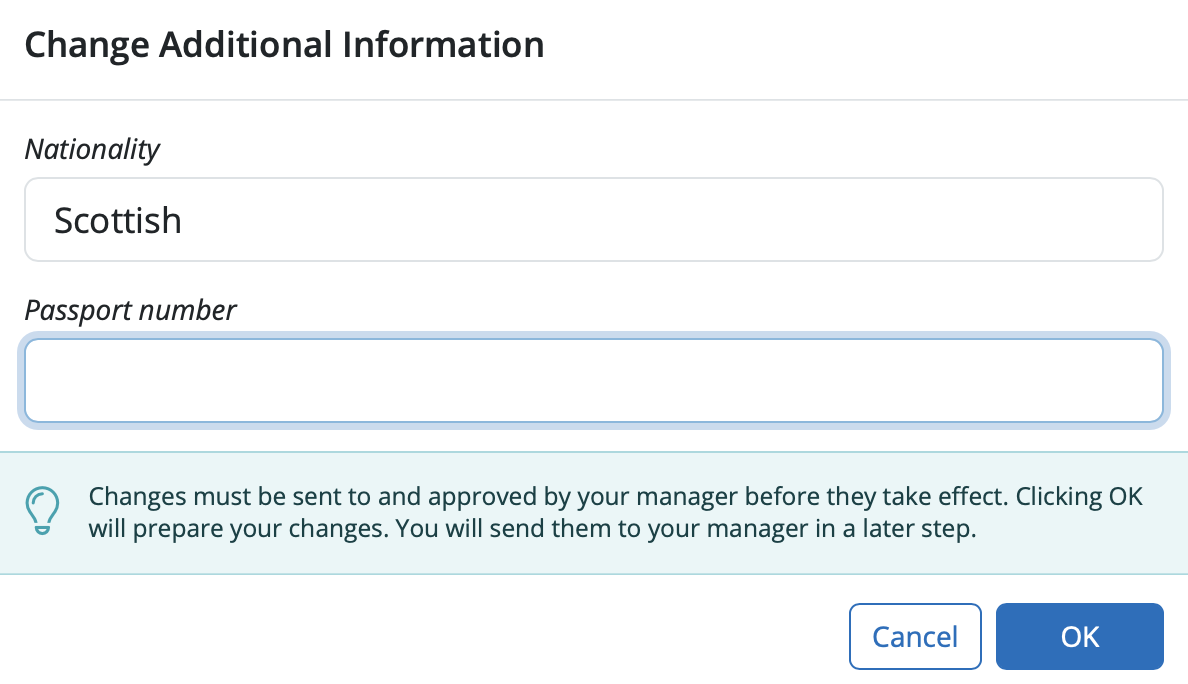
3 a) Add any additional changes or updates required to add to the existing request by selecting 'Change' on the area required, enter in the updates or changes and select OK.
4) Click 'Submit for Approval' to send the request for change of personal details for approval.

5) If required, you can add any supporting comments or reasoning to your request for change of personal details. Select 'Submit'.
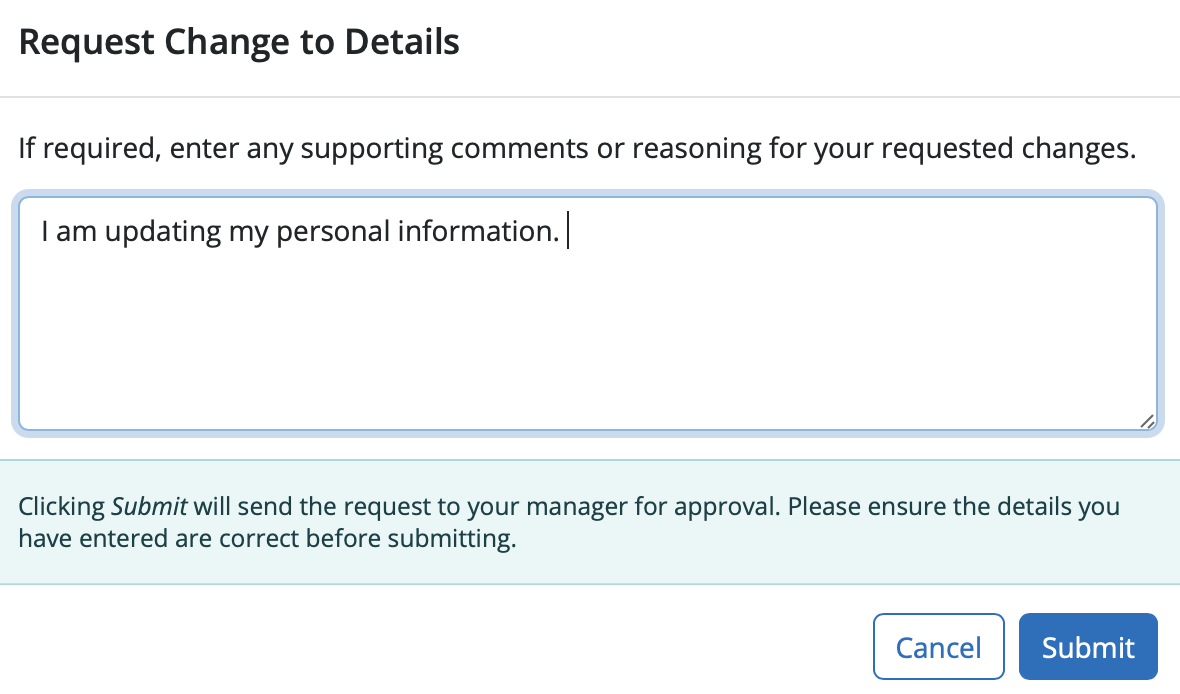
Your request will be sent for approval.
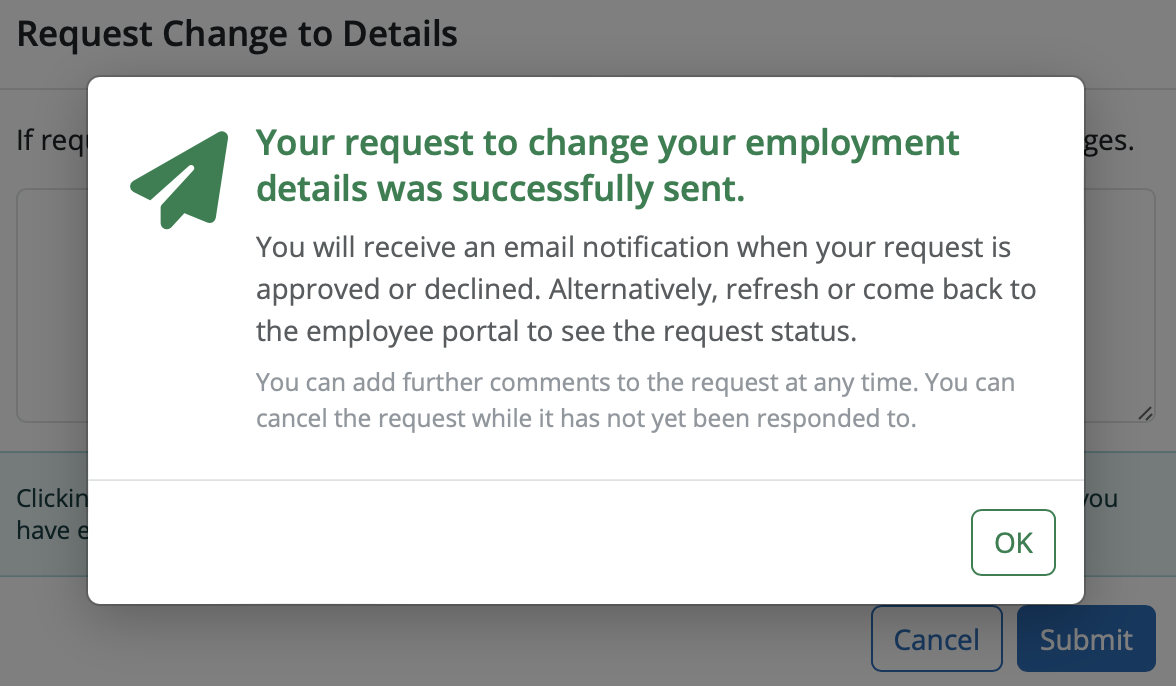
Your requested change of personal details will now be marked as awaiting approval in the sections that were updated, and your employer will receive a notification with the details of your request for approval.
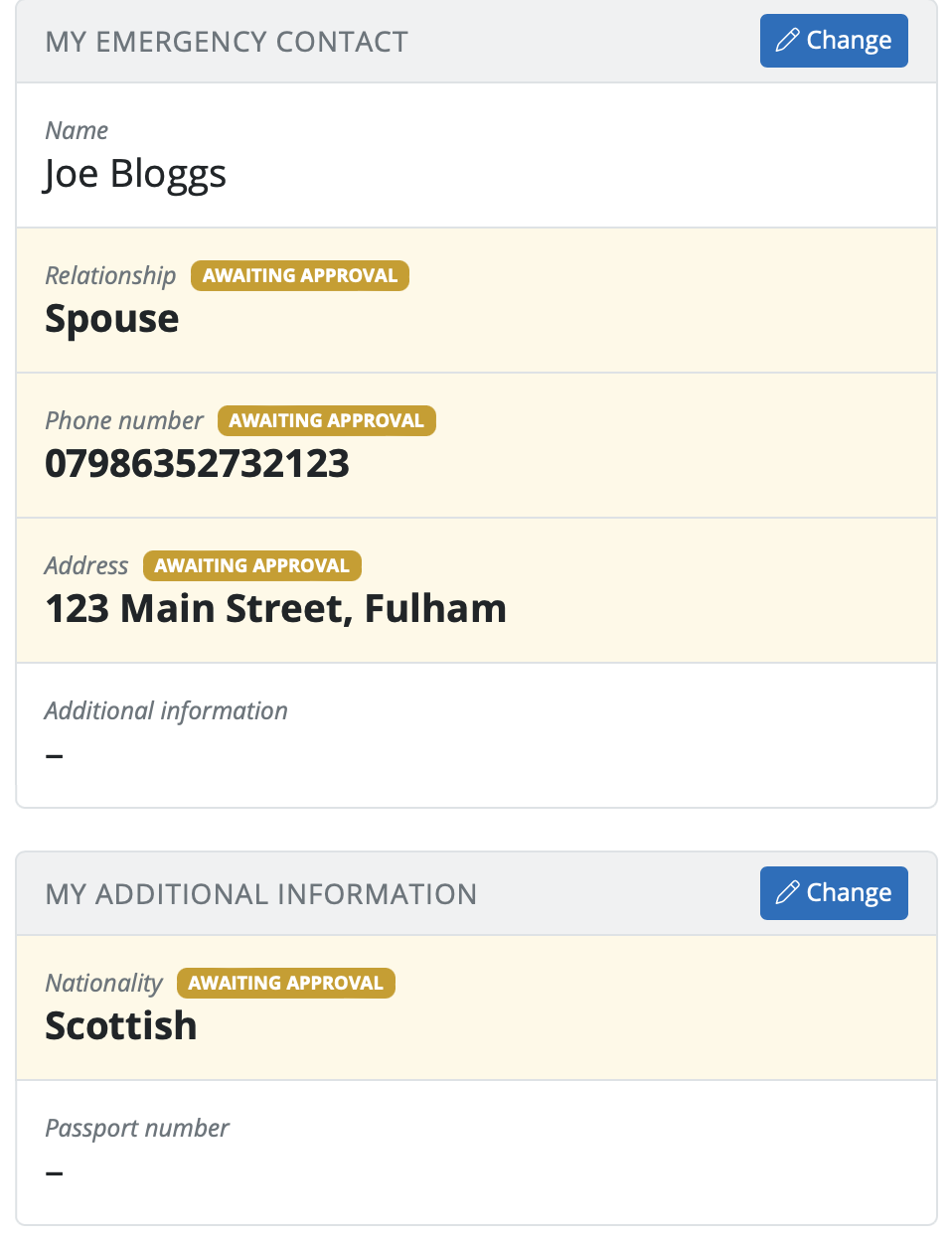
If your change of personal details request is approved by your employer/manager, you will receive email notification confirming this. Your personal details will be updated accordingly to show the approval. Should your leave be rejected, you will receive email notification confirming this.
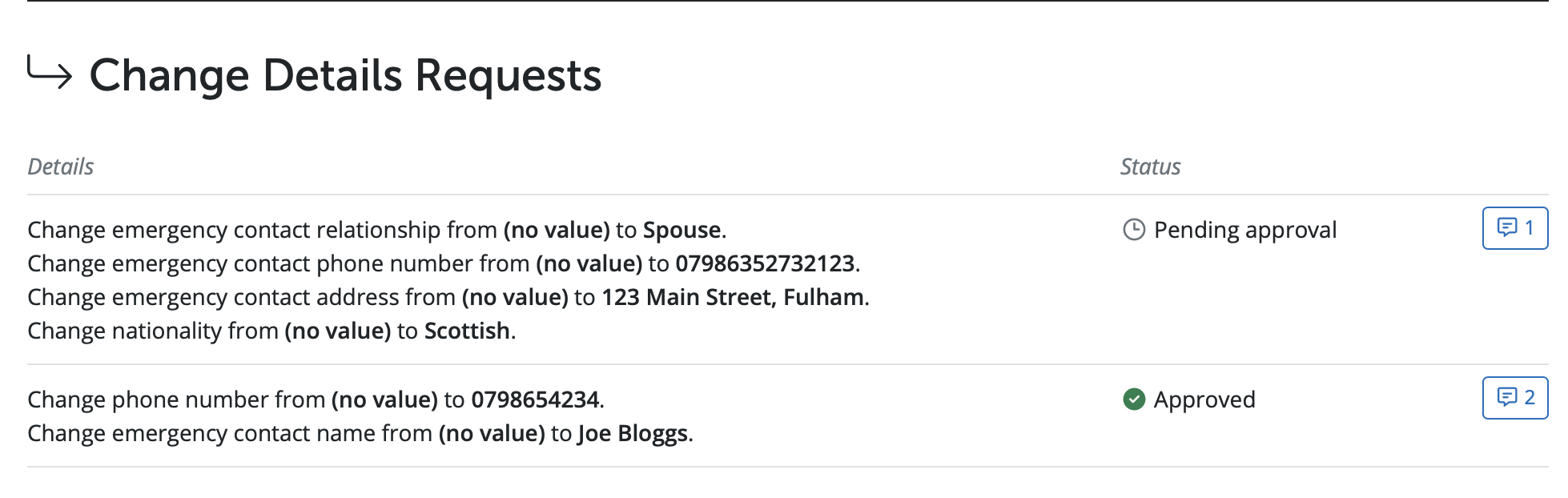
You will be able to view your change details request history at the bottom of the screen in the Calendar section. You can see the status of each request, the details of request and if any comments have been made.
You can add a comment to any pending request by selecting the blue comment box opposite the request. The employer/manager will get a notification of the comment added to the request. If the employer/manager makes a comment to the pending request you will get a notification of the comment being added.
In BrightPay Cloud, employees cannot change their bank account details, including bank account name, from the Employee Self Service Portal. This feature is restricted to contact information (phone, address), emergency contact details, and some additional info only.
If you are a payroll bureau and the bank account name field is greyed out for an employee, only the payroll processor or employer (with appropriate access permissions) can change it.
- There needs to be at least one open pay period left in the tax year (ie bank account details cannot be changed if there is no more payroll to process such as at year end).
- Go to Employee Details > Payment tab and edit the bank account name & account details fields.
- Save the changes, then re-finalise the payslip.
Employers cannot make bank account changes themselves directly from the Client Portal—only those with payroll access permissions (such as the bureau) can update bank account details.
If an employee has a change of surname (e.g., after marriage or divorce), this can be updated in BrightPay in the following ways:
Requested by the employee via their portal - this will then need to be approved by their manager or client user (employer).
Amended by the employer / manager through the Client Portal / Manager Portal
Changed directly in BrightPay by the payroll processor
Comments
0 comments
Article is closed for comments.