
Before you Import please complete your final year-end Tasks
- Finish your last payroll – Process the final payroll for all pay frequencies.
- Send RTI submissions – Submit any outstanding RTIs to HMRC.
-
Submit your Final EPS
- Go to the RTI tab → create a new Employer Payment Submission (EPS) for Tax Month 12.
- Tick the box for ‘Final Submission’ and send to HMRC.
Each annual version of BrightPay is separate to each previous tax year version. You will see a new 2026-27 tax year option appear on your screen for you to access BrightPay for the new tax year.
1. Please sign into BrightPay here.
2. Ensure you are in the 'Browse Employers' Screen and then on the top left hand corner you will see the tax year 2025-26. Please select this icon.

3. On the dropdown menu please select the 2026-27 option in order to move forward to the new tax year.
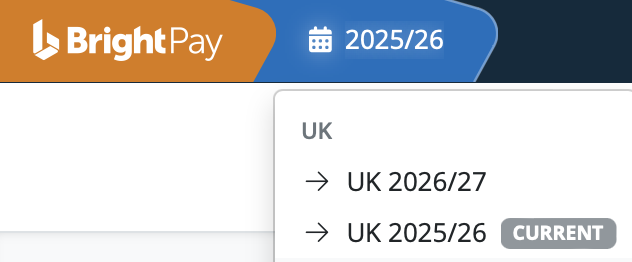
Note: If you do not see the 2026/27 option - ensure you are in the 'Browse Employers' screen (and not in the employer data itself
4. Once you have selected 2026/27 you will see all your employers from the previous tax year listed on the Employer Dashboard.
The icon to the left of the employer's name will have a dotted line around it. This denotes that the employer's data is not available in the current tax year and you will have to import the employer's data if you wish to access it in the current tax year.

5. There are two options to start the import process to the new tax year:
- Select the employer's name to prompt the import
- Select the spanner icon opposite the employer's name and select 'Import from 2025/26'

6. Once you select either option an Import Window will appear:
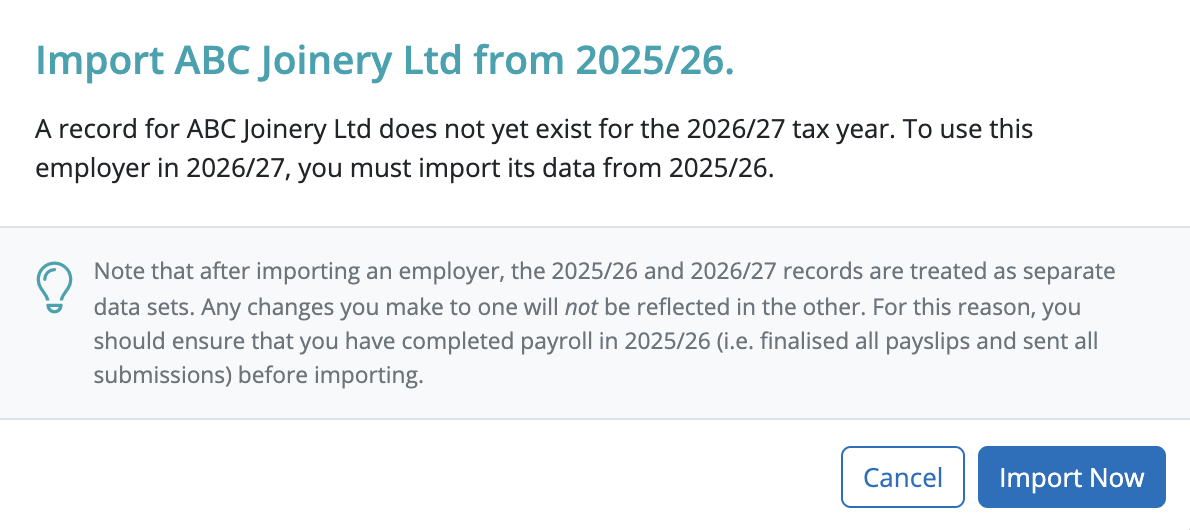
7. Select 'Import Now' and your employer will start to import into the new tax year.

8. All your employer data will import into the new tax year excluding leavers from the previous tax year.
9. When you open the employer in the new tax year your pay schedule will automatically be set up based on the schedule settings in the previous tax year.

10. You are ready to start processing your payroll now.
Please note: All employee data records will be reset for the start of the new tax year and all associated 2026/27 budgetary changes will be applied as per HMRC instruction.
All importable employers will show when you are in the 'Browse employers' screen within the new tax year. If you do not wish to import an employer into the new year, you can simply not click them to import and they will not move over to the new tax year. All previous years' data will remain.
Once you have transferred all required employers into the new tax year, you can choose to hide any importable employers that are not being carried forward by clicking on the More spanner icon > Hide importable employers (from previous tax year).
If no employers are showing on the 26/27 tax year, from within the Browse Employers screen > Click on 'More' at the top > Show Importable employers (from previous tax year).
There is no requirement to delete an employer that you do not wish to import into the new year.
If an employer is not showing, check that they are not hidden - click on More > 'Show importable employers (From Previous Tax Year).
What HMRC require before commencing payroll from 6th April 2026
Employees without a new tax code:
Carry forward the authorised tax code from the employee's 2025/26 payroll record to their 2026/27 payroll record.
Do not copy or carry over any ‘week 1’ or ‘month 1’ markings.
Employees with a new tax code:
Keep and use the form P9(T) or other tax code notification with the most recent date on for each employee.
HMRC advises to:
• scrap any form P9(T) or other tax code notification for the same employee with an earlier date
• copy the tax code from the form P9(T) or other tax code notification onto your payroll record
• update any tax codes where you have received form P9(T) or other tax code notification after you have set up your payroll records.
Comments
0 comments
Please sign in to leave a comment.