
To access the Reporting function, click 'Analysis'.
A number of pre-set reports have already been set up for your use and can be found within the Saved Reports section in the menu toolbar.
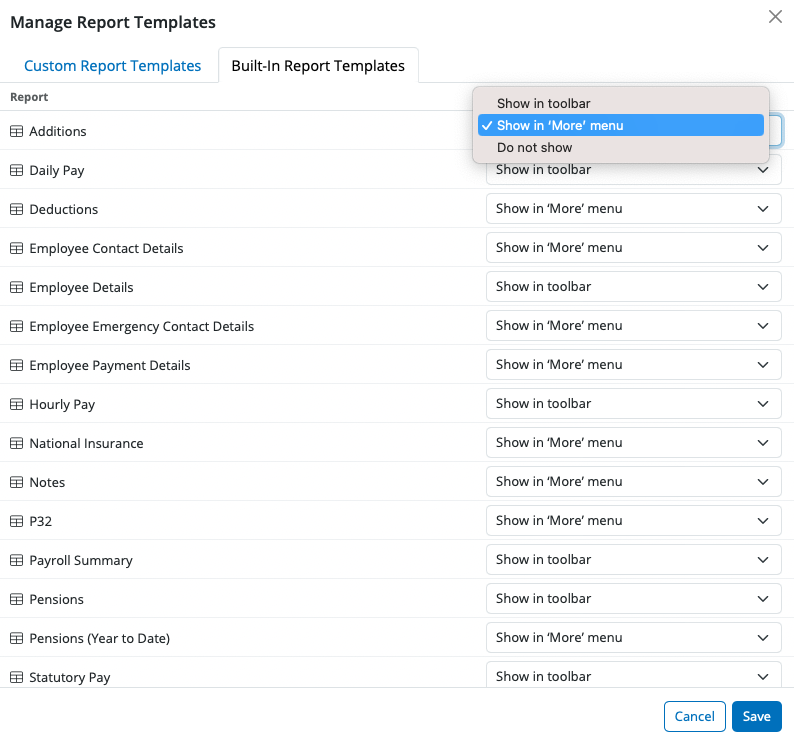
Some of the saved reports display in the toolbar while others can be found by selecting "More".
These saved reports represent the most common payroll reports generally used. The default reports that appear in the toolbar consist of:
- Daily Pay
- Employee Details
- Hourly Pay
- Payroll Summary
- Pensions
- Statutory Pay
- Year to Date
The saved reports available under "More" consist of:
- Additions
- Deductions
- Employee Contact Details
- Employee Emergency Contact Details
- Employee Payment Details
- National Insurance
- Notes
- P32
- Pensions (Year to Date)
- Statutory Pay (Year to Date)
Manage Reports
This utility allows you to manage saved reports. Here you can indicate whether a report is to show in the menu toolbar or within the 'More' menu.
Note: If the period that you want to run a report on is not showing, check that the payslips have been finalised for that period. The reports in the Analysis section will only appear when payslips have been finalised.
If elements that are visible on the payslip are not pulling through to the reports, ie a certain addition type - ensure that the addition type has been set up as an Employer Addition type before it is added to the payslip. Also ensure that no extra description or characters have been added to the payslip - unless the description matches the Employer Addition type exactly; it will not pull the amounts through to the report.
Report templates that exist at the time of moving to a new tax year will carry across automatically. However, if a report template was created after the tax year was set up, it cannot be copied across to a different tax year — there is no facility to import individual report templates between tax years.
To run a payroll summary without finalising the payslips or issuing payslips to employees; go to the Payroll section > select the pay period for the report > More icon > Email/Download PDF Period Summary.
Comments
0 comments
Article is closed for comments.