
P30 Employer's Payslip
To access your P30 for the tax month or quarter in question, select HMRC on the menu bar and select the tax period you wish to view on the payment schedule bar.
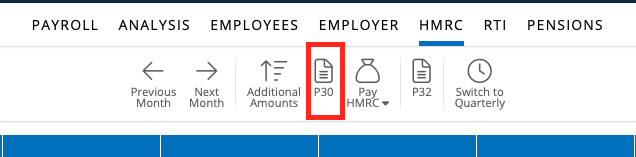
1) Click the P30 button on the menu toolbar
2) To print the P30, click the 'Print' icon on the top right hand corner.
3) To email the P30, click the 'Email' icon on the top right hand corner.. (A default 'reply to' address and an email signature can be added by going to File > Preferences > Email > when complete > 'Save')
4) To download the P32 to PDF, select the 'Download' icon on the top right hand corner.
Note: If there is no payment reference on the P30, this is due to an adjustment or carry over amount from the previous period. The reason for this is any manual adjustment made or carry over from a previous period in the HMRC tab on BrightPay will not reflect the FPS submission details sent in that tax month.
P32 Employer Payment Record
To access your P32 Employer Payment Record, select HMRC on the menu bar.
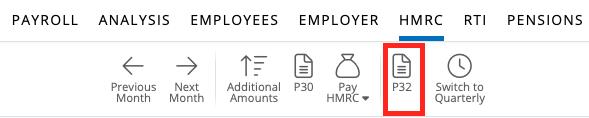
1) Click the P32 button on the menu toolbar.
2) To print the P32, click the 'Print' icon on the top right hand corner.
3) To email the P32, click the 'Email' icon on the top right hand corner. (A default 'reply to' email address and an email signature can be added by going to File > Preferences > Email > when complete > 'Save')
4) To download the P32 to PDF, select the 'Download' icon on the top right hand corner.
The P32 is a 1 page document, split into 3 sections, with each tax month listed and any corresponding values for each field displayed in a report style format;
- Income Tax - Gross tax, Gross Student and Post-graduate loans, Gross CIS deductions, CIS deductions suffered, Received from HMRC (to refund tax), Net tax
- National Insurance Contributions - Employee NICs, Employer NICs, Statutory pay recovered, NIC compensation, Employment Allowance claim, Apprenticeship Levy, Received from HMRC, Net NICs
- Amounts Due - Shortfall from previous periods, Adjustment, Total amount due, Total amount paid, Balance due
Important - In BrightPay, the P32 provides a breakdown for the entire tax year, while the P30 gives you a monthly summary.
To view / print / export previous tax years' P30s or P32s, ensure you are in the correct tax year on BrightPay. You can switch tax years by clicking on the current at the top of your screen and then choosing the required tax year from the dropdown menu.
FAQs
Q. Why might Company (Employer) NIC be a different amount showing on the Analysis reports in the and the Employer P30?
A. Usually, the employer NIC shown in Analysis reports and on the P30 should match, as both should refer to the same wages and contributions for that tax month.
However, differences can arise due to:
- Date Settings:
- Company Analysis uses pay periods or payroll summary periods, while the P30 uses the actual pay date to define the tax month.
- If running weekly payroll, pay periods may not align exactly with the P30’s tax month calculation (for example 4 weeks have been run on the Analysis report, but actually 5 weeks 'pay date' fall within the tax month).
- Employee Pay Dates:
- If one or more employees have a different pay date from the usual (ie, they have been paid early or late as they are leaving employment, but the period in the Payroll section has not changed), their NIC may show in a different tax month on the P30 compared to the Analysis reports.
- Leavers and Termination Awards:
- If a leaver has been made redundant and is given a termination award, this is subject to Employer Class 1A NIC (not Class 1).
- Analysis reports usually only provide Employer Class 1 NIC by default, whereas the P30 includes all NIC liabilities. If you want the total to match the P30 (which includes all ER NIC, including Class 1A), ensure you add the ‘Employer Class 1A NIC’ column in your report using the 'add/remove columns' options before running the report.
Q. I’ve noticed that on my month 3 P30, the last 4 digits of the reference (for example “2703”) are missing. Why is this happening?
A. The last 4 digits will not appear on your P30 if either of the following applies:
- You have selected “Yes” to carry over a shortfall, or
- There is an Adjustment entered under Net Adjustments.
In these cases, the system suppresses those final 4 digits on the P30.
Within the HMRC tab, BrightPay defaults to carry forward any shortfall in previous months into the next month. If you wish to stop any carry forward amounts, click on 'Yes' on the Carry over shortfall into this month line:
You will then be prompted to confirm the Shortfall Carry-Over status: 'Do you want to carry over shortfall amounts?' - click 'No' here and Save.
Comments
0 comments
Article is closed for comments.