
Global Managers
An employee can be assigned a Manager within an employer in BrightPay. The Manager will have permission to view the employees they are assigned to on the Manager's portal, view employees' personal details, annual leave entitlement, employer calendar, enter in leave or cancel leave for an employee and approve/decline employee requests for these employees.
1. All employees in an employer can be assigned a 'Global Manager'.
a) To do this please go to > Employer > Edit Employer Details > 'Employee Portal' tab.
b) Select '+ Global Manager' under the 'Global Managers' heading on the left.
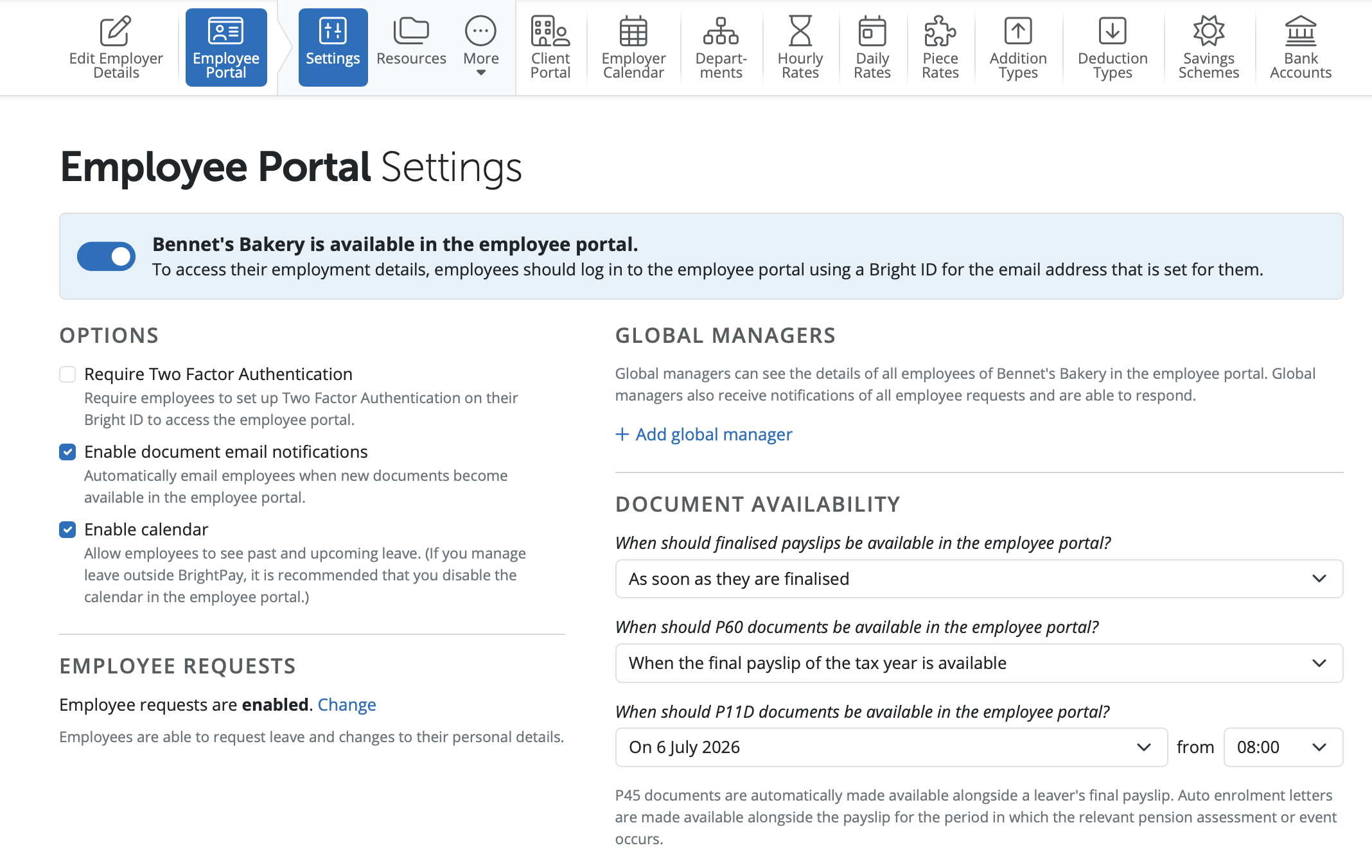
c) You can now assign a manager or multiple managers to all employees in this employer.
The Manager can be of of three types:
- Another employee of the same employer
- A member of the Organisation
- Someone outside of the Organisation that is neither an employee of the employer or a member of the organisation
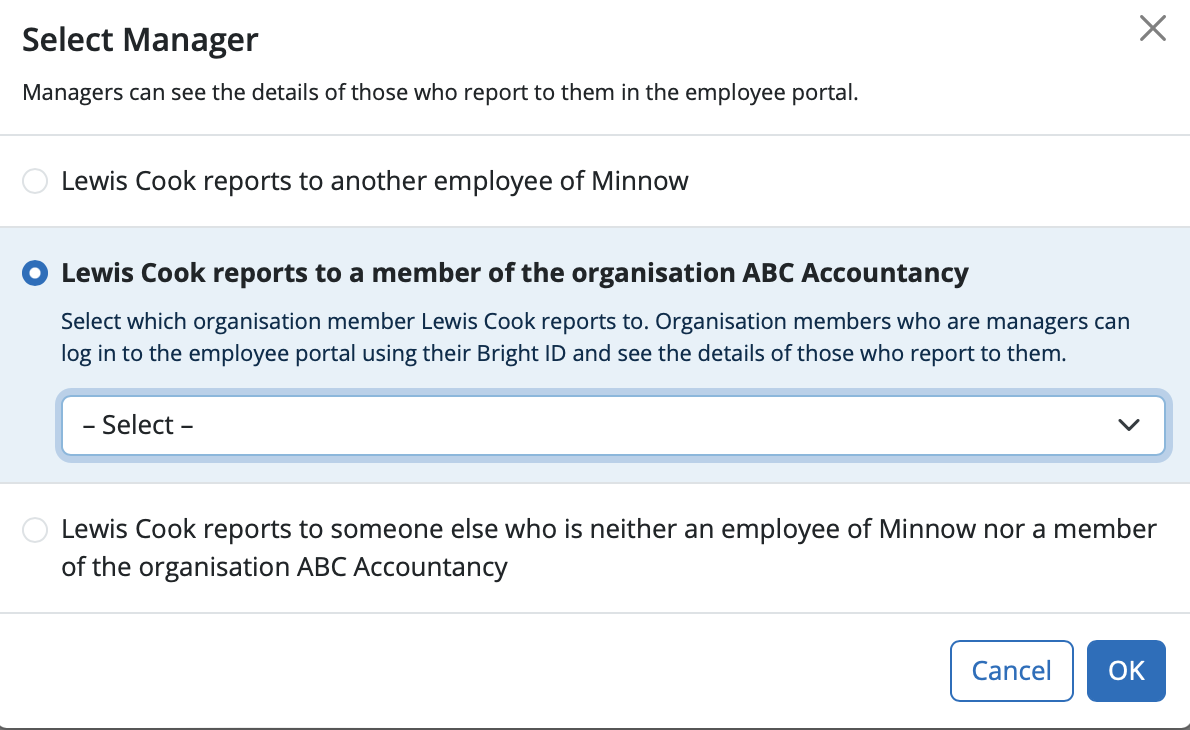
If a manager is required to approve holiday leave who is not an employee or member of the organisation, choose the last option 'reports to someone else who is neither an employee of [employer] nor a member of the organisation [organisation name]'. The user will then be able to view any employee's details who is an employee for the employer and approve / decline annual leave requests.
d) Select the Manager and click 'Ok'.
e) Select 'Save'
Repeat the process to add additional managers.
Managers can log in at employee.brightpay.com/manager
Note: Managers can only view / approve leave and cannot access payroll or approve payroll requests. Users would need to be set up as a client user to view payroll for employees.
FAQs
Q. I have an employee who I also need to set up as a manager. Can they use 2 different email addresses - ie their personal email address as an employee and their work email address as a manager to approve leave for other employees?
A. Yes, one person can have two separate accounts, one as a manager and one as an employee and these accounts can use two different email addresses if preferred.
Please note, If an individual is set up with two separate email addresses for employee and manager functions in BrightPay Cloud, they will have two separate logins (two BrightIDs). They must sign out and in with the appropriate credentials to switch between these roles.
Comments
0 comments
Article is closed for comments.