
To initiate migration to BrightPay Cloud from the desktop, download the current payroll data as a snapshot and upload it onto the cloud platform.
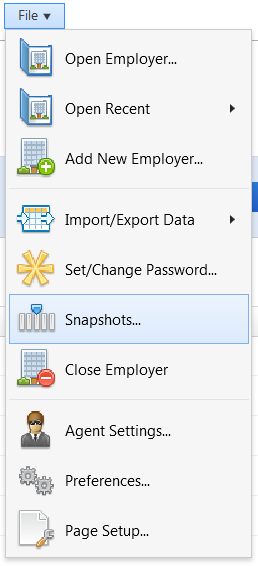
To download the snapshot on the desktop version please simply click on ‘File', followed by 'Snapshots’.
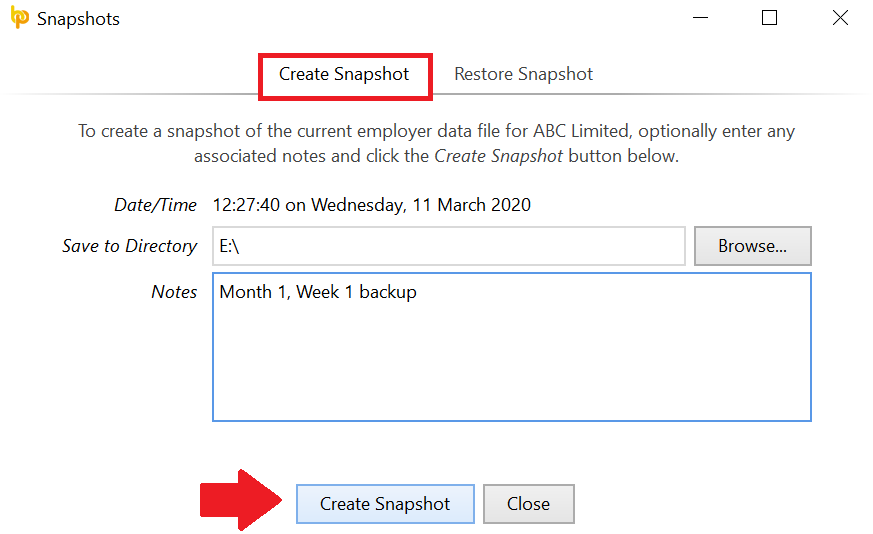
1) Within Create Snapshot, browse to the location where you would like the backup file to be saved.
2) If you would like to enter an associated note that could later assist in identifying a particular backup file, simply type your note in the 'Notes' section
3) Click ‘Create Snapshot’ to complete the backup process.
Once this is done, you can then open up your Cloud payroll and sign in.
The process involves importing your entire payroll file rather than individual CSV files, thus preserving payroll history. Note that some features differ between BrightPay Connect and the new Employee Portal in BrightPay Cloud, requiring new logins for employees. Please see the video below which outlines the full import from desktop to cloud.
When you first import your employer from BrightPay Desktop into BrightPay Cloud (for example, at the start of a new tax year), you will need to set up your payroll schedule in Cloud—your schedule cannot be imported directly from the desktop file from one tax year to another. Payroll schedules are only carried forward automatically when moving from one Cloud tax year to the next (e.g. Cloud 2025/26 to Cloud 2026/27).
Note: If you are getting an error or the file is failing to upload onto BrightPay Cloud, check in the desktop file if there is an employer logo in the Employer section. If so, remove the logo, save changes, close the file and try to import again. You can add the logo back into the employer on Cloud under the Employer section.
The backup 'snapshot' option is only available on BrightPay desktop and not in BrightPay Cloud.
RTI credentials do not automatically transfer from desktop employer files to BrightPay Cloud. These will need to be added again once the employer is on Cloud.
Important - From the 2026/27 tax year onwards, you will no longer be able to access BrightPay Desktop, run payroll, or export reports using BrightPay Desktop.
Comments
0 comments
Article is closed for comments.