If you need to remove a company (employer) from BrightPay, just follow these simple steps:
1. Log in to BrightPay using your BrightID credentials.
2. Click on Browse Employers — this is where all your companies are listed.
3. Find the company you want to delete and click on the Spanner icon to the far right (this opens a drop-down menu).
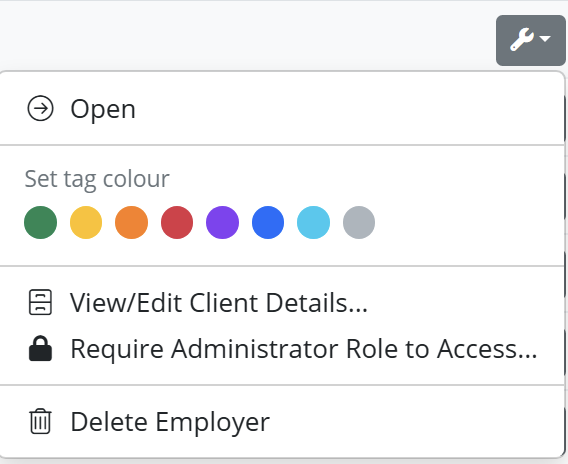
4. Select Delete Employer from the list of options.
5. When prompted, type CONFIRM in capital letters to verify you want to permanently delete the company.
6. After deleting, email paymentservices@brightsg.com with your organisation and company details to ensure billing is updated and you’re no longer charged for that company.
Important - You cannot archive a company, if you leave the company on your Organisation you will be charged for it, please remember, deleting a company can't be undone. Make sure you've exported any reports or payslips you need beforehand.
Note: If you have imported an employer/client twice into BrightPay Cloud in error, you can delete the duplicate employer by following the instructions above.
If you have deleted an employer in error, please contact the BrightPay Support team.
FAQs
Q. If I remove a client (Employer / company) from BrightPay Cloud, will I still have access to their information?
A. No. If you delete an employer from BrightPay Cloud, all data for that employer is permanently removed and cannot be recovered.
Before deleting, please be sure to download or export any reports, payslips, or other records you may need in future.
Q. If I delete an employer in 2026/27 tax year, will it delete the employer in previous tax years?
A. No. If you need to delete an employer in any tax year, it will only delete the employer in that specific tax year and will not effect previous tax years.
Currently, BrightPay Cloud does not offer a simple "archive" or "save" employer feature if the employer has been processed in the current tax year. The only direct options available are:
-
Delete the employer (which permanently deletes the data)
-
Move the employer to another organisation (if you need to remove it from your current list but retain the data):
You cannot move an employer directly between organisations. The only way to do this is to export the employer’s employee details to a CSV file and then import that CSV into the new organisation/employer record. Here are the steps : Moving an Employer from one Organisation to Another Mid-Year
If you want to delete or remove an employer from the 'Browse Employers' screen in BrightPay without having to import them into the new tax year first, you can simply hide importable employers:
- Go to the Browse Employers screen in BrightPay.
- Select the More Spanner icon
- Choose the option to Hide importable employers (from previous tax years).
- This will remove or hide employers from the list of importable employers, meaning you don’t need to import them into the new tax year to manage or delete them.
All previous tax years' data for that employer will remain within the applicable tax year and can be accessed by switching tax years.
If you really want to permanently delete the employer, you can use the “Delete Employer” option, but hiding importable employers is a way to remove them from the employer list without deleting them permanently.
Note: Any actions taken on BrightPay Cloud, such as deleting an employer in the current tax year, will not affect any employer data you previously processed on BrightPay desktop. BrightPay desktop and BrightPay Cloud are independent systems. Deleting an employer on Cloud does not erase or change any data on your desktop version—this information will remain accessible as long as you have the relevant tax year and employer data file saved on your computer.
If you delete an employer in BrightPay Cloud, payroll data and reports for the current tax year will no longer be accessible. Records from previous tax years will still be available. Before deleting an employer, we strongly recommend taking copies of all current tax year reports, payslips, and any other data you may need to refer to in future, as this cannot be recovered once the employer is deleted.
If you have deleted an employer or organisation in error and need to restore the record, please contact the Support team.

Comments
0 comments
Article is closed for comments.