
Inviting a New Member
A User with the status of Owner or Administrator can invite other Team Members to the Organisation. To invite a new member in the organisation:
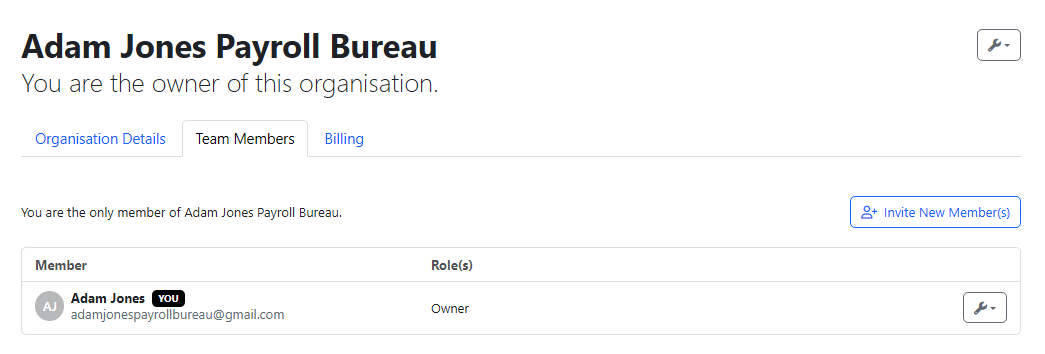
1) First select the Team Members tab under My Organisation.
2) Click the blue 'Invite New Member(s)' button at the right hand side of the screen
3) Select whether you would like to invite an 'Administrator', a 'Payroll Processor' or a 'Billing Manager'.
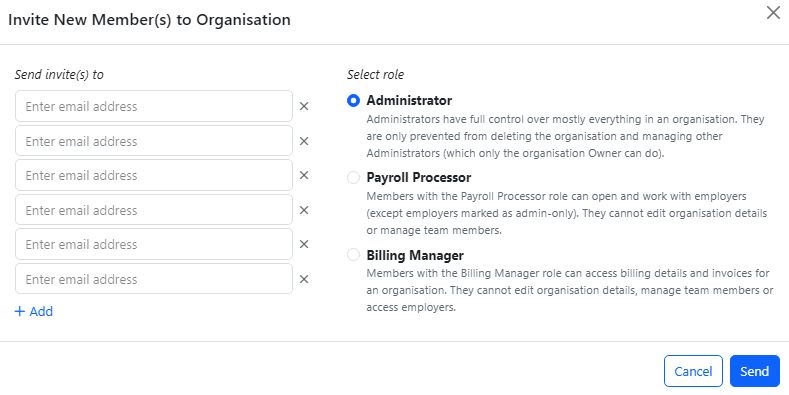
4) Enter in the email address(es) for the user(s) you wish to invite. You can invite multiple users for the same type of user in one instance.
5) Click 'Send'. You can see the status of the invitation has been sent to the new user.

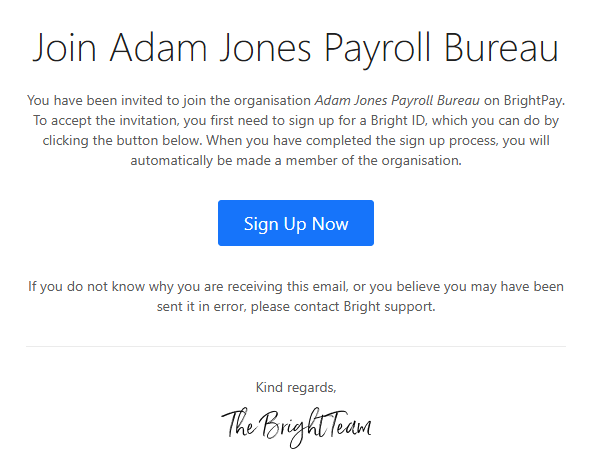
An email invitation will now be sent to the new user, asking them to confirm acceptance of the invitation and to sign up. The new user will need to sign up for a Bright Id and once signed up will be able to log into BrightPay. For help in signing up for your Bright Id please view here.
Important - You should only set up team members here if you're comfortable with them viewing or accessing all employers within your organisation. If you'd like a Payroll Processor or Billing Manager to have access to only one or a few specific employers, please set this up within the Employer - Client Portal section.
The Team Member in the Organisation can access the employer (s) on the Client Portal that they have permission to view in BrightPay.
Note: If you complete payroll for more than one bureau or organisation, you only need one device. As long as you have been invited by each organisation as a team member, all organisations will appear in your “My Organisations” list in BrightPay Cloud. You can switch between organisations using the same Bright ID login.
Comments
0 comments
Article is closed for comments.