
User Roles and Permissions
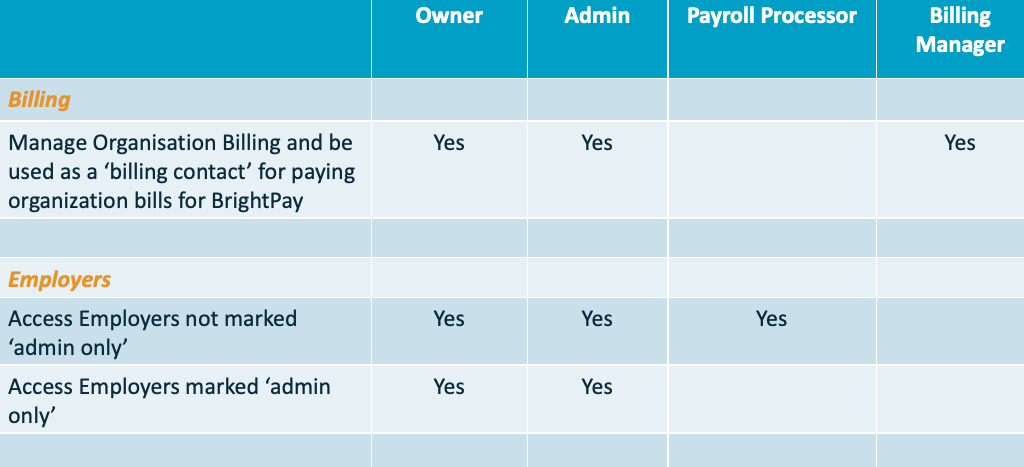
There are four types of Users with different permissions in BrightPay:
- Owner
- Administrator
- Payroll Processor
- Billing Manager
Please Note: The Team Member in the Organisation can access the employer (s) on the Client Portal that they have permission to view in BrightPay.
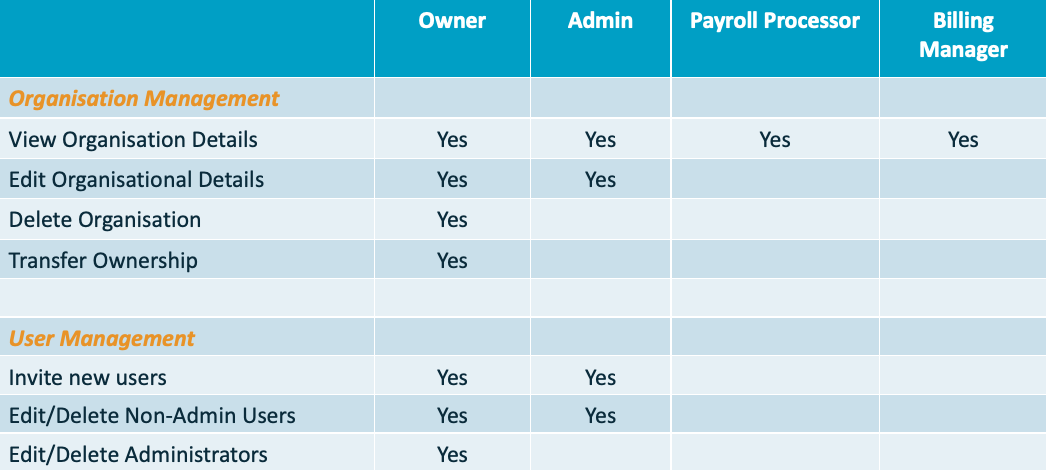
Note: If a user only needs to receive notifications for holiday (annual leave) requests and approve them, but must not have access to payroll data, they should be added as a manager (global or departmental), not as a team member. Only manager roles allow notification for leave requests without payroll visibility.
Administrators can see all employers within the organisation and cannot be restricted from viewing any employer. If you want to keep an employer private from a specific user, assign them the payroll processor role instead. Then, for the employer you wish to hide, enable the option ‘requires admin role to access’ so only administrators can see it. This allows for selective access control among payroll processors, but not administrators
FAQs
Q. Why does one of my employers have a lock sign / padlock next to their name?
A. The padlock (lock sign) next to an employer's name means that the payroll data is restricted to Administration access only. Only team members who have been set up as Administrator (and the organisation owner) in BrightPay can access this payroll. Payroll processors will not be able to view this employer.
Q. As a bureau, can I add a user to just one employer’s payroll so they cannot see my other clients?
A: Alternatively, you can add them as a Standard/Super User to the Client Portal for that specific employer only.
- Client Portal users can be restricted to a single employer’s payroll data.
- They will not be able to see your other clients or employers.
- To keep their access limited, do not assign them as an Organisation Owner or Administrator, as those roles have access to all employers.
For step-by-step instructions, see:
Adding Users for the Client Portal
Comments
0 comments
Article is closed for comments.