
To access this utility, go to Employees > Select Employee from listing > HR, Other. Complete the HR, Other section as follows:
Employee Self Service Portal Access
Enable access to the employee portal by selecting the tick box. This allows the employee to access their employment for their employer in the employee portal.
Job Title
Enter the employee’s job title, if applicable.
Document Password
If the employee wishes to receive password protected payslips or their P60 by email, enter the password that will be needed by the email recipient in order to open and view these attachments when received.
This password is usually set by the employee and can be a combination of letters and numbers.
Next Review Date
Enter a review date as a reminder that a review is pending.
Nationality
Enter the employee's nationality, if known. This is an optional field.
Passport number
If you have reviewed the employee's passport number as part of checking that they have the right to work in the UK, enter their passport number in the field provided. This information will subsequently be included in your RTI submissions.
Marital status
If known, select the employee's correct marital status from the drop down menu.
Job Title
Enter the employee’s job title, if applicable.
Medical
Enter any medical information relating to the employee, if known.
Notes
Enter any other notes of importance in this section.
Emergency Contact
If desired, click to add emergency contact details.
To add a further set of emergency contact details, click Add Emergency Contact and repeat the process. If more than one set of contact details are added, specify which is to be the primary emergency contact.
Confidential
Tick this option to prevent Managers or Users without the requisite permission from viewing this employee's information and pay details on BrightPay's Manager Portal and Client Portal
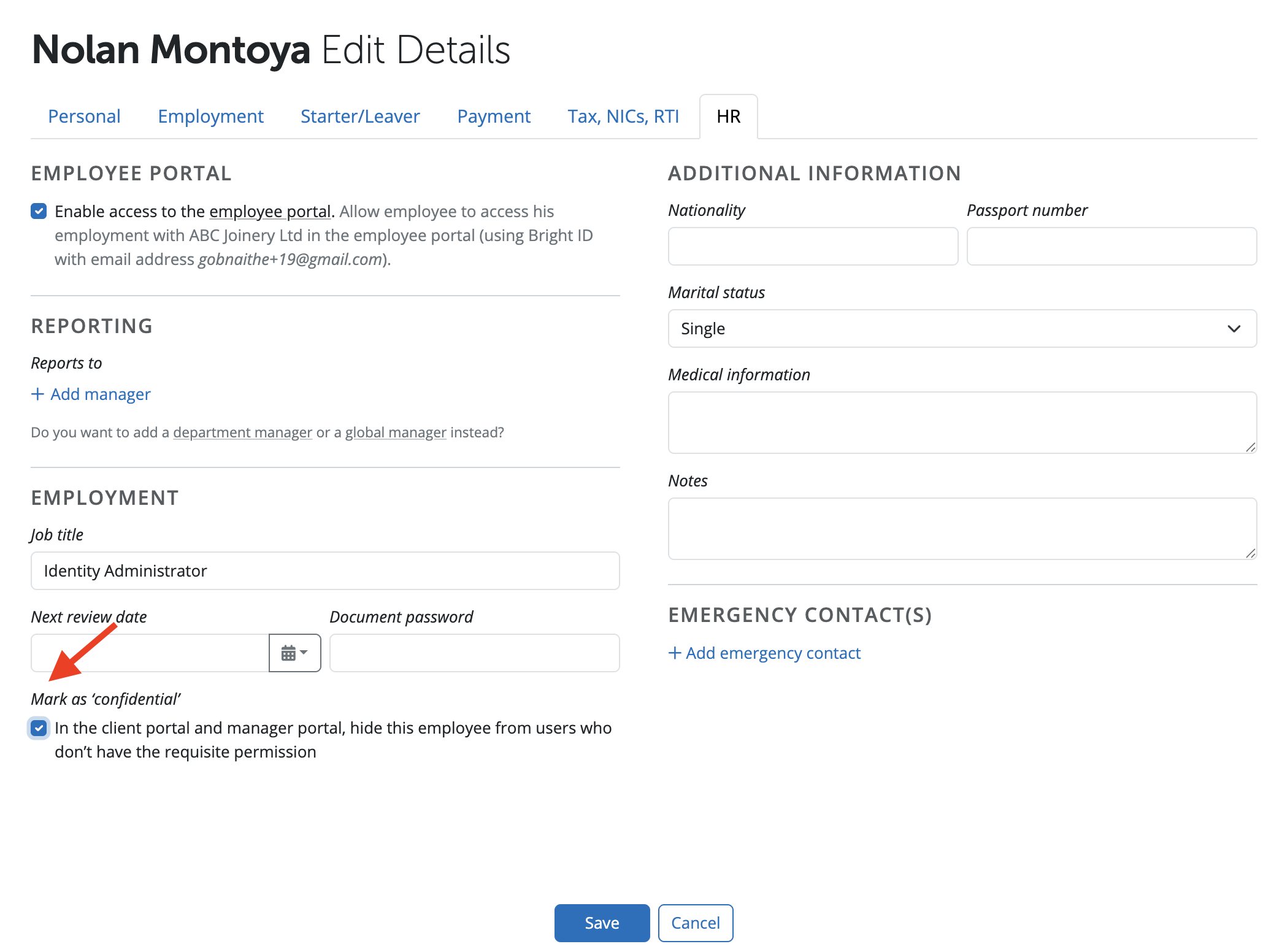
YOUR EMPLOYEE RECORD IS NOW COMPLETE. CLICK 'SAVE' TO SAVE THE EMPLOYEE RECORD.
Note: BrightPay is a payroll software only and does not offer a linked or standalone HR package. If you require HR software, this would need to be sourced separately as it falls outside of what BrightPay provides.
Comments
0 comments
Article is closed for comments.