
Employee works numbers can either be entered manually or the software can be instructed to automatically generate these for you.
Manual Entry of Works Numbers
To enter a works number manually, within 'Employees':
- choose the employee from the left-hand listing to access their employee record
- enter their works number within their 'Employment' section
- Save
Auto-Generation of Works Numbers
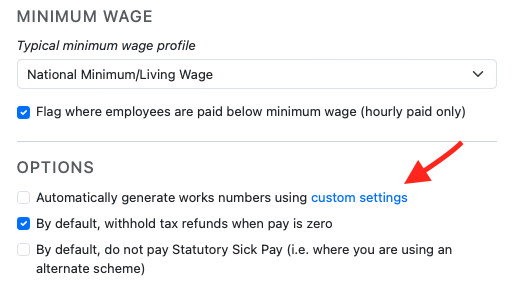
Should you wish the software to automatically generate works numbers for you using your own custom settings, this option can be set up within Employer > Edit Details > Typical Employee:
- Tick the box to indicate you wish the software to automatically generate works numbers for you
- Click the 'custom settings' link
- Use the fields provided to define how your auto-generated works numbers should be formatted:
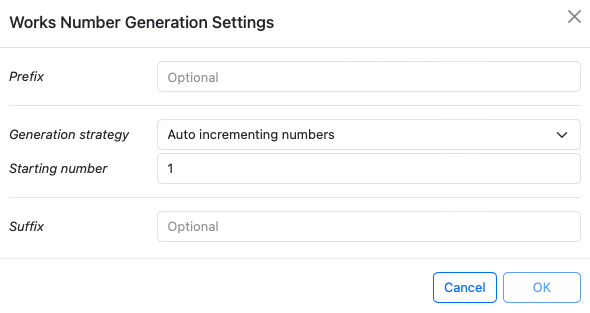
- Click 'OK', followed by 'Save'
The next employee record you set up in the software will now see the auto-generation settings applied:
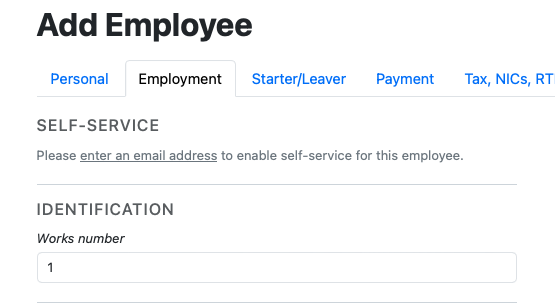
Please note: on customising your settings, these will only affect newly generated works numbers going forward - existing works numbers will not be changed.
Displaying Employees using Works number:
To sort employees by Works Number, use the dropdown option under 'Order employees by' and choose 'Works number'. Save changes.
Note: The Works Number in BrightPay is an employer-only internal identifier and is not reported on the Full Payment Submission (FPS) and it has no impact on your HMRC submissions whatsoever.
The Works Number field can be left completely blank in BrightPay as it is not a requirement. Most employers choose to use it simply for their own internal payroll identification purposes, but it is entirely optional and can be changed at any time without any consequence for HMRC.
To update a Works Number: go to Employees > select the employee > Employment tab and edit or clear the Works Number field as needed.
The field that does matter for HMRC submissions is the Payroll ID — this is what HMRC uses to track PAYE and National Insurance per payment period and must be unique for each employment record.
It is possible to use the 'customise' option when generating payslips to show an employee's work number on the payslip. If you are an employee and cannot see your works number on the payslip, you would need to ask your employer directly as this is an optional field with BrightPay and for employer internal use and not a HMRC requirement.
Comments
0 comments
Article is closed for comments.